


New article
Recently updated
Unlocking your account after multiple failed login attempts

Who is this article for?
Users who find they are locked out.
Administrator permissions are required.
If you enter your password incorrectly too many times, your account will be locked for security reasons and you can restore access by resetting your password.
1. Identifying a locked account
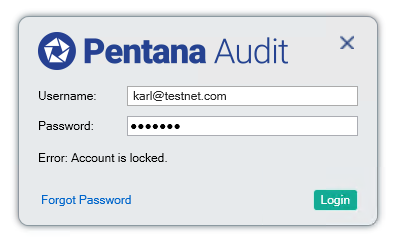
When your account is locked, you will see different messages depending on how you sign in:
- Desktop application: "Error: Account is locked"
- Web UI: "Your account has been locked. Please reset your password."
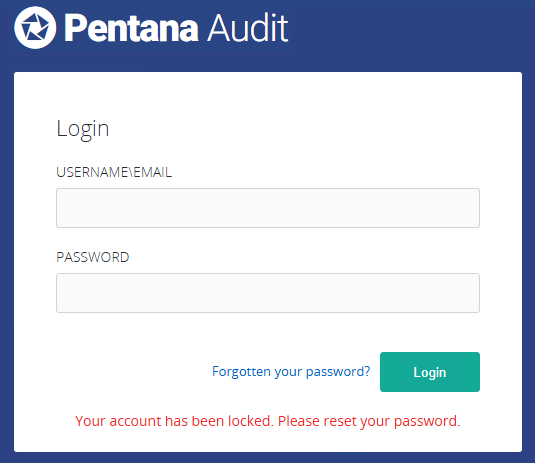
In both cases, you will not be able to sign in until your password has been reset.
2. Resetting your password to unlock your account
To unlock your account and regain access, follow these steps:
- On the login screen, click Forgot Password.
- Enter your email address.
- Submit the form.
- Check your email for a password reset message.
- Click the link provided in the email.
- Enter your new password.
- Confirm your new password.
- Click Reset Password.
You will see a confirmation page indicating that your password has been changed successfully.
Important: Do not click Home on the confirmation page, as this will take you back to the password reset page.
3. Signing in with your new password
Once your password has been reset, sign in again using either:
- The desktop application
- Your usual link to the web UI
If you continue to experience issues, contact support for further assistance.