


New article
Recently updated
Restoring access to a de-activated user

Depending on the type of user you wish to restore, go to the Staff or Contacts screen. Expand the [Filters] panel at the top of the screen.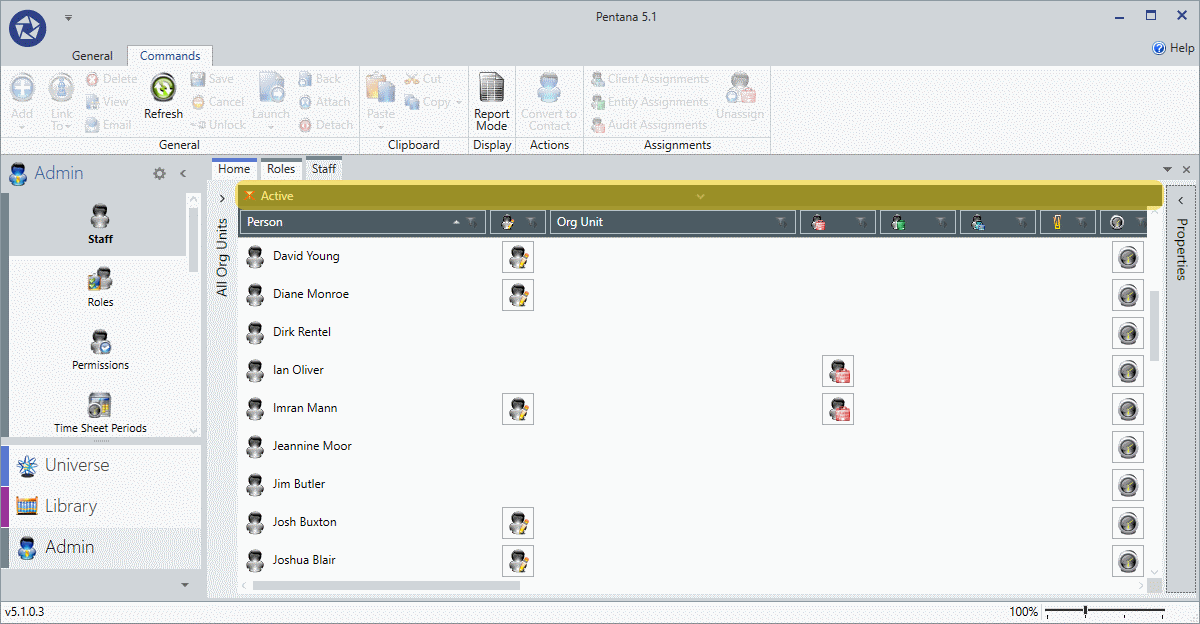
On the [Pre Filters] section > select Active > check the False field and uncheck True > select [Apply].
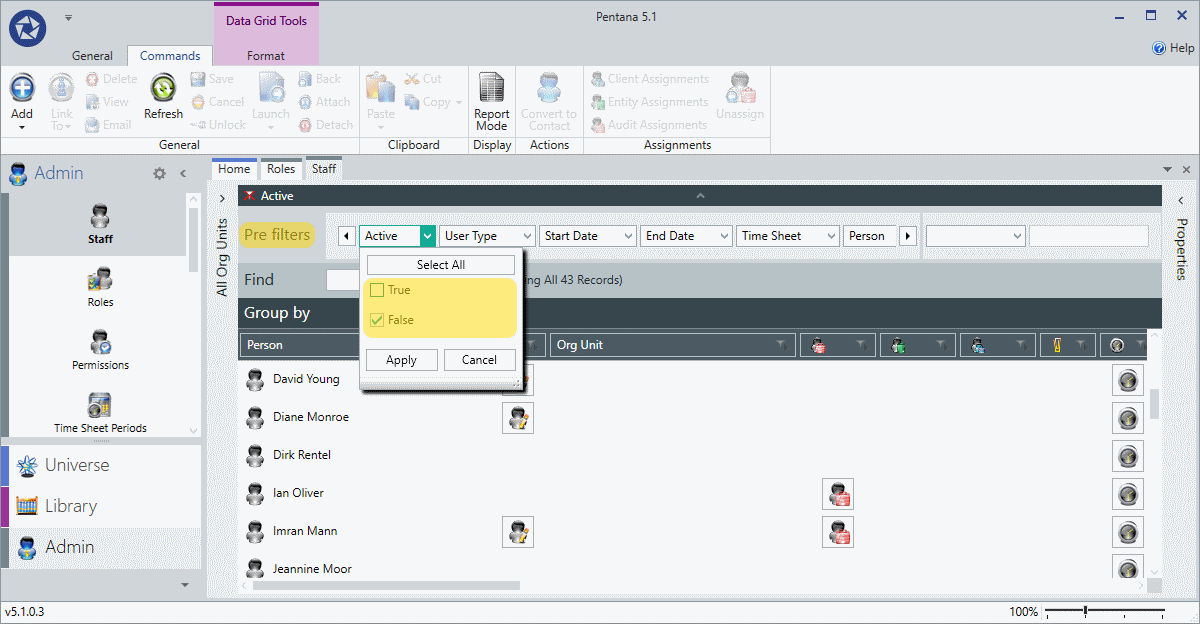
The screen will now refresh, listing only those users who are currently inactive (note the filter at the top of the screen now states NOT Active). Left-click on the respective user record you wish to restore and expand the [Properties] panel on the right-hand side of the screen.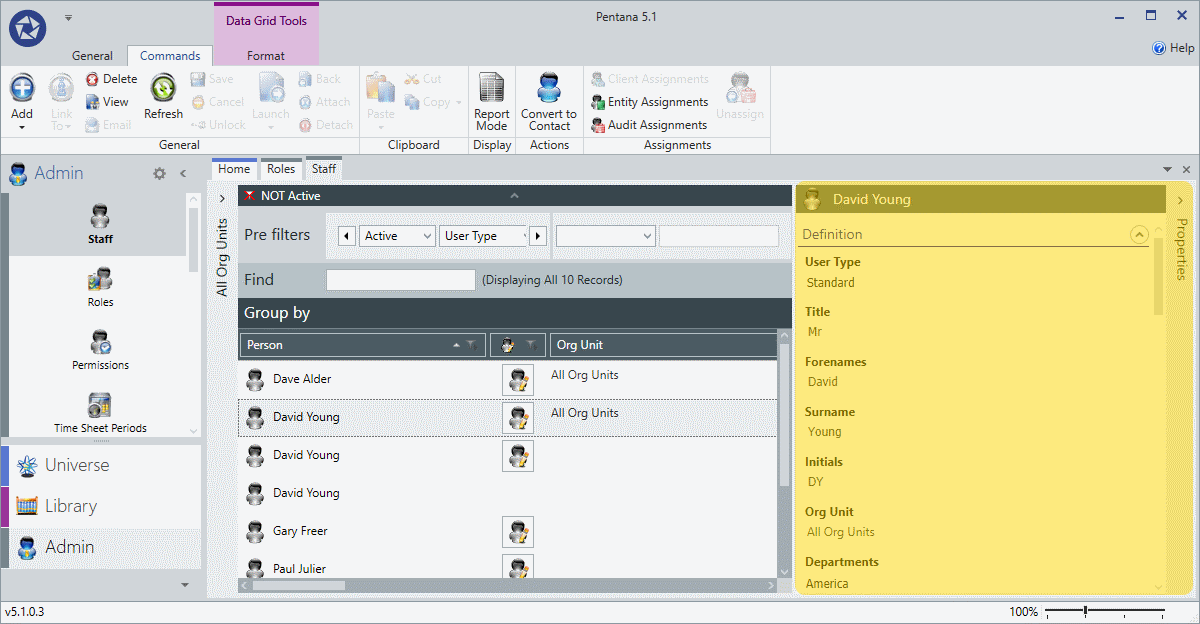
Scroll down the [Properties] panel until you reach the Active field. The field should currently show a  icon, stating the user is currently inactive. Click on this icon and it will change to a
  for an active user.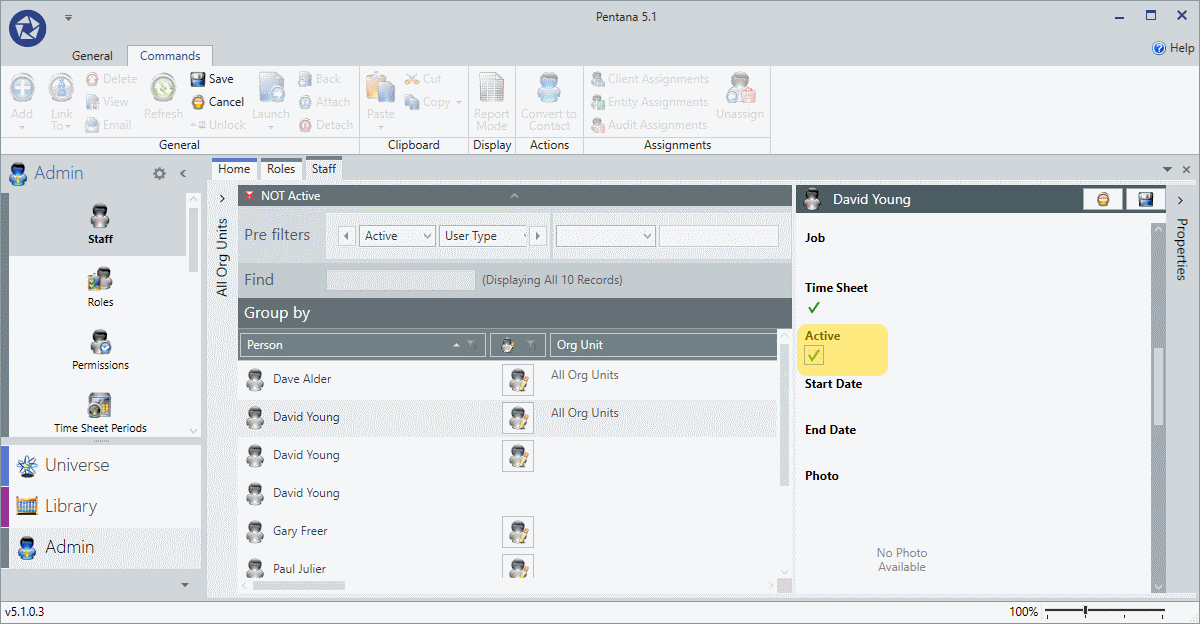
Select the [Save] button to save the change. The user should now be re-activated and able to log into the application again.