New article
Recently updated
Saving Analysis Charts to PDF

This article assumes the starting point for the below steps is an "Analysis" page, the below steps are relevant for every "Analysis" page within Ideagen Internal Audit (Aura).
Step 1:
On the respective Analysis page set up the desired Chart and formatting.
Step 2:
Click the "Chart" window in the top half of the page. NB: This is so the Print Preview knows which half of the screen you would like to print.
Step 3:
Click the [Pentana Icon] in the top left corner of the application, then select the [Print] option
Step 4:
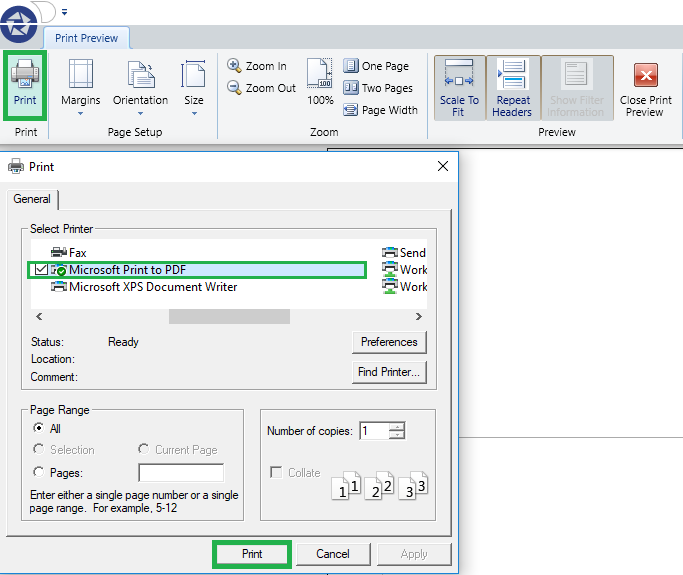
This will now take you to the "Print Preview" screen, click [Print] in the far left of the ribbon to open up the "Print" window. Now you should be able to select the [Microsoft Print to PDF] printer which will save the chart as a PDF file.
Step 5:
Step 5:
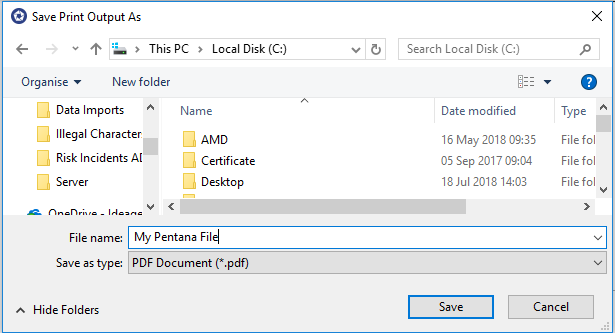
If you now hit [Print] within the "Print" window above, this will now give you the option to save the file in a specified file location. Enter the desired file name e.g. "My Pentana File.pdf" and click [Save] to complete this.