


New article
Recently updated
Managing organisational units

Who is this article for?
Users responsible for managing organisational units.
No special access or permissions are required.
Organisational units (org units) represent the structure of your organisation within Universe, allowing you to organise and manage auditable entities in a hierarchical data tree.
This article explains them in more details and walks you through the process of creating, configuring, and deleting them.
Overview
When you create a new entity, you must assign it to an org unit within the structure. The org units appear as a data tree on the left of the screen, providing a graphical view of your organisation's structure and its various auditable entities.
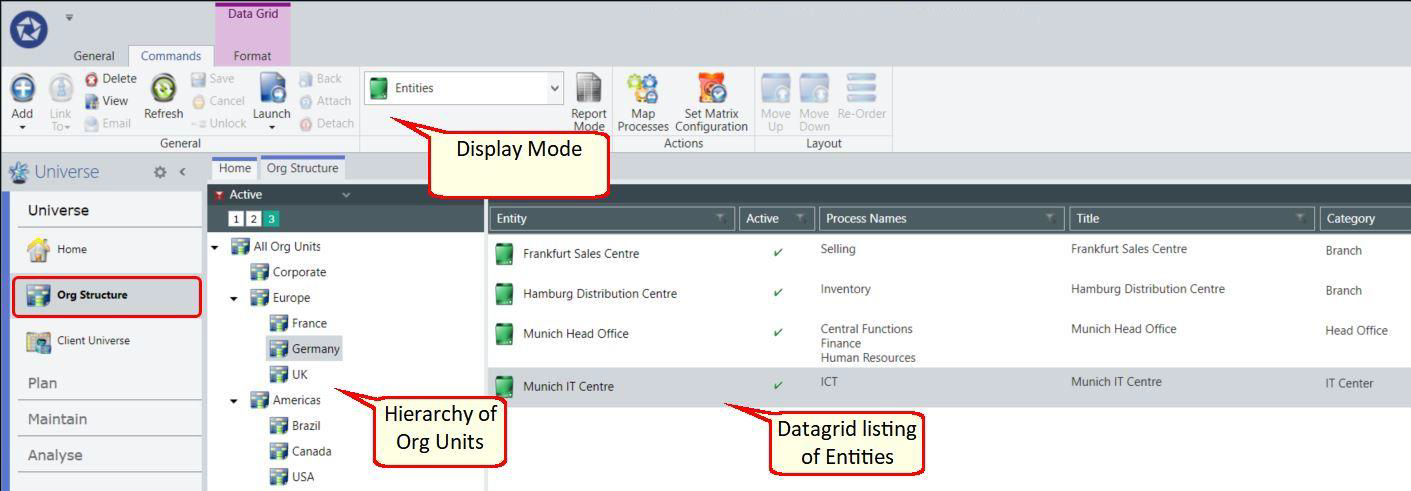
You can change the display mode between Entities and Org Units for reporting purposes and to add attachments where necessary.

Creating an org unit
To create an org unit:
- Go to Universe.
- Select Org Structure.
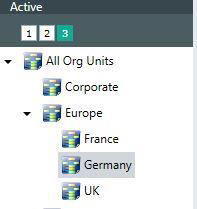
- Left-click in the org unit navigator window.
- Use your mouse to select the location within the data tree.
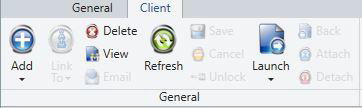
- Select Add from the general toolbar in the ribbon.
You may also right-click your mouse and select Add from the drop-down menu.
Configuring org unit properties
To configure the org unit properties:
- Fill in the org unit details in the properties panel.
- Choose the Parent to place the org unit in the hierarchy.
- Set the Order among sibling items.
- Enter a unique Name (mandatory).
- Select a Colour for charts.
- Add a Description if needed.
- Toggle Active to enable or disable the org unit (only active units are included in planned audits).
- Toggle Retired to deactivate the unit and its children at once.
- Pick a Configuration from the parent or local matrix options.
- Save your changes.
Note
A mandatory property field will be shown by the Alert icon.
Important
If the same configuration value appears, changes will cascade to all child org units and entities but won't override existing lower-level configurations. Any matrix configuration change will clear current assessments and relevant open audits, and this clearing cannot be undone.
Use the re-order functionality to quickly change the order of your lists.
Assigning a business owner
Selecting a person as the business owner of an org unit will cascade and update all the child areas and entities.
Deleting an org unit
To delete an org unit:
- Go to Universe.
- Select Org Structure.
- Highlight the org unit you wish to delete.
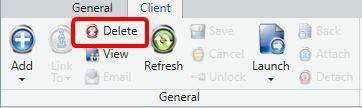
- Select Delete from the general toolbar in the ribbon.
You may also right-click your mouse and select Delete from the drop-down menu.
Note
You can only delete an org unit if the process area is inactive and not in use.