


New article
Recently updated
Creating and managing entities

Who is this article for?
Administrators responsible for managing entities.
Administrator access is required.
An entity is anything that can be audited, including corporate level entities, branches, departments, physical locations, projects, processes, or legal entities.
Overview
Entities are the main components of a company and can be arranged in a hierarchy represented by a data tree. Examples of typical entities include:
- A department (e.g. IT Department)
- A place (e.g. Birmingham Office)
- A legal entity (e.g. Small Co Ltd)
Each entity may be mapped to one or more processes. The mapped processes act as the highest level of the entity risk register, and the scope of audits are defined with reference to the entity/process combinations.
An audit can be any type of assignment in which work is performed, such as cyclical audits, risk reviews, system reviews, or fraud investigations. Audits are carried out on processes mapped to the entity.
Creating an entity
To create an entity:
- Go to Universe.
- Select Org Structure.
- Left-click in the entity window.
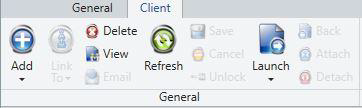
- Select Add from the general toolbar in the ribbon. (You may also right click your mouse and select Add from the drop-down menu.)
- Complete the entity information in the properties panel:
- Org unit - assign the entity to an org unit
- Ref - give the entity a reference
- Title - give the entity a title (which will appear in the entity window)
- Type - a segmentation list to standardise values. Planning Risks may be associated to the Entity Type and Process Type
- Description - give the entity a description for any additional information
- Category - a segmentation list to standardise values
- Business Owner - a Contact or Staff. (The Entity Business Owner is the person in the business, and therefore usually from the Contacts list, who is responsible for that entity. It is perfectly acceptable to leave this blank, and hide the field if you do not use it. In the optional web module, the My Entities widget shows those entities where the user is the Business Owner of the Entity.)
- Owner - assign a person who acts as the owner for the entity. (The Entity Owner is always from the staff list, and is the member of staff responsible for this entity. It is perfectly acceptable to leave this blank, and hide the field if you do not use it. The owner field also determines the Read permission for Entities when the permission in your role is set to Assigned. The My Entities widget on the Home screen lists those entities for which you are the Owner.)
- Active - select whether the entity is active or not; only active entities can participate in the scope of planned audits
- Retired - allows Entity/Processes to remain Active but prevent new items (e.g. Actions) from being linked to them
- Exclude - ability to define dummy Entities/Processes that are excluded from Planning Periods, Audit Coverage and when setting Audit/Key Issue/Incident/Problem scope. These are still shown for mapping Entity/Processes, Client Universe, Action/Incident Tracker, Risk Exposure and Control Coverage screens
- Processes - you can assign processes to the entity (see Entity and Process Mapping)
- Weight - Weight associated to the item during roll-ups
- Budget Effort - (read only) an automatic calculated sum of all the budget effort from your client universe for the entity
- Configuration - options will include the Group Matrix Configuration or any of its local matrix configurations. Please note that any change in the Matrix Configuration will clear all current assessments from the Entity and relevant Open Audits. The clearing of current assessments cannot be reversed once made
Note
The Set Scope (which is used for audits, incidents, key issues, and problems) will hide items which are Retired.
Deleting an entity
To delete an entity:
- Go to Universe.
- Select Org Structure.
- Left-click to select the entity you wish to delete.
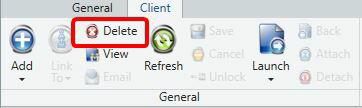
- Select Delete from the general toolbar in the ribbon.
You may also right click your mouse and select Delete from the dropdown menu.
Important
You cannot delete an Entity that is Active and being utilised for records. You can mark an Entity as Retired which will prevent new audits being scoped to it.
Entities can only be deactivated if:
- All linked Audits are closed
- All Entity ORCT are closed
OrgUnits can only be deactivated if all linked entities are closed.
Making entities inactive
When you want to make an entity inactive, you may get the message: You cannot make the combination of entity and process inactive because it includes active items.
To mark an entity as inactive, you must first ensure that all:
- Audits linked to that entity are Closed
- Incidents linked to that entity are Closed
- Key Issues linked to that entity are Closed
- Entity Objectives linked to that entity are Closed
- Problems linked to that entity are Approved
- Findings linked to that entity are Approved
- Actions linked to that entity are Approved
Important
Making an Entity inactive removes all mapped processes.
Working with entities
Once an entity has been created, you may launch it by using the general toolbar in the ribbon.
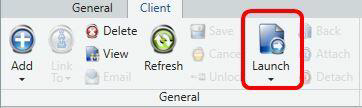
This will open the entity work screen where you may manage the entity risk and controls. Double-clicking an entity will launch it to the Entity Work screen.