


New article
Recently updated
Mapping entities and processes

Who is this article for?
Users needing to map an entity or process.
No elevated permissions are required.
Entity and process mapping creates a matrix of nodes that potentially require an audit. You can perform audits with respect to an individual process (for all relevant entities), an individual entity (for all relevant processes), or a combination of potentially auditable nodes.
Mapping an entity to a process
To map an entity to a process:
- Go to Universe.
- Select Org Structure.
- Select either an org unit or entity.
- Select Map processes from the actions toolbar in the ribbon.

- Use the 1, 2, 3 buttons to expand the detail to a particular level of the hierarchy.
- Click individual row or column headers to expand and collapse sections.
Note
There is the potential to overwhelm the screen if you try to display too much information. Use the appropriate navigators to display only the records required.
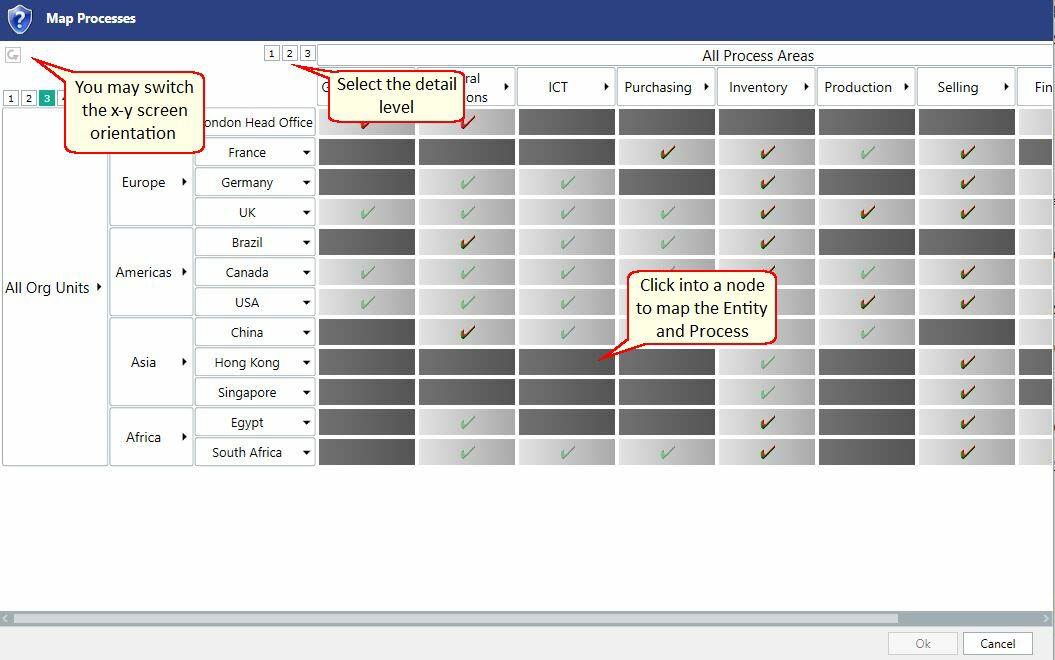
- Tick a cell to create mappings for the corresponding entities and processes.
- Click OK to close.
Tick indicators
Each tick has a unique meaning:
- faint green tick indicates that not all the cells within the roll-up are selected
- bold green tick indicates that all cells within the roll-up are selected
- faint red tick indicates that not all cells within the roll-up have an open or draft audit
- bold red tick indicates that all cells within the roll-up have an open or draft audit
Tip
Long entity or process names will wrap or be truncated automatically. Use the tooltip to see the full name. For multiple hierarchy levels, matrix row headers may occupy most of the screen. Adjust column sizes to maximise screen space.
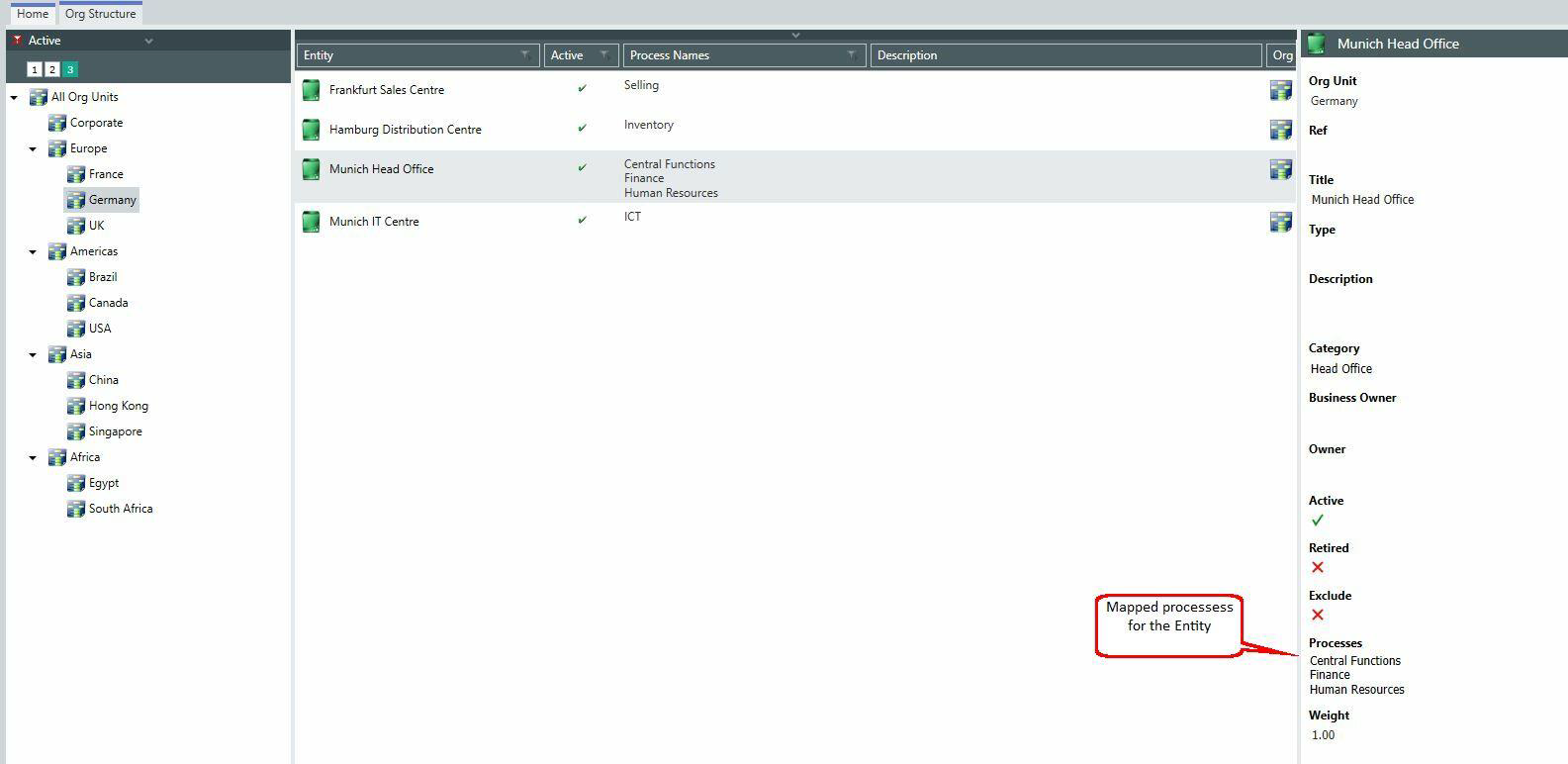
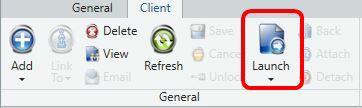
Launching entity work
To launch an entity:
- Go to Universe.
- Select Org Structure.
- Select the entity you want to work with.
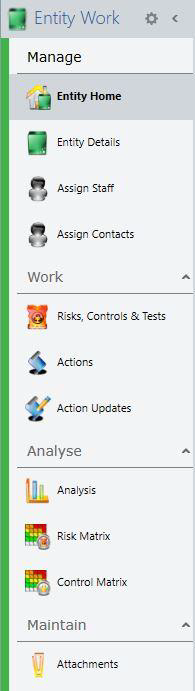
The entity work navigational pane allows you to navigate to the entity details and related information.
Configuring entity details
When working within an entity, use the properties panel to view or modify the field values:
- Org Unit - assign the entity to an org unit
- Ref - give the entity a reference
- Title - give the entity a title (which will appear in the entity window)
- Type - link to the Entity Types segmentation
- Department - link to the Departments segmentation
- Description - give the entity a description for any additional information
- Category - link to the Entity Categories segmentation
- Business Owner - assign a contact or a staff member
- Owner - assign a person who acts as the owner for the entity
- Active - select whether the entity is active or not; only active entities can participate in the scope of planned audits
- Retired - allows entities and processes to remain active but prevent new items (for example, actions) from being linked to them
- Exclude - define dummy entities and processes; these are automatically excluded from management screens such as Audit Coverage and Risk Exposure and provide a container for analysis and tracking of findings and actions that would otherwise be unassigned
- Processes - assign processes to the entity (see Mapping entities and processes)
- Weight - weight associated to the item during roll-ups
- Budget Effort - (read only) an automatic calculated sum of all the budget effort from your client universe for the entity
- Configuration - options will include the Group Matrix Configuration or any of its local matrix configurations
Important
Any change in the matrix configuration will clear all current assessments from the entity and relevant open audits. The clearing of current assessments cannot be reversed once made.