New article
Recently updated
Customising the Entity Home dashboard

Who is this article for?
Administrators responsible for setting up dashboards.
Administrator access is required.
Entity Home is an optional default screen that displays when you start entity work, providing a dashboard with customisable widgets.
Adding widgets
To add a widget:
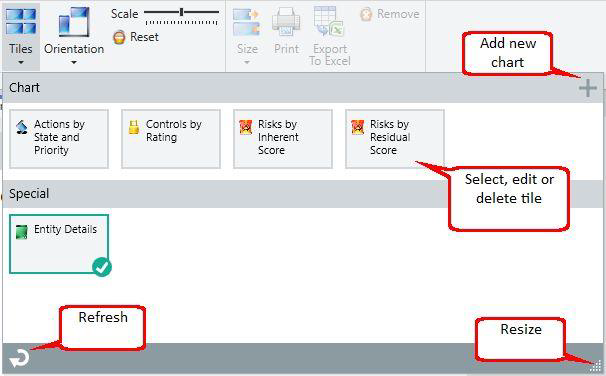
- Open the Tiles selector.
- Click on the required widget from the Charts or Special groups.
Removing widgets
To remove a widget:
- Select the widget you want to remove.
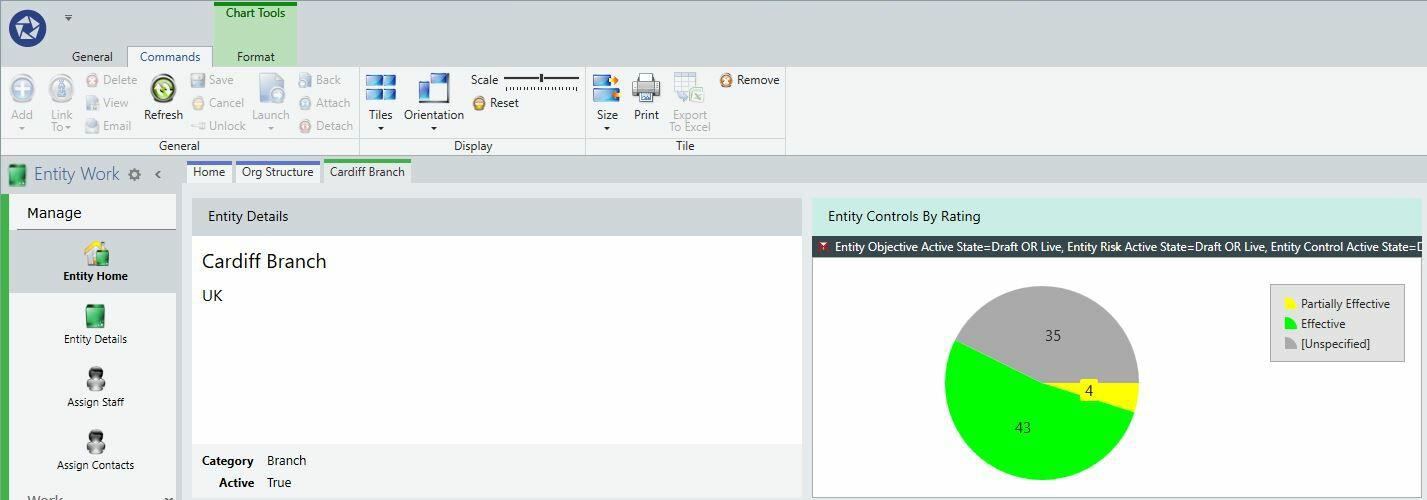
- Click Remove from the ribbon.
Note
Widgets can only be selected once and can be easily added or removed as needed.
Launching analysis from widgets
To launch the corresponding analysis:
- Select the widget.
- Click Launch on the ribbon to open the analysis in a new tab.
Alternatively, double-click the widget portion of the tile (not the header bar) to launch the analysis. - Use the standard analysis functionality to show records on the data grid.
Important
If you are upgrading, you will need to close and reopen the widgets to enable the launch feature.
Note
In a few cases, the full filter may not pass to the chart in the analysis screen due to underlying system defaults.
Customising widgets
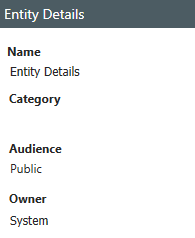
Each widget has properties that you can edit, including its name and visibility settings (private, public, or global).
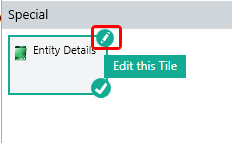
To customise your widgets:
- Move widgets using drag and drop.
- Resize widgets from Small, Medium, Wide, Large, to Extra Large.
- Flip orientation between Horizontal or Vertical.
- Scale the dashboard to fit your screen size.
- Print or export widgets if applicable.
Note
When not saved as a view, the layout is saved automatically. Views can be loaded and saved for future use.
Refreshing widgets
Click Refresh to update widgets and their displayed data.
Note
The Refresh function does not update My Open Items, Manager's Audits, or My Entities widgets.
Creating chart widgets
A Format tab is available for graph widgets, enabling you to customise the display of legends, titles, and axis values.

To create a custom chart widget:
- Open the Tiles selector.
- Click the + icon in the top right corner.
- Select the required perspective for your new chart.
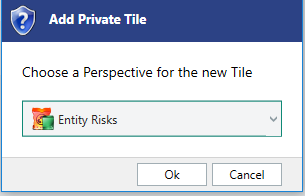
- Use the Chart Data and Format tabs to select categories and aggregation.
- Configure how you want your chart to look.
- Edit the chart properties before saving.
Note
Charts are set to private by default but may be shared with other users. For more information on available chart options, see the Analysis documentation.
Available widgets
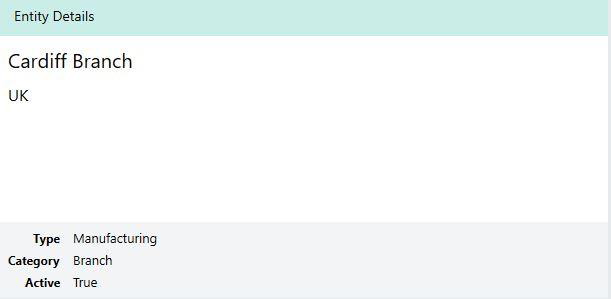
Entity Details
This widget provides read-only basic information about the audit, including name, organisational unit, entity type, entity category, and active status.
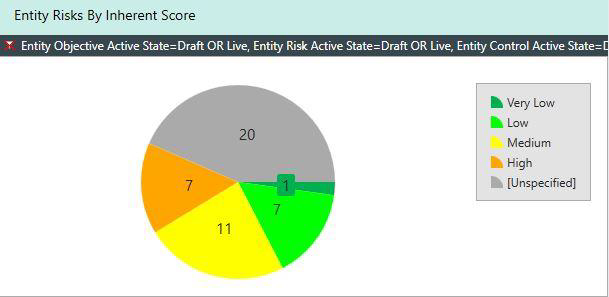
Entity Risks by Inherent Score
Displays entity risks categorised by their inherent score.
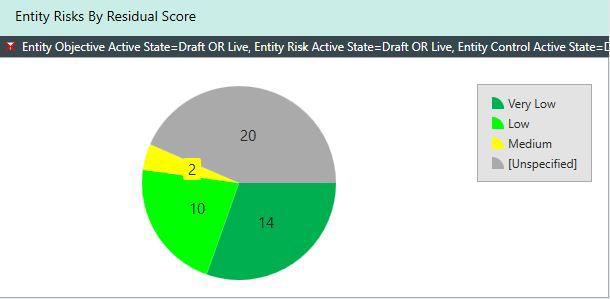
Entity Risks by Residual Score
Displays entity risks categorised by their residual score.
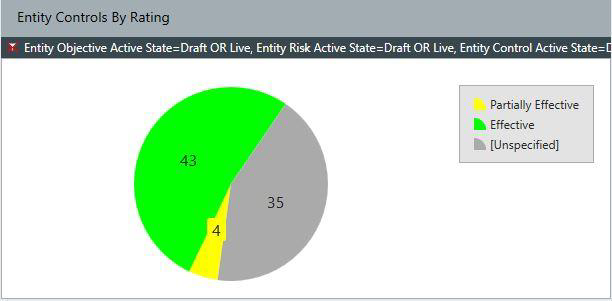
Entity Controls by Rating
Shows entity controls organised by their rating.
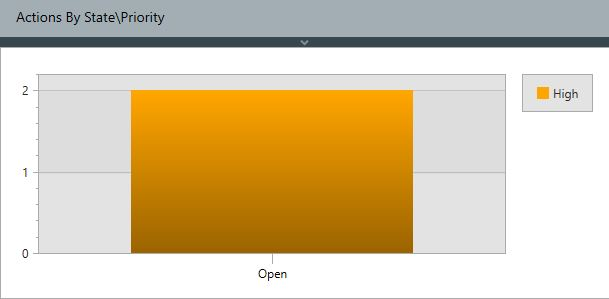
Actions by State and Priority
Displays actions categorised by their current state and priority level.