


New article
Recently updated
Using the Risks, Controls and Tests display mode

Who is this article for?
Administrators managing entities.
Administrator access to the Universe module is required.
The Risks, Controls and Tests display mode allows you to review and document Objectives, Risks, Controls, Tests and Samples for each process within an Entity.
Navigating the toolbar
The display toolbar in the Ribbon updates the screen to the chosen perspective. Right-clicking a record in the Data Grid opens a menu for quick actions like add, delete, get, update, copy, paste, and sign off.
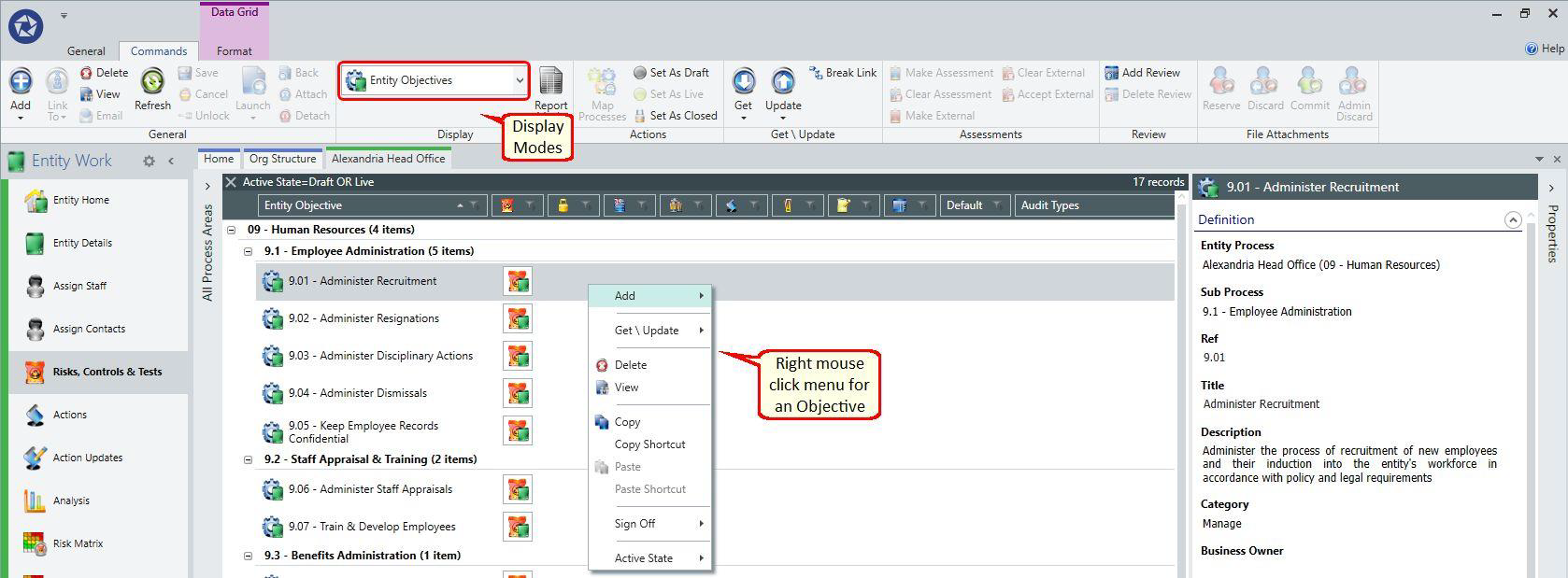
Adding new records
You can add new records by creating them manually or using the Get from Library or Get from Entity functionality. The mapped processes for the entity ensure that only valid selections are created.
You can also capture Risk and Control Assessments over time and define the Tests that will need to be executed when performing Audits of the entity.
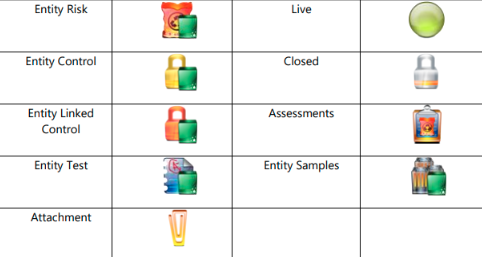
Understanding icon overlays and library links
The system distinguishes between records added manually and those retrieved from the Library using icon overlays. Records from the Library are linked back to their source and display the Guidance. A gold star in the top left corner indicates a record is linked to the library.

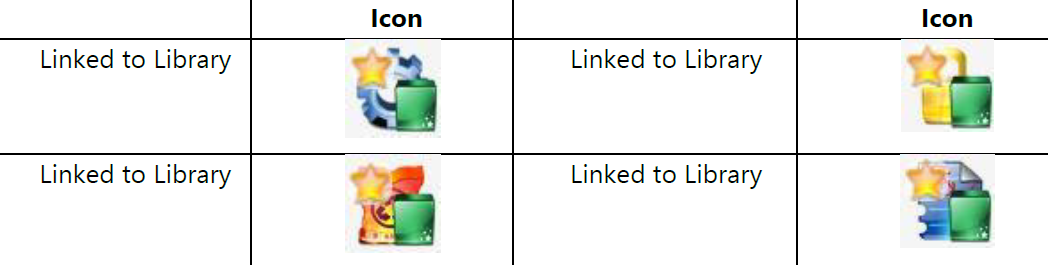
To break the link between a record and its corresponding Library item:
- Use the Break Link command.
- The icon will revert to the standard image as if the item was added in the Entity.
Important: This is an irreversible process and is not allowed if the item is also Locked.
Configuring screen layouts
The screens can be highly configured using the Data Grid, and you can save the layout using the Views functionality.
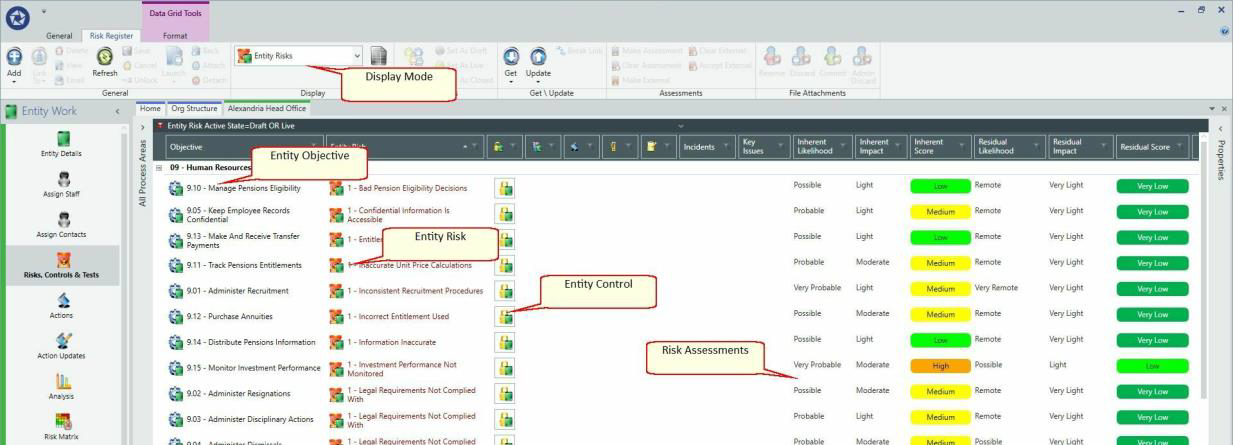
Creating an entity risk register
The main route to create an Entity register is by selecting Objective templates and their associated Risks, Controls & Tests from the Risks, Controls & Test Library. This method helps to standardise your registers across the organisation and processes, and aids analysis.
Additionally, Objective, Risk and Controls may also be imported from other Entities and Audits.
To create an entity risk register using the Library:
- Go to Entity Work.
- Select Risks, Controls & Tests.
- Select Get From Library from the ribbon.
- A dialogue window displays the corresponding library objectives, risk and control templates (this list is defined by matching to the mapped processes for the entity).
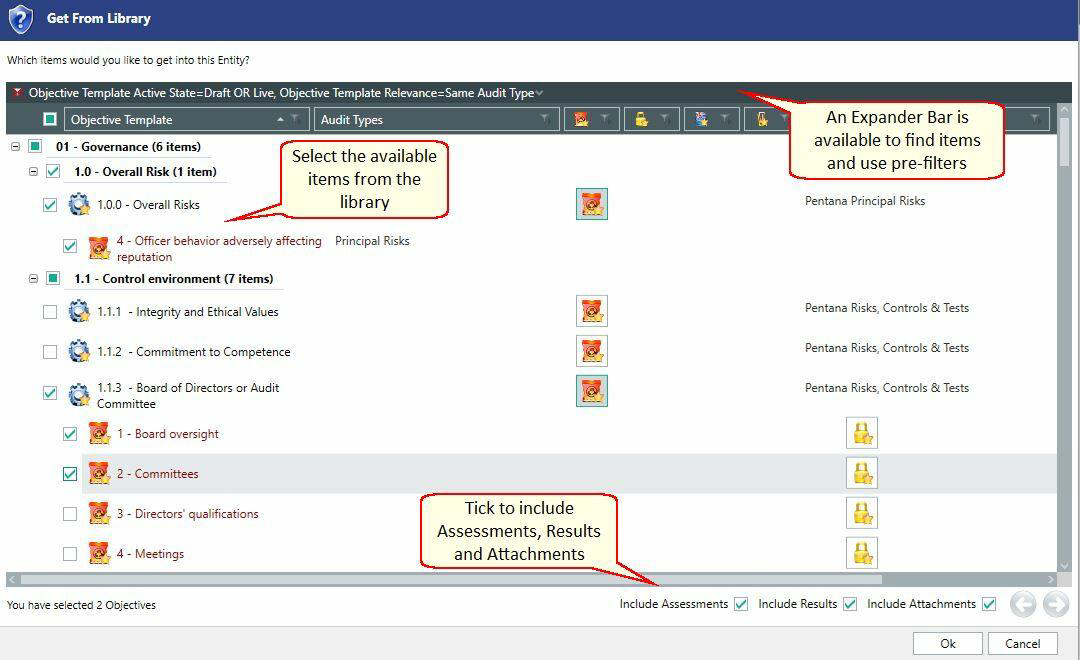
- Select the required objective templates and their associated risk and controls.
- Choose the option to include attachments, assessments and results.
To import objectives, risk and controls from another entity or audit, use the Get From Entity or Get From Audit functionality.
To add individual objectives, risk and controls, use Add from the general toolbar on the ribbon.