New article
Recently updated
Managing entity assignments, samples, and reviews

Who is this article for?
Administrators managing entities.
Administrator access to the Universe module is required.
This article explains how to manage entity assignments, add samples to objectives, maintain the entity-level risk register through library synchronisation, and review entity-level items.
Assigning staff and contacts
When assigning staff and contacts to an entity, you can assign them to specific processes within that entity. This works with related security features to limit a user to only the data relating to certain processes within an entity.
Adding a sample
To add a sample to an objective:
- Go to Entity Work > Risk, Controls & Tests.
- Ensure Entity Objectives is selected in the display toolbar in the ribbon.
- Select a parent objective.
- Select Add > Sample from the General toolbar in the ribbon (you may also right-click and select Add > Sample from the drop-down menu).
- Complete the properties:
- Ref - reference number for the sample
- Title - a title for the sample
- Description - a description for the sample
- Category - sample categories segmentation
- Result Set - linked to the result sets used whenever this sample is tested
- Size - integer indicating how many items it needs to contain
- Use Items - whether the individual items will be defined within the application
- Locked - tick to prevent the sample definition from being modified within an audit
For the new entity sample, you may set tests from the right-click menu. Only tests associated directly to the objective are available for selection. The sample is then available to upload from the entity when the objective is selected from within an audit. The entity does not contain sample items or sample item tests.
Getting and refreshing from library
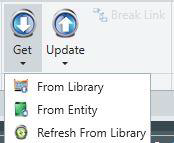
The entity-level risk register of objectives, risks, controls and tests (ORCTs) may be directly populated from the library prior to the first audit. Alternatively, the first audit might be populated directly from the library and the items added to the entity when the audit is completed. This is undertaken using the Get functionality.
The recommended ORCT life-cycle can be represented as follows:
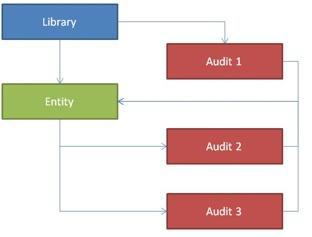
The benefits of this workflow are:
- Entity-specific ORCTs recorded in the first audit are included in subsequent audits
- The entity-level always contains the latest assessments as recorded in the audits
- The entity-level only ever contains one copy of each ORCT, which results in meaningful analysis and reporting
- You are still free to get a library (into an entity or an audit) more than once with the intention of using it as a template but modifying it
The following (incorrect) workflow is not recommended:
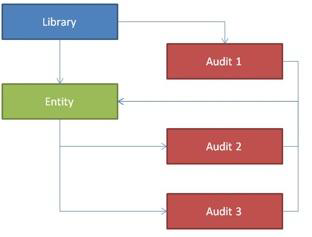
This workflow is not recommended because:
- It is difficult to produce meaningful entity-level reports
- It is difficult to use the risk exposure screen
- It is difficult to know which entity-level items to use as the basis for any subsequent audit
- Entity-specific items do not end up in subsequent audits at all
It is probably recommended that each audit is populated from the library under some circumstances, for example for compliance customers or when not using entity level at all for any other reason.
Refreshing from library
The refresh from library improves the workflow so that entity-level (and therefore each subsequent audit) can contain both the entity-specific items and the latest library items. The list of items to refresh includes objectives, risks, controls and tests. As with the Get functionality, tick the parent item to include all children automatically, or expand the children and tick none, one, many or all of them individually.
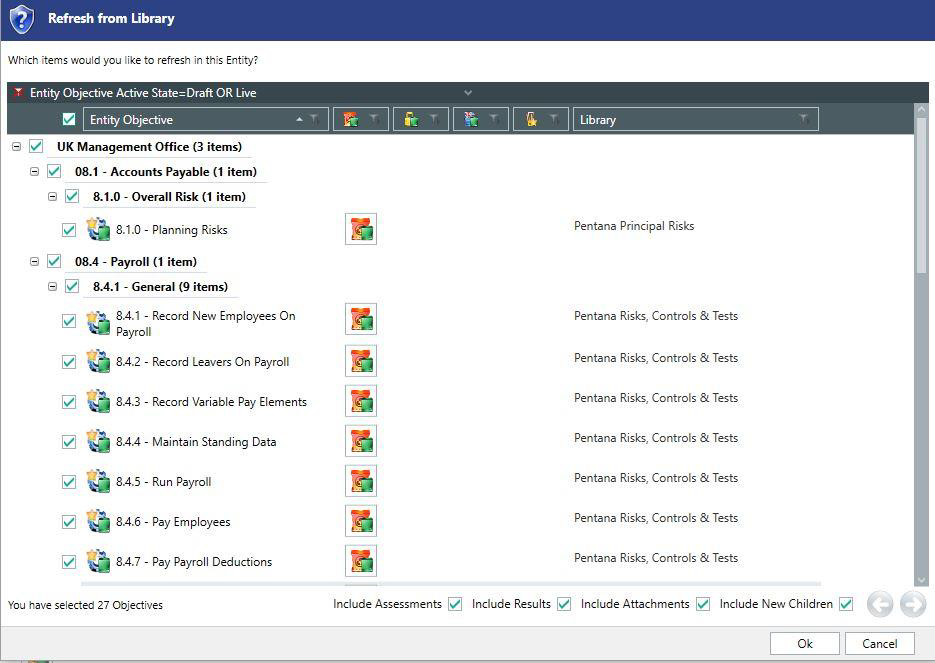
Note: The items will only be shown in the list if they are already within the entity and linked to a library item (else there is nothing to refresh).
The dialogue also includes the following check boxes:
- Include Assessments - only available if the source and target locations use the same matrix configuration
- Include Results
- Include Attachments
- Include New Children
If Include Assessments is checked, it will add a new (internal) assessment to each risk or control which has an assessment in the library. This will replace the existing current assessment (if any) but the previous ones will be retained in the assessment history.
If Include Results is checked, the execution fields will also be included in the refresh.
If Include Attachments is checked, it will add any new attachments and update any which already exist. When updating, it will match on both reference and title. If an attachment already exists against the entity-level object which has the same reference and title, it will deem this to be the same attachment and will replace it with a fresh copy from the library. If no such match is found, it will simply add a new attachment.
If Include new Children is checked, then new child items (which are not present in the entity) will be added by the refresh. The system also prompts to include new child items when refreshing the entity ORCTs independently (as part of an audit auto population or prior to a Get from entity to audit).
If any of these check boxes are not ticked, it will simply leave the fields as they are. The default values for these check boxes are controlled by system settings - refresh objective.
For each item (directly ticked or implied), it will:
- Update all of the properties which were set by the original Get
- Automatically get any new child items which are not present in the entity
- Re-get the attachments (if ticked) as described above
- Re-get the assessments or results (if ticked) as described above
The set of elements to copy will include the active state. Therefore, if an item has now been closed in the library, the process of refreshing it will result in it being closed at entity-level too.
Note: There is nothing to prevent the same library item being got twice into an entity and if they were to both be refreshed, they would both be updated as per the rules above.
Reviewing entity items
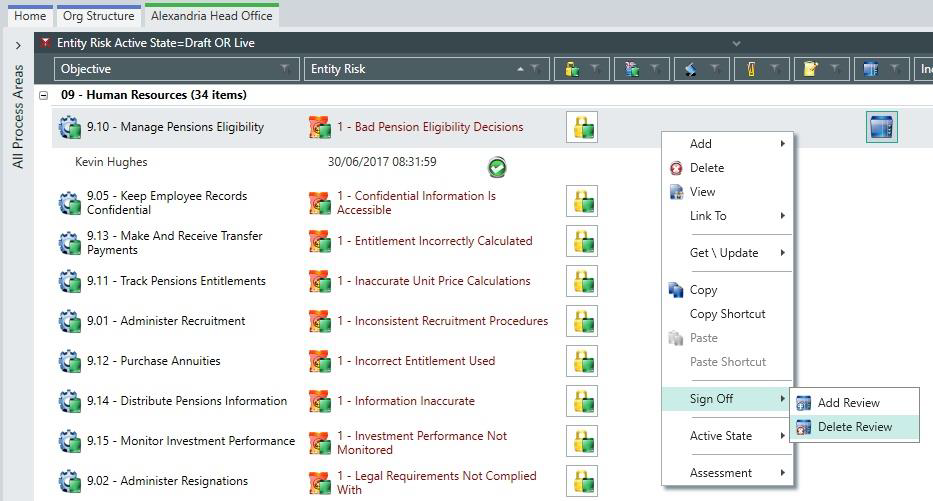
Entity-level ORCTs can be marked as reviewed. The purpose is to ensure that there is a record that an item has been reviewed by a member of staff with the relevant permission. Items which have been changed (including where an assessment has been made) since they were last reviewed are indicated as changed.
Adding a review puts a marker on the data grid to show that this is the case.

You may review the item more than once and a record of each review is shown every time an item is re-reviewed, even by the same person.
To delete a review:
- Select the option available in the ribbon or right-click.
- Select Sign Off.
- Click Delete Review.