


New article
Recently updated
Managing entity action updates

Who is this article for?
Administrators managing entities.
Administrator access is required.
Action updates allow you to track and manage changes to actions, with commands to add, delete, view, and update their status throughout the resolution process.
Action update commands
The following commands are available for action updates:
- Add – only available if the current update is unresolved or does not exist
- Delete – available when an existing update is selected (current and not accepted or rejected)
- View – shows the update properties in the Property Grid
- Set as Pending – only available for the current update
- Set as Submitted – only available for the current update
- Set as Accepted – only available for the current update
- Set as Rejected – only available for the current update
When an update is accepted, the following action properties are updated from the action update:
- Owner – where the person is the owner of the action
- Current Due Date – can be edited after the action has been created
- Implementation date – the date that the action was implemented
- Resolution – the state of the resolution (completed or uncompleted)
- Resolution Comments – any extra comments added to the resolution
Adding an action update
To add an action update:
- Go to Entity Work.
- Select Action Updates.
- Select the action from the data grid.
- Right-click and select Add Action Update from the drop-down menu.
- Complete the following fields in the properties panel:
- Respondent – the person who must respond to the update (may differ from the owner of the action)
- Notified Date – date when the respondent was notified
- Respond By Date – when the respondent is expected to reply by
- Comments – for the auditor to enter guidance or ask questions
- Current Due Date – can be edited after the action has been created
- Owner – where the person is the owner of the action
- Implementation date – the date that the action was implemented
- Resolution – the state of the resolution (completed or uncompleted)
- Resolution Comments – any extra comments to the resolution
- Respondent Comments – any extra comments to the resolution
- Action Update State – Pending (with owner), Submitted, Accepted, or Rejected
- Review Comment – any extra comments to the resolution
- Save the action update.
Viewing action updates
Action updates are represented by icons in the system:
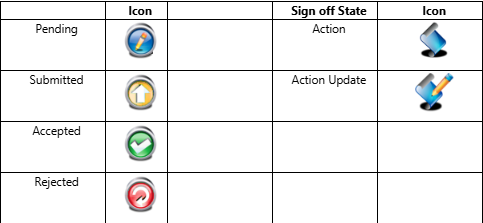
Action update rules
To simplify action tracking, only one current action update can exist for each action that is either Pending or Submitted (unresolved).
You may delete action updates with the relevant permission: Delete Action Updates – None, Open, or All.
The following rules apply:
- Historic action updates will always be Rejected or Accepted (resolved)
- You cannot create a new action update while the current one is still Pending or Submitted (unresolved)
- Action updates must be resolved before the action can be completed, at which point updates can no longer be added
- Execution elements can continue to be updated until the action is approved
The following commands are available on the action:
- Add Action Update – only available if the current one is resolved; creates a new entity and links it in both ways
- Accept Action Update – only available if the current one is Submitted; sets the current update to Accepted
- Reject Action Update – only available if the current one is Submitted; sets the current update to Rejected
Action updates may have attachments and notes so the respondent can supply evidence of their work when using the main application. If they are replying via email, they must attach the files to that email and the staff member who accepts their changes needs to manually upload the files to the system.
Business rules
Add Action Update creates an update and sets the elements as follows:
- Created By – set to the current user
- Created Date – set to the current date and time
- Status – set to Pending
- Respondent – set to the action owner (changed within System Settings to allow customers to use the Business Co-ordinator)
- Respond by Date – set to today plus a configurable number of days (changed within System Settings to allow customers to vary the period)
- Respondent/Auditor Comments – set to blank
When the action update status is changed, the following occurs:
Set as Pending – sent back to the respondent without formal rejection:
- No immediate email notification is sent
Set as Submitted – for example, by the respondent if they have access to the application:
- No email is sent to the auditor since the action will now be visible on their My Actions widget
Set as Accepted – for example, by the action co-ordinator:
- The behaviour updates each element of the action that is shared by the update
- No email is sent to either party
Set as Rejected – for example, by the action co-ordinator:
- A confirmation appears: "Do you wish to create a new update and email the respondent?" with options for Yes, No, or Cancel