


New article
Recently updated
Managing data grid columns

Who is this article for?
Users who need help navigating the system.
No special access or permissions are required.
The Data Grid Column Picker allows you to show or hide columns, modify nested child rows, and customise the layout of data grids throughout the system.
Opening the Data Grid Column Picker
To open the Data Grid Column Picker, right-click on any column header in the data grid.
The Column Picker window displays each child grid only once, making it easier to manage your selection.
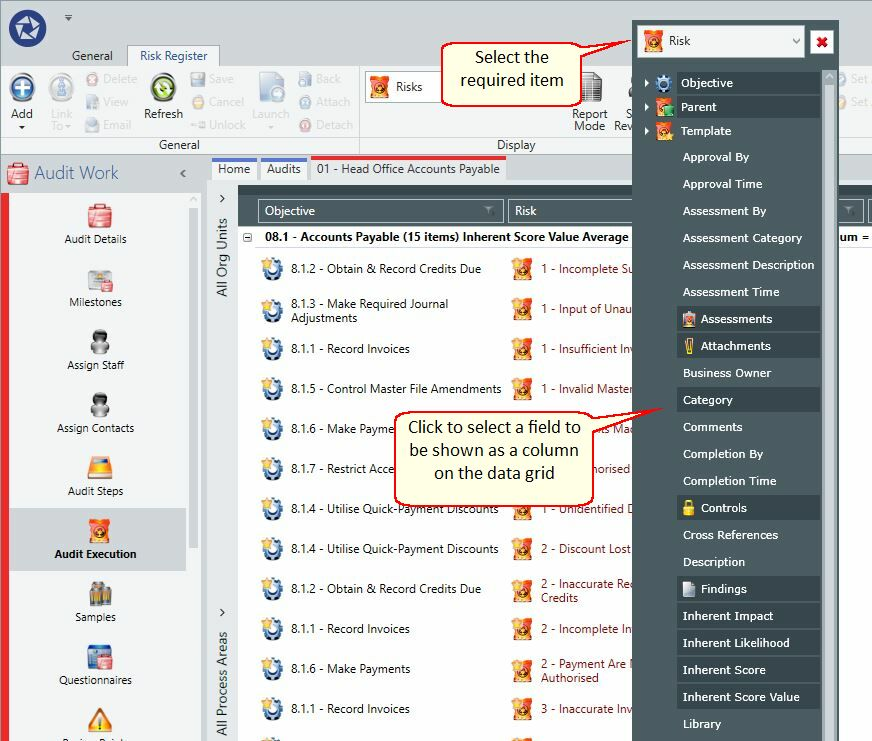
Data Grid Column Picker
To apply your selection, click anywhere on the data grid.
Clearing column selections
The Data Grid Column Picker includes a clear selection option (red cross) that removes all columns except the primary Name field.
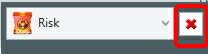
Clear The Selection
Note: If you accidentally clear all fields, close the screen and reload.
Modifying nested child rows
The Column Picker allows you to add columns to nested child grids.
To modify nested child row columns:
- Open the Column Picker from the parent grid (for example, Audit > Audit Steps).
- Select the fields you want to display on the nested grid (for example, Steps).
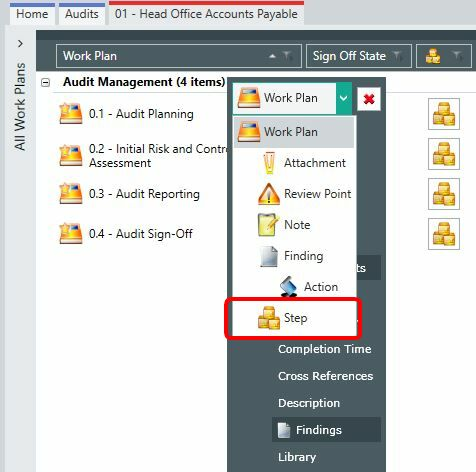
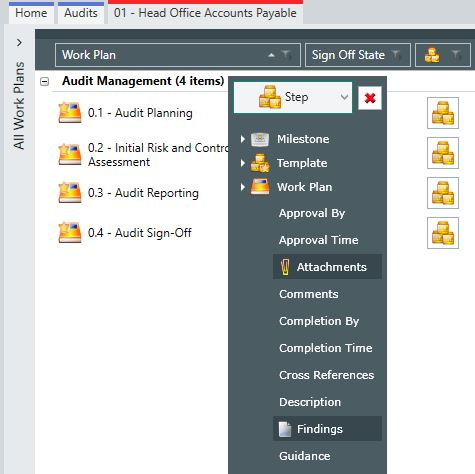
The Show Child Grid Headers option is available from the Format toolbar within the Ribbon.
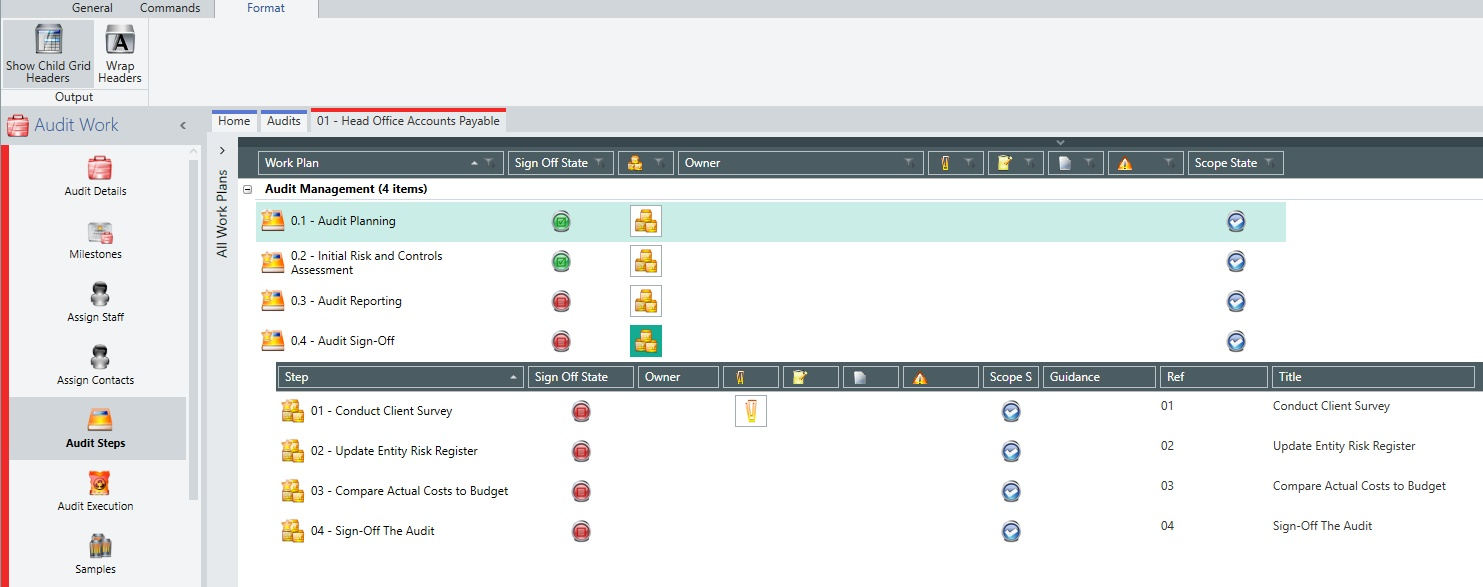
Show Child Grid Headers
Sorting columns
To sort information in a grid:
- Click on the column heading.
An arrowhead appears in the column heading to indicate the sort direction. Click the heading again to reverse the sort order.
The small arrow on column headers provides additional filtering options.
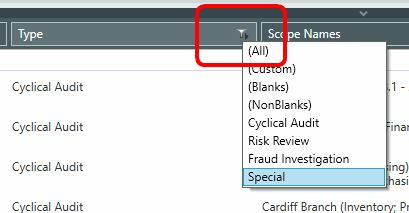
Column Sorting
Note: When sorting by a segmentation column (for example, Risks by Risk Rating), data is sorted according to the segmentation order (Very High, High, Medium, Low, Very Low) rather than alphabetically.
Filtering columns
When in Objective display mode, the risk column filter refers to the number of risks per objective.
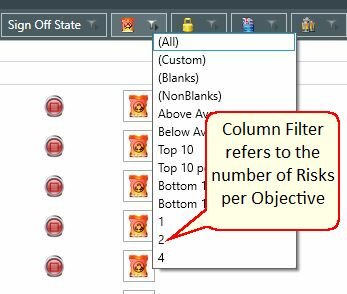
Column Filter
Reordering columns
To reorder columns:
- Click and drag the column header you want to move.
- Release it in the desired position (left, right, above, or below).
Note: Multiple data sets can be displayed in one column.
Adjusting column widths
To adjust column widths:
- Click on the boundary line between two column headings.
- Drag the boundary to the desired width.
A resizing line appears to show you are in the correct position.
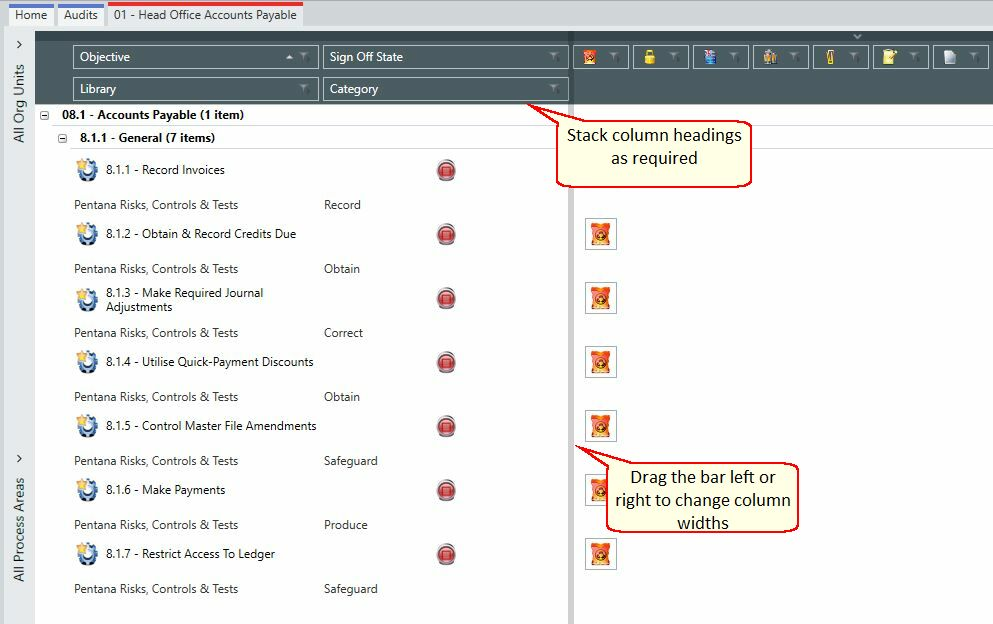
Column Widths
Tip: You may stack column headings to consolidate data as required.