


New article
Recently updated
Using the floating tabbed user interface

Who is this article for?
Users who need help navigating the system.
No special access or permissions are required.
The floating tabbed user interface allows you to work on multiple screens simultaneously, with colour-coded tabs for easy navigation and the ability to dock, float, and rearrange your workspace.
Understanding tabs
When you open a screen from the Navigational Pane, it appears in a tab. If you have previously opened the screen, the existing tab reopens.
The tabs appear above the working screen just below the ribbon, providing a trail so you can multitask with ease. To rearrange the order, left click and drag to the chosen position. The tabs are colour coded to provide a clear indication of the level you are working at:
- Universe - Blue
- Entity - Green
- Audit - Red
- Library - Purple
- Admin - Grey
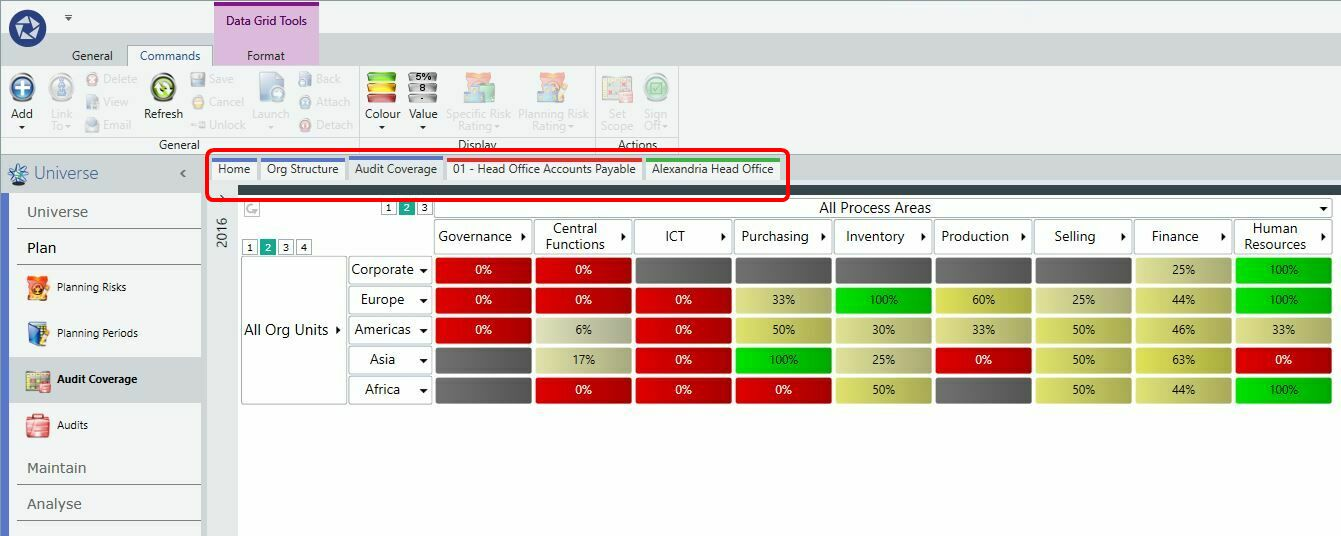
You may also scroll through the available tabs by pressing ctrl + tab together on your keyboard.
Managing tab options
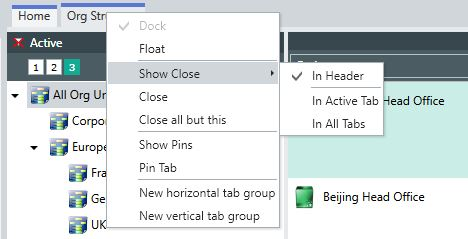
Right click on a tab to access the following options:
- Dock - choosing Dock on a currently floating tab will re-dock it in the main application window
- Float - a docked tab can float in its own tab container. This can be dragged outside of the application. Floating tabs can be joined or docked together within any tab-container window
- Show Close - in Header, in Active Header or in All Tabs
- Close
- Close all but this
- Show Pins (shows whether a tab is pinned)
- Pin Tab (will try and keep visible the tab as the screen size is reduced)
- New horizontal tab group
- New vertical tab group
Docking tabs
Pentana provides the ability to dock different tabs and work on multiple tasks at the same time.
To dock a tab:
- Select a tab by holding down the left mouse button.
- Drag the tab over the screen currently being displayed.
- Drop the tab on the arrow that represents where you would like the document to be docked (to the top, right, bottom, or left of the document you are floating over).
Note: Four arrows will appear around a box when you drag the tab over the screen.