


New article
Recently updated
Using the navigator

Who is this article for?who needs to know about navigator.
No special access or permissions are required.
The navigator represents hierarchical data using a tree view that can be expanded and collapsed to different levels of detail, allowing you to filter and view only the data you need within your hierarchy.
Understanding the navigator
The navigator is an on-screen filter that displays hierarchical data in a tree structure. By default, it is hidden and can be expanded when needed.
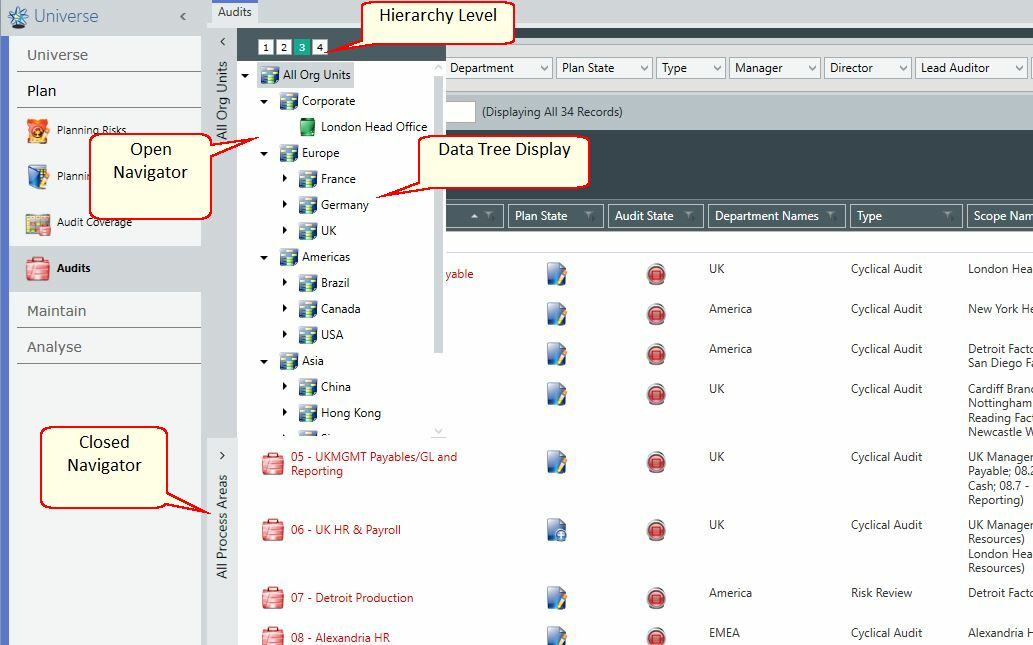
Navigator
Where multiple sets of hierarchical data exist on screen, multiple navigators may be available. For example, in Universe > Audits, two navigators appear:
- All Org Units
- All Process Areas
This reflects the relationship between organisation units and process areas, allowing interactive filtering across both hierarchies.
Note: When working within an audit, the navigator only shows org units and entities within the audit scope.
Using the navigator
To navigate hierarchical data:

- Click the navigator window to open or close it.
- Use the numeric buttons at the top of the window to select the hierarchy detail level.
- Left-click a value to filter the data shown on screen accordingly.
- Left-click any branch to expand the child records within the data tree.
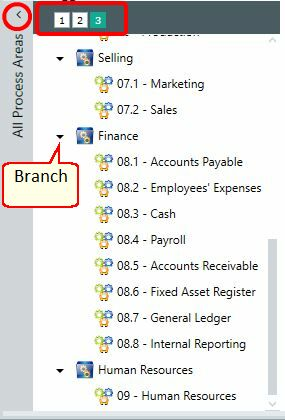
Open and Close Levels