


New article
Recently updated
Using the expander bar to filter and group data

Who is this article for?who needs to know about filtering and grouping data.
No special access or permissions are required.
The expander bar provides access to pre-filters, string search, and group-by functionality to help you filter and organise records on the data grid.
Accessing the expander bar
The expander bar is located above the data grid or data tree.
To open the expander bar:
- Click the expander bar once.
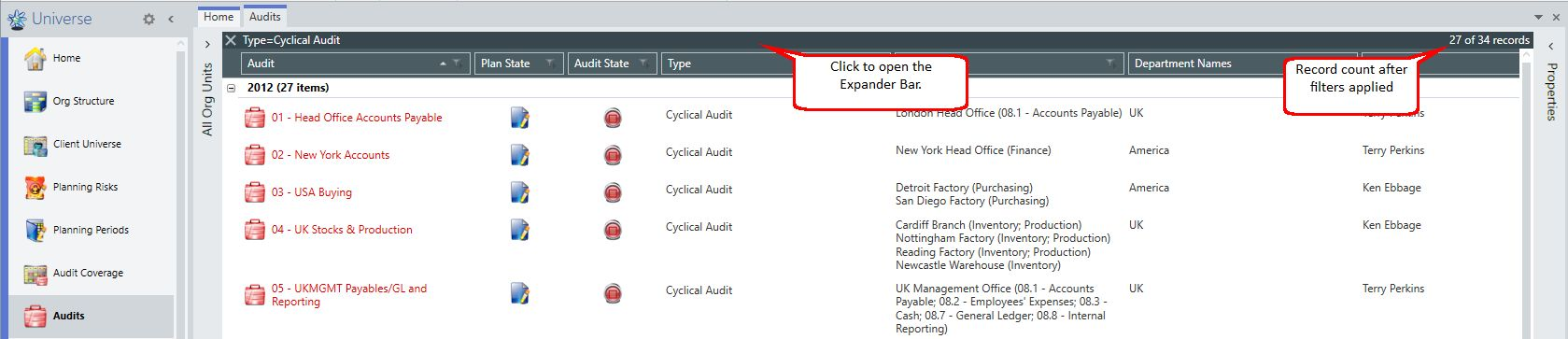
Select to open the Expander Bar
The expander bar reveals the pre-filters, string search, and group-by functionality. Pre-filters may already be applied to the screen by default.
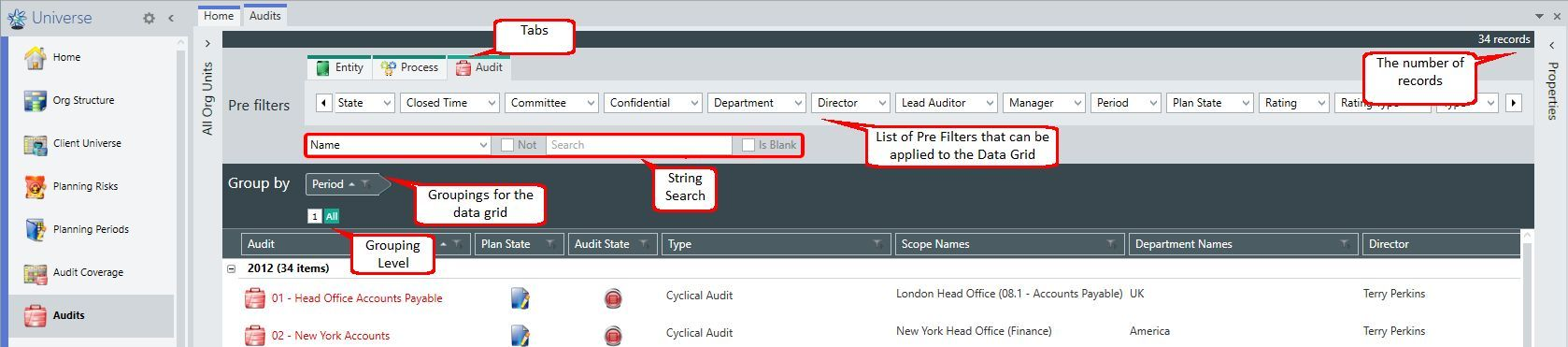
Expander Bar
Understanding pre-filters
Pre-filters restrict the data retrieved from the database and provide access to system-defined concepts such as Mine. These concepts are not available to normal column filters.
An information panel lists all applied filters together with a Clear Pre-Filters button to quickly remove them all.
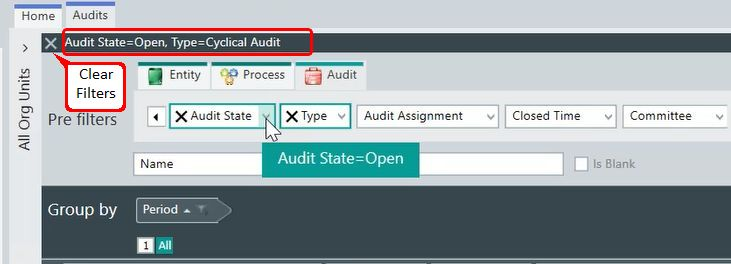
Clear Pre-Filters
Pre-filters that are applied are indicated in bold, together with an X, and are positioned to the left of the alphabetical list of available pre-filters.
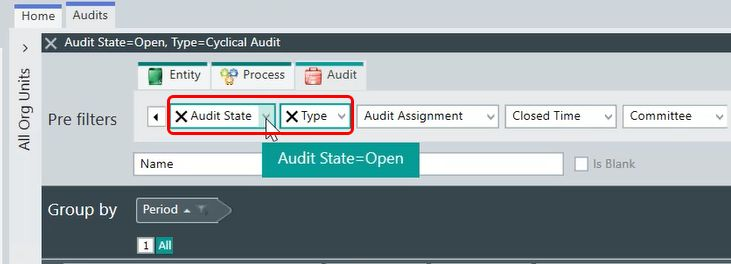
Pre-Filters
Key features of pre-filters include:
- Fields with a filter applied move to the front of the list and are highlighted
- Individual fields can have their filter removed by clicking the X on their own control
- Filters are always shown in alphabetical order for easier navigation
- Filters wrap vertically so you do not have to scroll left or right to search for fields
- Text filtering is part of the filter bar and gets applied server-side, improving performance
- Text filtering allows you to enter a string to match on or to search for blanks
- Text filtering allows you to look for records which do not match the criteria
- Text filtering can search in fields relating to a parent or child table
Text filtering is also available on the filter bar for charts and hierarchy matrices, not just data grids.

Modifying pre-filters
To modify pre-filters:
- Open the expander bar to reveal the associated pre-filters.

Pre-Filters
- Select a filter to show a menu with its available options.
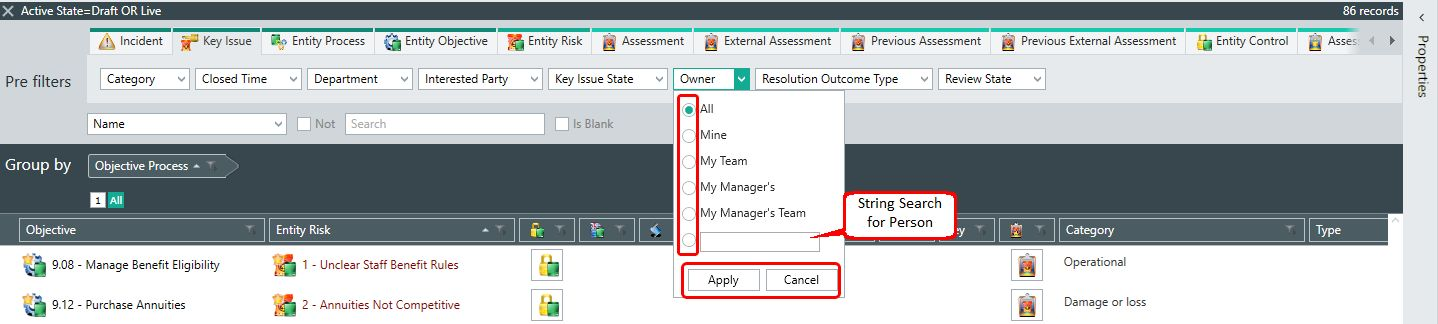
Example Values
- Select or deselect values as required.
- Select Apply to save your changes.
This will filter the data according to your selection criteria.
Note: The Owner pre-filter works from the Manager field available with staff or contact details. For the person pre-filters, there is the option to perform a string search.
Views can be used to save how you have configured your screen, including pre-filter settings.
When using the Left or Right scroll buttons within any pre-filters which have many options (such as Action), you can hold down Shift whilst clicking the scroll button to move a page at a time, or hold Ctrl to move right to the start or end.
Using text string filters
An additional text (string) filter is available. In the example below, an Objective Ref field has been selected with a value of 8.7, and the data grid is refreshed accordingly.
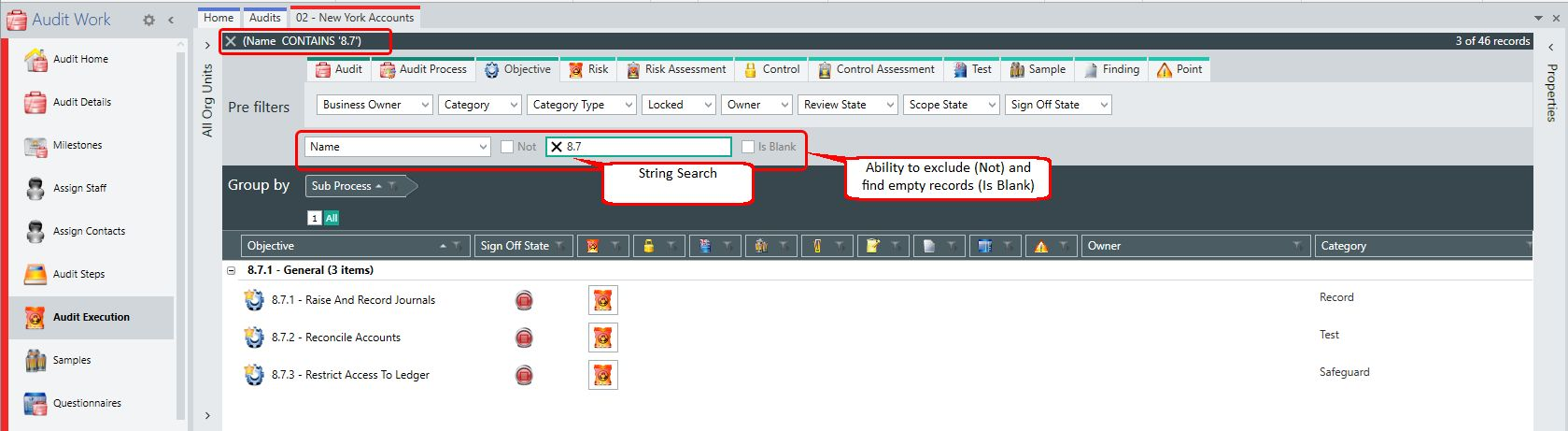
Text Search available within the Pre-Filters
Valid criteria may include the Not and/or Is Blank options.
For example:
- Audits where Description does Not contain xxx
- Audits where Description is Not Is Blank
Multiple fields can be selected and easily cleared in bulk.
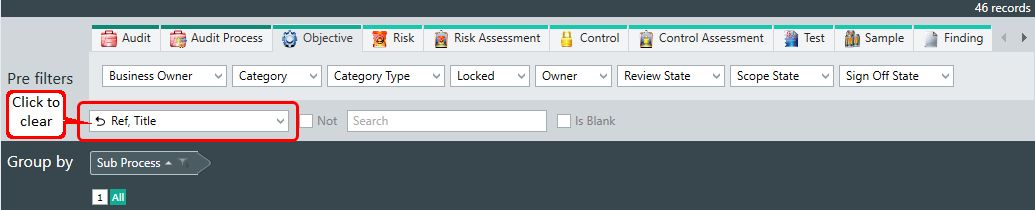
Text Search available within the Pre-Filters
Adding grouping to the data grid
To add a grouping:
- Open the expander bar to reveal the group by area.
- Drag and drop the required column headers into the group by area as shown below.
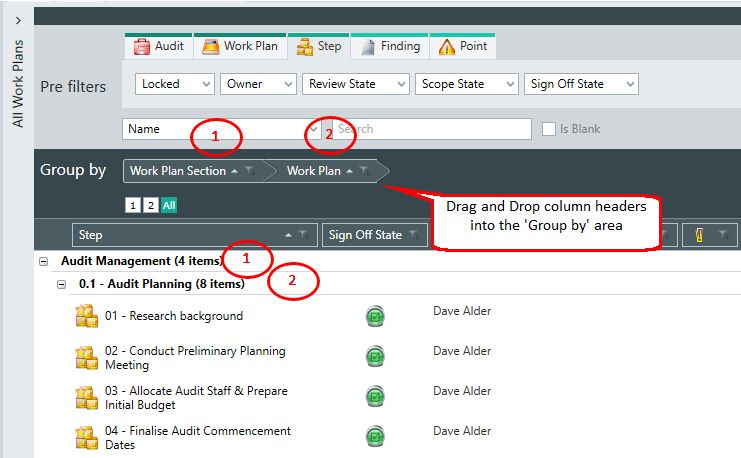
Group by Column Headers
- The data grid will automatically reformat depending on the selection and order of the grouping.
- Change the order of the columns in the group by area if required by dragging and dropping.
- Left-click on the selected headers to toggle the sorting (A-Z).
- Apply a filter on the selected headers if needed.
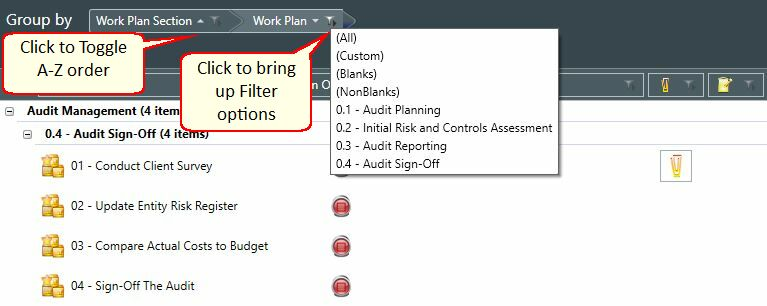
Filter on Selected Headers

- Custom filters are also available from this menu