


New article
Recently updated
Using the ribbon interface

Who is this article for?
Users who need help navigating the interface.
No special access or permissions are required.
The ribbon is a context-sensitive toolbar located at the top of each screen that consolidates functionality from menus, toolbars and task panes into one intuitive area.
Expanding or collapsing the ribbon
To expand or collapse the ribbon:
- Double-click the active tab header.
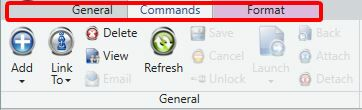
Accessing the collapsed ribbon
To access the collapsed ribbon, use one of these methods:
- Double-click the tab header to expand it permanently
- Single-click any tab to temporarily display that ribbon toolbar

Understanding ribbon toolbars and permissions
The ribbon displays different toolbars depending on available functionality and your user permissions. Active icons appear distinctly (such as Delete, View and Launch), whilst inactive icons appear faint (such as Back, Attach and Detach).
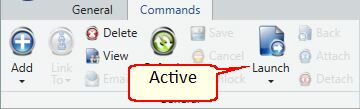
To view guidance for an icon:
- Hover your cursor over the active icon.