


New article
Recently updated
Creating and managing views

Who is this article for?who need to create and manage views.
No special access or permissions are required.
Views are a means of saving the screen layout and content so that a preferred display may be accessed quickly whenever required.
Understanding views
Views allow you to save a pre-defined set of criteria for displaying information according to your preference. They provide a quick way to move between different sets of information or methods of display. Views can be private to the user and also system wide, and a particular view for each screen can be set as your favourite and will be used by default.
Views are a common feature in many areas of the system and you may save and load them from the General ribbon.

Views may contain very few or many columns of information and may filter the data to show only the required records. They may be unique to a user or they may be made available to all staff. Typically, a number of core views will be prepared centrally, so that end-users can simply select from a menu of suggested views.
Customising screen format and data
The format of screens and data is highly customisable including:
- Groupings
- Pre-Filters
- Column filters
- Columns (width, location and sort order)
- Navigators (Processes or parts of your Universe)
Organise your views, particularly your favourite view, to exclude all unnecessary information. You can always have a view that displays everything you might need to see, but only use it when you particularly need it.
Printing reports from views
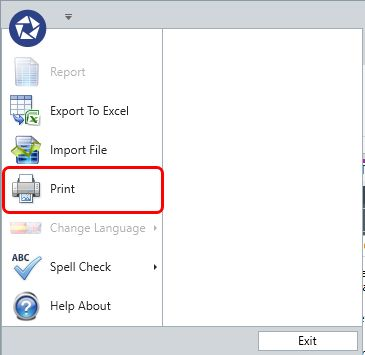
Views allow a user to format their data on screen and then print off reports (your report header is the View report title) using the print feature in the Pentana menu.
Understanding view properties
A user may save or load an unlimited number of views, where the list will be sorted alphabetically. Views may be created for private or shared access.
- All Roles views are shown in bold text
A view has the following properties:
- Name
- Report Title
- Category (simple segmentation)
- Audience
Public (available to all).
Choose Roles (will be limited to your selected roles).
Private (default - not shared)
- Owner
Shared views may be set to global or just associated with one or more roles.
Adding a new view
To add a new view:
- Set up your screen display precisely as you want.
- Click the save view as option on the views ribbon group.
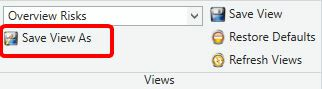
- Complete the Name, Report Title, Category, Public, Global and Roles property fields accordingly.
- Save the view.
Once saved, the new view will be present (and selected) in the drop-down. You can cancel at any time, meaning the new view will not be added.
Changing the current view
To change your current view:
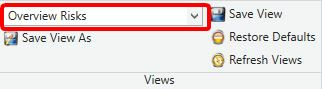
- Select a new view from the drop-down in the views ribbon group.
Setting the favourite view
To set a favourite view:
- Hover the mouse over a view in the drop-down.
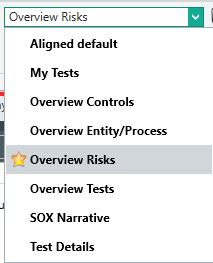
- Click on the star to the left of the item to make it your favourite.
Making a view the favourite will automatically switch to it. The favourite view will then be indicated by the presence of the star next to the item. Every time the screen is then opened it will load the favourite view by default.

Note: For screens that support more than one display mode you can set a favourite per display mode.
Editing the properties for an existing view
To modify the properties of an existing view:
- Click the view properties icon that appears to the right of the item in the drop-down.
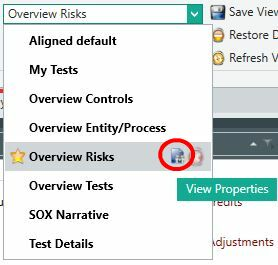
The existing properties will be shown allowing them to be modified. The Report Title is used as a Header.

Note: There is a cancel button at the bottom of this document, allowing you to return without making any changes.
Updating existing view settings
To update the settings for an existing view:
- Load the view you want to update.
- Make any adjustments you want to the screen.
- Click the save view button.
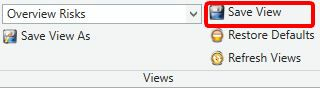
A confirmation prompt will then be displayed asking you if you would like the settings for the current view updated.
Clearing the current view
To clear the current loaded view and return to the default out of the box settings:
- Click the restore defaults button.
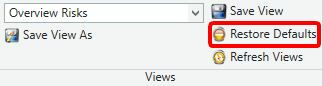
Deleting a view
To delete a view:
- Click the delete icon that appears to the right of the item in the list.
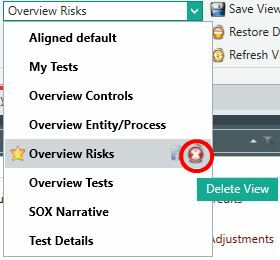
Exporting and importing views
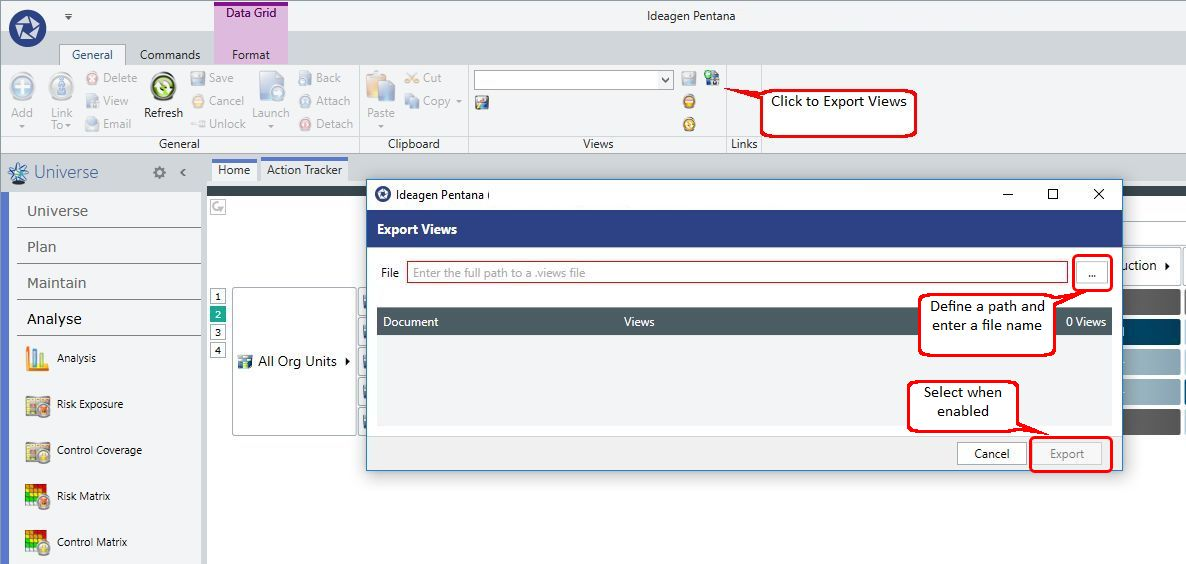
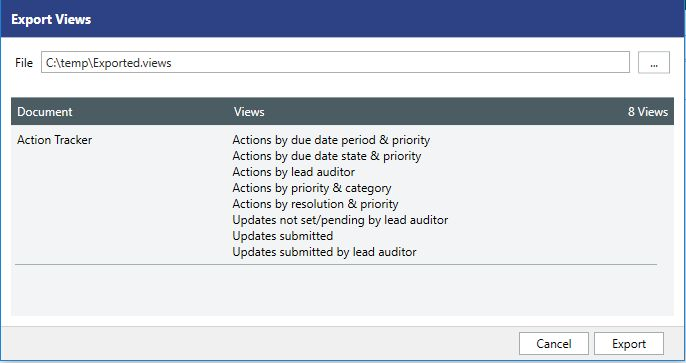
It is possible to export and import Views between Pentana instances. For example, you may have Views configured in a UAT environment and wish to copy them to your Production instance.
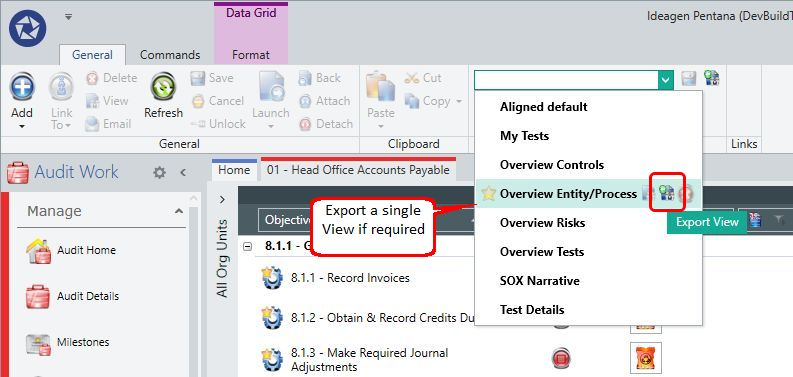
The Views for an entire screen may be exported in a single process or individual Views can be selected and exported individually. More Views can be added to the 'Exported' file before it is imported - they will be appended to it.
Important: The import mechanism has not been designed to replace existing Views - if they have already been created then duplicate Views will be added.
To import views:
- Select from the top left Pentana menu the Import.
- Select Import Views.
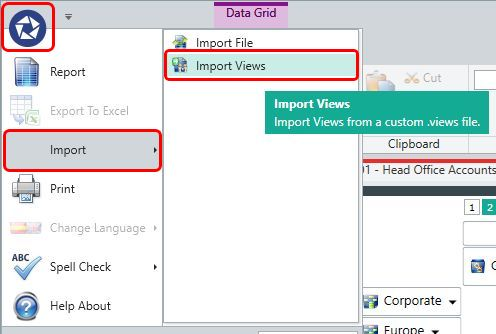
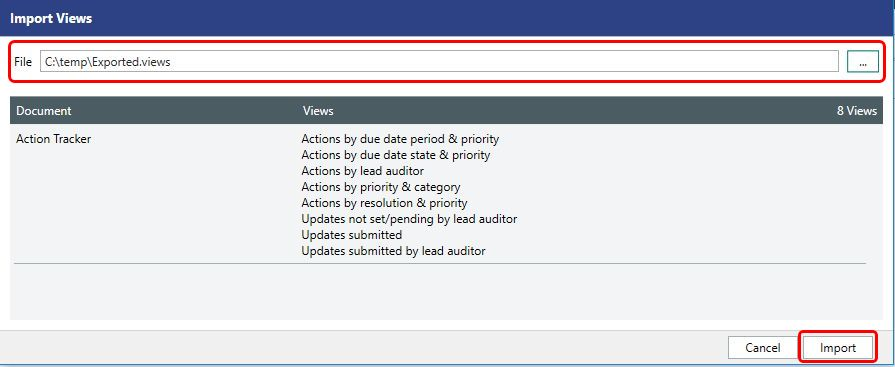
- Select the path and 'Export' file name.
- Select the Import option.
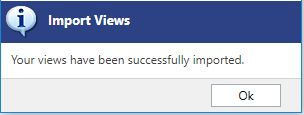
A confirmation window will display once the Views have been imported.
Note: The application needs to be closed and restarted for these changes to take effect.