


New article
Recently updated
Configuring home screen widgets

Who is this article for?who needs to know about configuring widgets.
No special access or permissions are required.
The Home screen is the system's default screen and loads when you start the application, featuring customisable widgets that allow you to monitor your own work, view summary information, and link directly to relevant data.
Understanding home screen widgets
Widgets are added to the Home screen using the Tiles selector located in the display toolbar. Once added, they can be repositioned (drag and drop), resized, or removed.
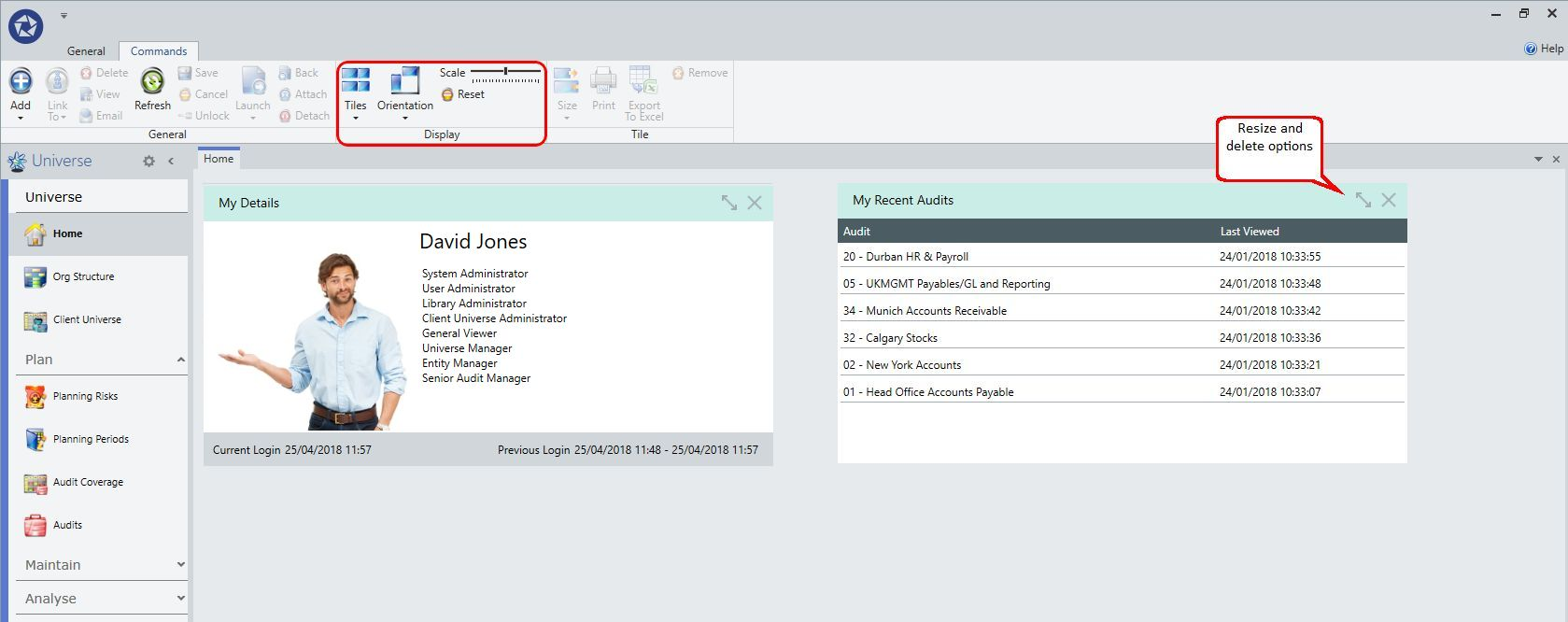
Home Screen Widgets
Adding a widget to your screen
To display a widget on your home screen:
- Open the Tiles selector.
- Click on the required widget (grouped into Aggregate Grid, Chart, Data Grid, and Special types).

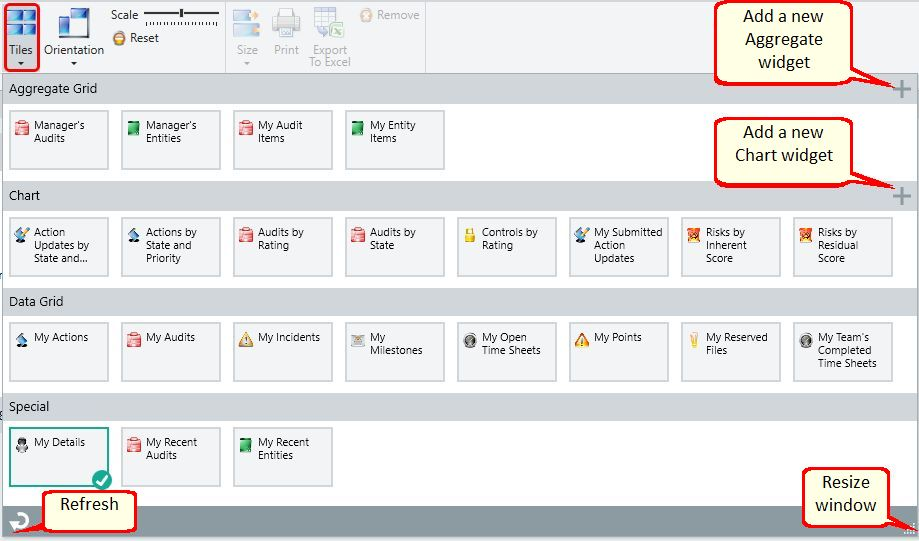
Tile Selector
Each widget has properties you can edit, including its name and visibility settings (private by default, or public/global).
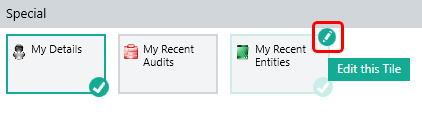
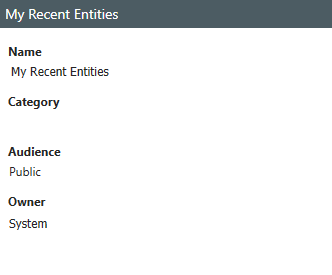
Widget capabilities:
- Easily add or remove widgets
- Refresh updates widgets (except My Open Items, Manager's Audits, and My Entities)
- Views can be loaded or saved
- Layout saves automatically when not saved as a view
- Each widget can only be selected once
- Print or export widgets if applicable
- Move widgets via drag and drop
- Flip orientation between horizontal or vertical
- Vary widget size from small, medium, wide, large, and extra large
- Scale the dashboard to fit screen size
A format tab is available for associated graph widgets, enabling you to show legends, titles, and axis values.

Format Tab
Creating a new aggregate widget
To create an aggregate widget:
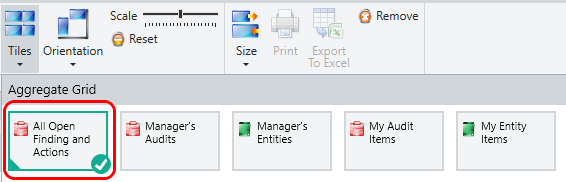
- Open the Tiles selector.
- Click the + icon in the top right corner for an aggregate grid widget.
- Select the required perspective (Audits or Entities) when prompted.

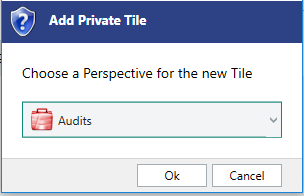
To configure tile properties (set to private by default):
- Enter a Name (mandatory).
- Select a Category (simple segmentation).
- Choose an Audience option:
- Public (available to all)
- Choose Roles (limited to selected roles)
- Private (default, not shared)
- Assign an Owner.
To select data sources:
- Use the available Sources in the ribbon.
- Choose from:
- All Open Audits
- My Assigned Open Audits
- My Managed Open Audits
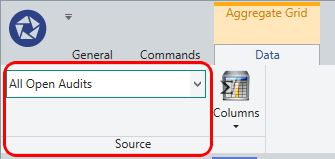
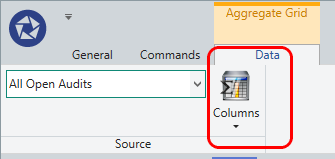
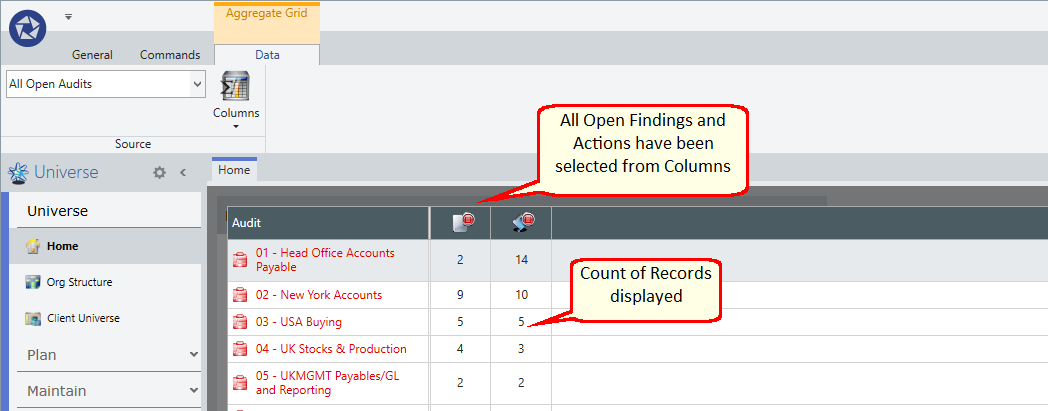
To add columns to the aggregate grid:
- Use the Columns in the ribbon.
- Click on the item type (e.g., Action).
- Select or deselect the required fields (e.g., All Open).
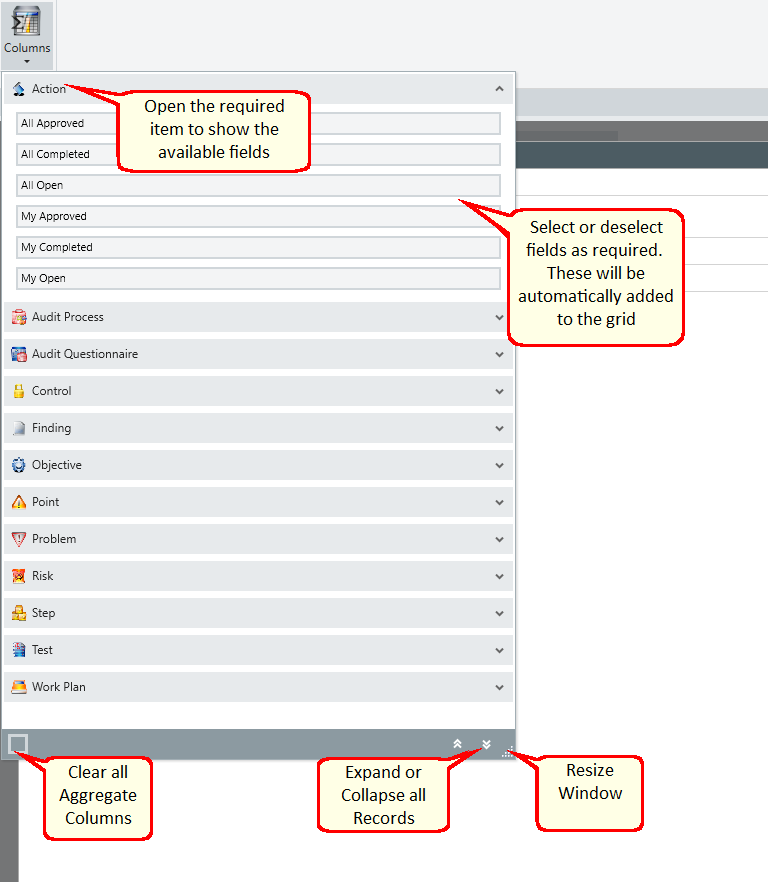
The fields are automatically added to the aggregate grid. You can optionally configure the column format by changing their order (drag and drop) or setting column widths. Each column heading has an intuitive icon enhanced with hover text.
Once saved, the grid is available in the Tiles selector and can be edited further if needed.
Creating a new chart widget
To create a chart widget:
- Open the Tiles selector.
- Click the + icon in the top right corner.
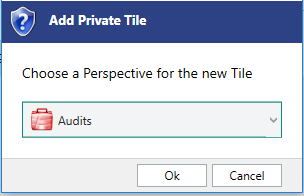
- Select the required perspective for your new chart when prompted.

To configure chart settings:
- Use the Data tab to select Categories and Aggregation.
- Use the Format tab to customise how your chart looks.
The chart properties are displayed and can be edited before saving. Charts are set to private by default but may be shared with other users.
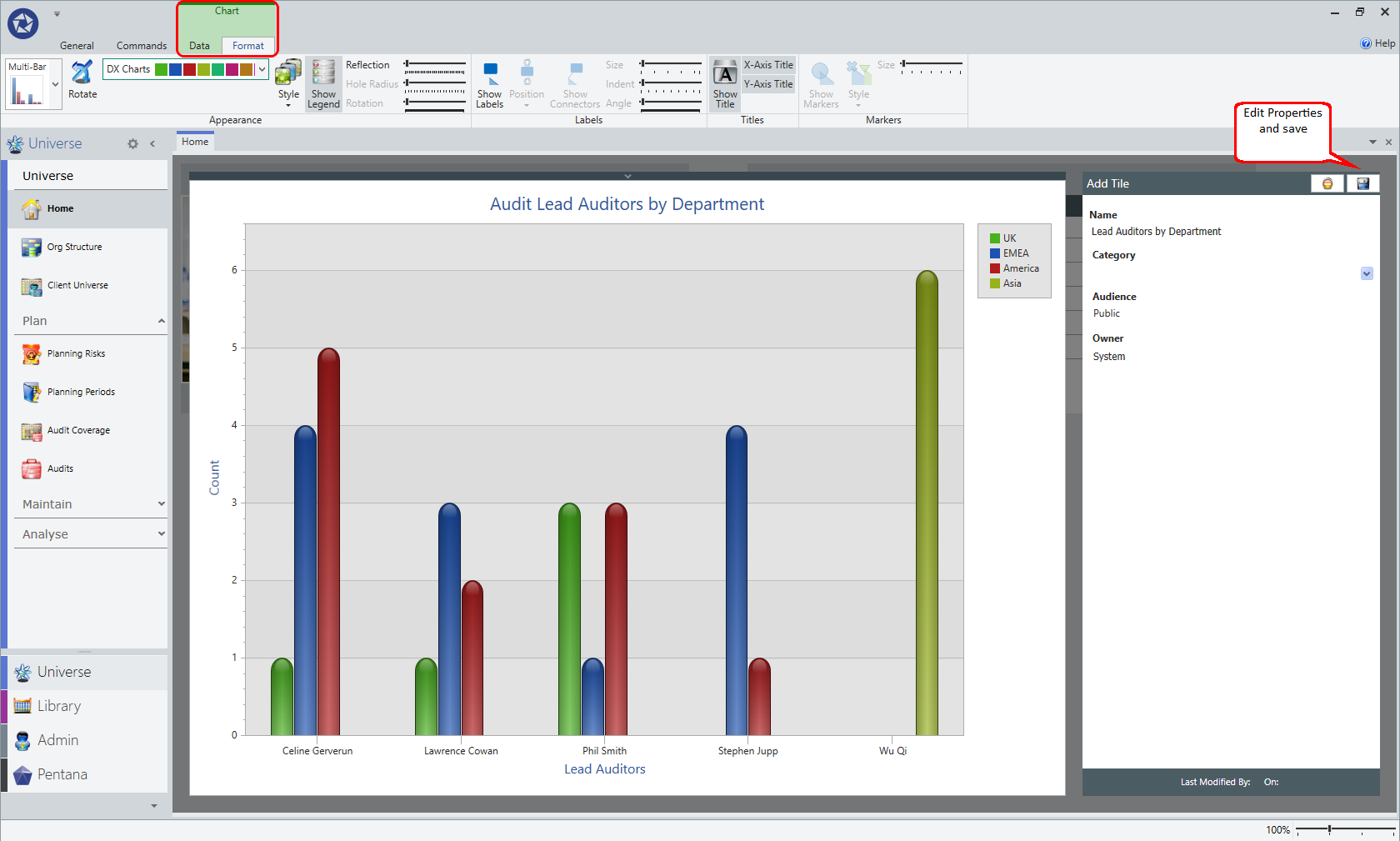
Once saved, the chart is available in the Tiles selector and can be edited further if needed.

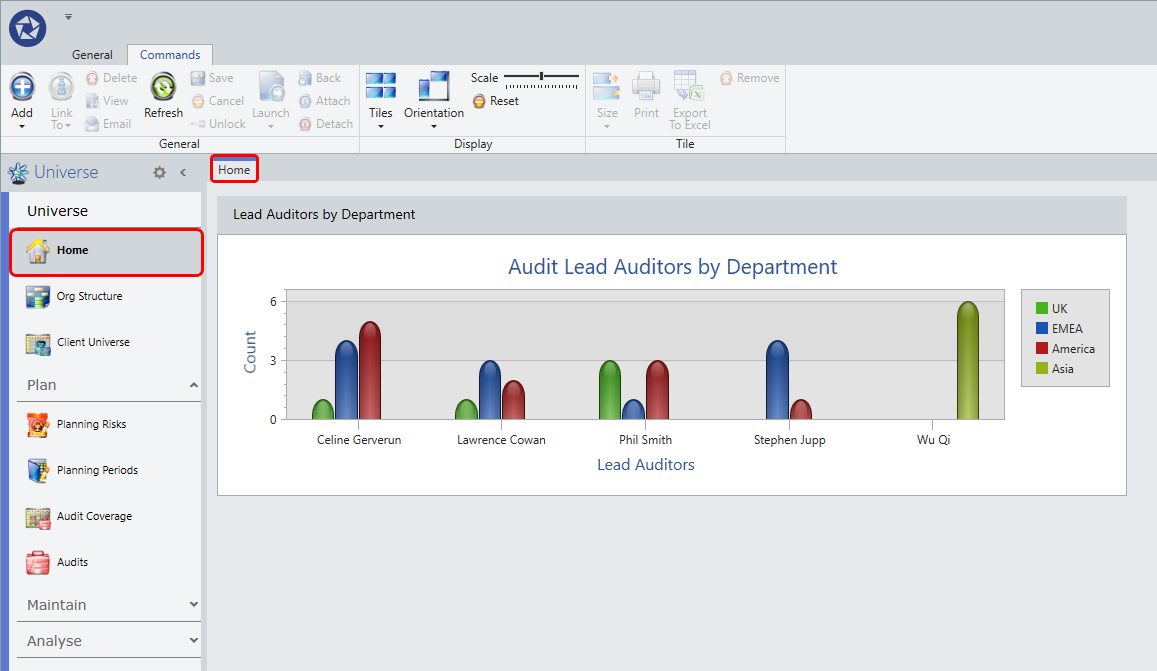
To launch the corresponding analysis:
- Select the widget.
- Click the Launch button on the ribbon (opens in a new tab), or double-click the widget portion of the tile (not the header bar).
- Use the standard Analysis functionality to show records on the data grid.
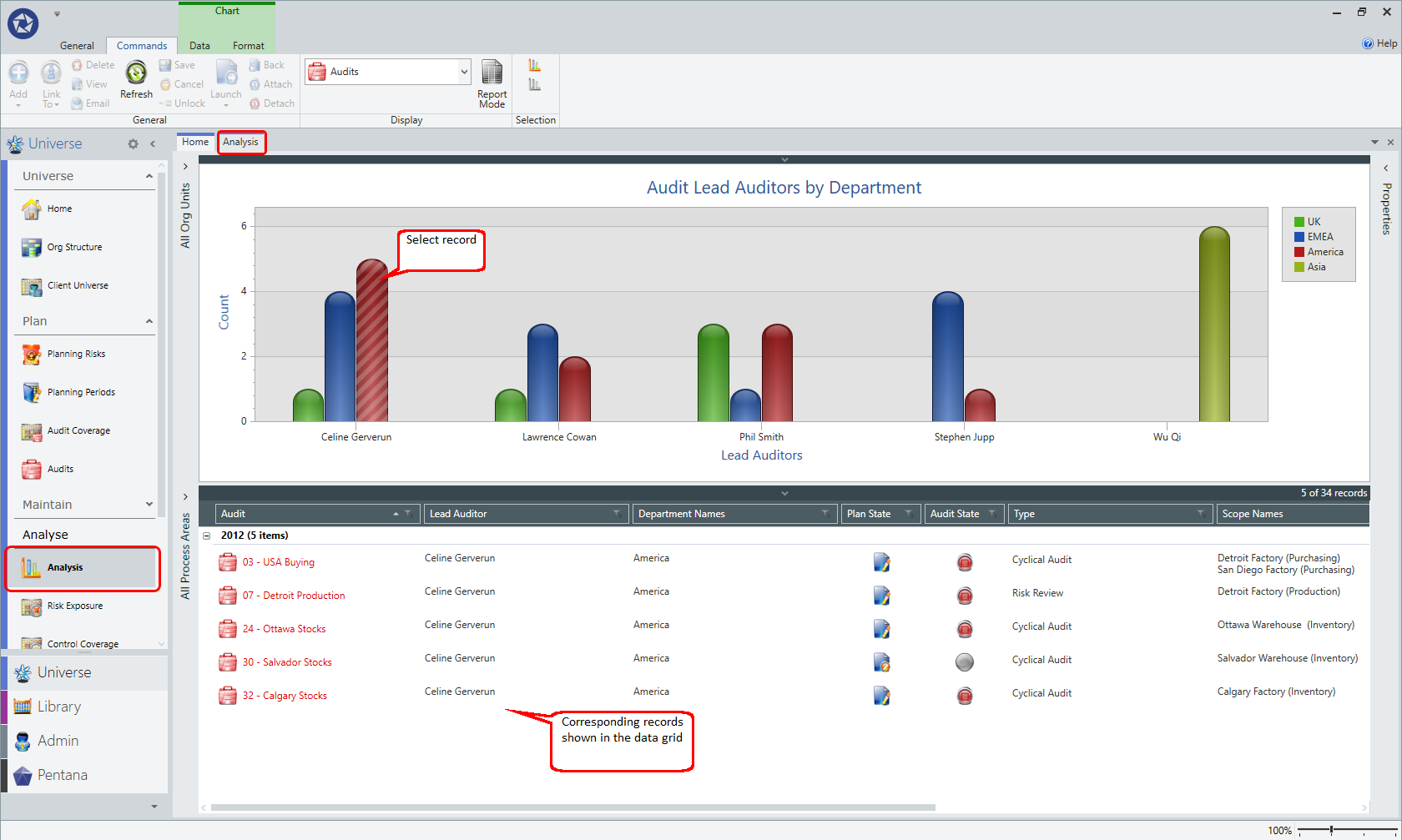

Note: If you are upgrading, you will need to close and reopen widgets to enable the launch feature. In rare cases, the full filter may not pass to the chart in the Analysis screen due to underlying system defaults. This is a known issue and will be resolved in a future release. If you select the Reset option from the ribbon for any dashboard, the system will prompt you to confirm or cancel.

Using the Manager's Audits widget
This widget provides a summary of:
- Audits
- Open Steps
- Completed Steps
- Open Tests
- Completed Tests
- Open Points
- Completed Points
- Open Findings
- Completed Findings
Managers Audits
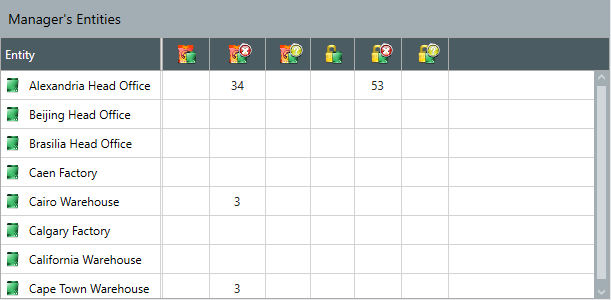
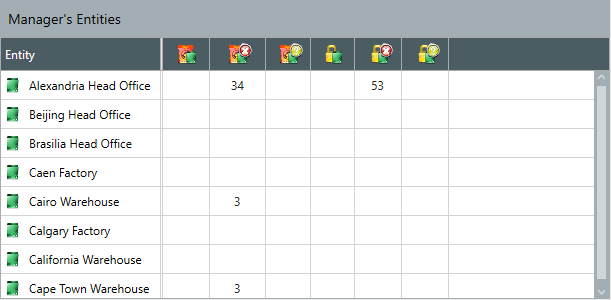
Using the Manager's Entities widget
This widget provides a summary of:
- Entity
- All Unassessed Entity Risks
- Not Reviewed Entity Risks
- Changed Entity Risks
- All Unassessed Entity Controls
- Not Reviewed Entity Controls
- Changed Entity Controls

Managers Audits
Using the My Audit Items widget
This widget provides a summary of:
- Audits
- My Open Steps
- My Open Risks
- My Open Controls
- My Open Tests
- My Open Review Points

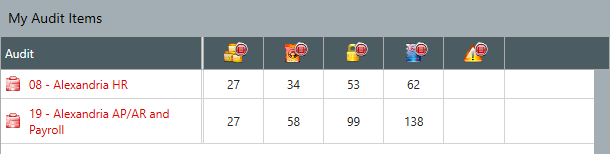
Managers Audits
Using the My Entity Items widget
This widget provides a summary of:
- Entity
- My unassessed Entity Risks
- My assessed Entity Risks
- My unassessed Entity Controls
- My assessed Entity Controls

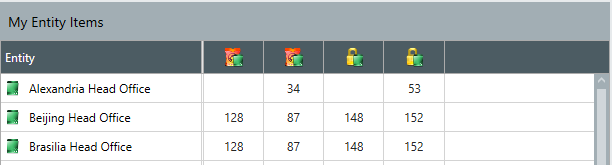
My Entities
Using the Action Updates by State/Priority widget
This widget shows a summary of action updates by Action Update State and Priority.

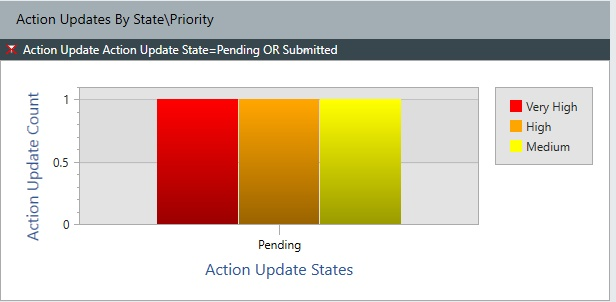
Action Updates by State \ Priority
Using the Actions by State/Priority widget
This widget shows a summary of actions by sign off state and priority.

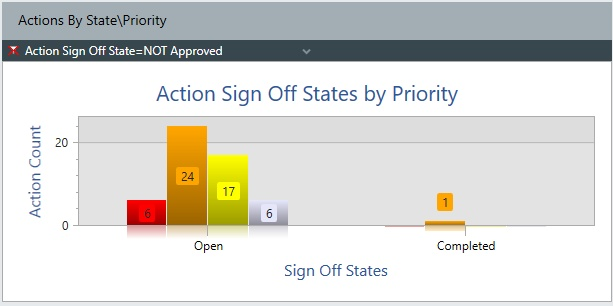
Actions by State \ Priority
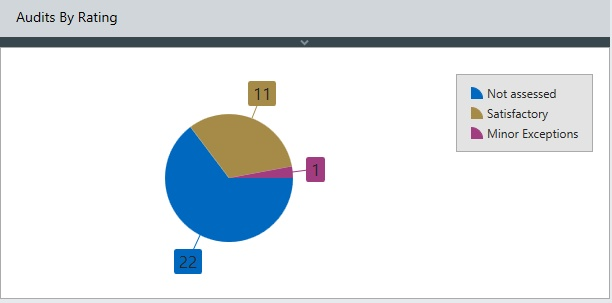
Using the Audits by Rating widget
This widget shows a summary of audits by rating.

Audits by Rating
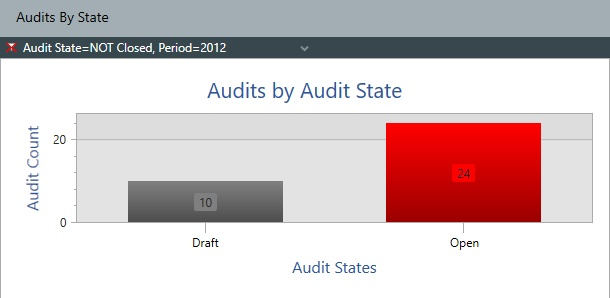
Using the Audits by State widget
This widget shows a summary of open audits by audit state.

Audits by State

Audits by State
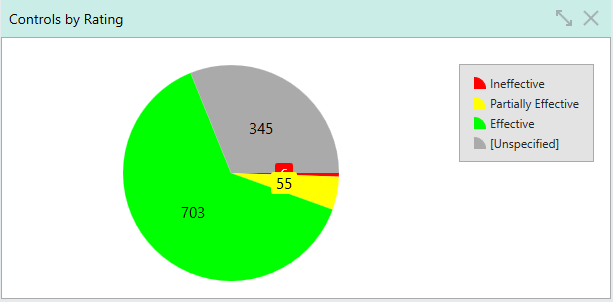
Using the Controls by Rating widget
This widget shows entity controls by rating.

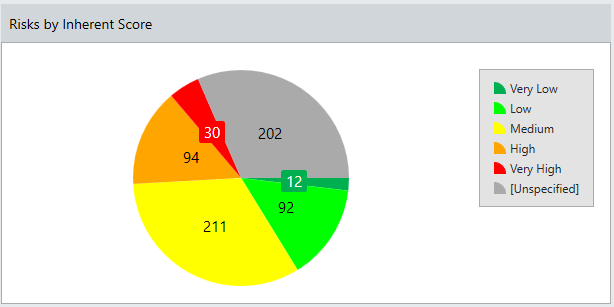
Using the Risks by Inherent Score widget
This widget shows entity risks by inherent score.

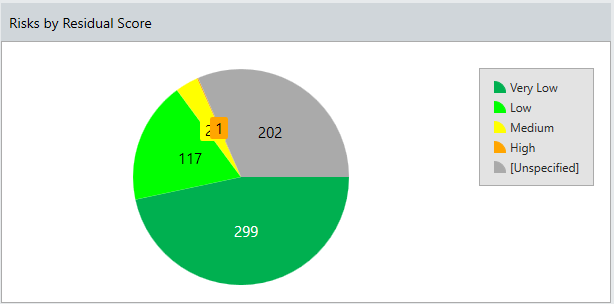
Using the Risks by Residual Score widget
This widget shows entity risks by residual score.

Using the My Actions widget
This widget shows a summary of actions where you are the owner.

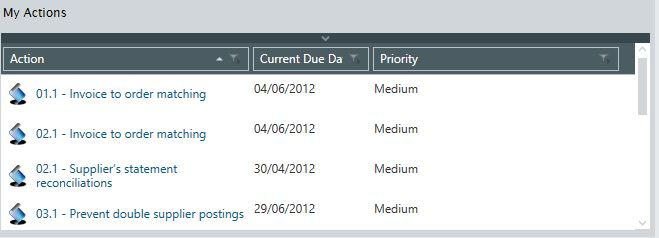
My Actions
Using the My Audits widget
This widget enables you to:
- Launch an audit
- Launch in a new tab
- Check out

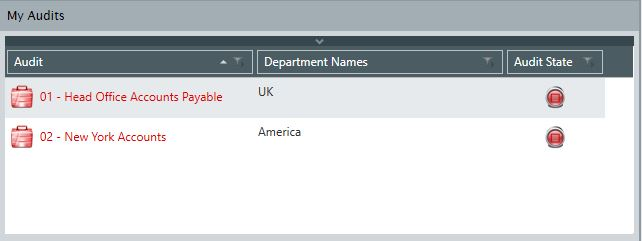
My Audits
Using the My Incidents widget
This widget shows a summary of your open incidents.

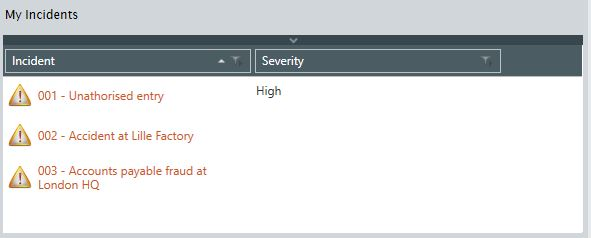
My Incidents
Using the My Milestones widget
This widget shows a summary of milestones when:
- The milestone actual date is empty
- Audit Leader, Audit Manager, or Audit Director is the current user
- The milestone planned date is less than or equal to today plus 30 days

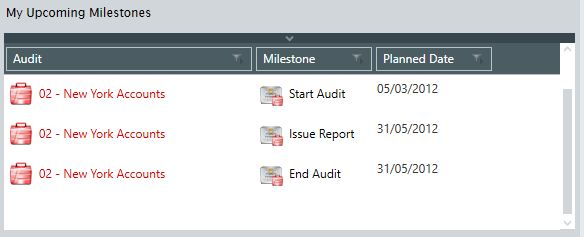
My Upcoming Milestones
Using the My Open Time Sheets widget
This widget shows a summary of your open time sheets.

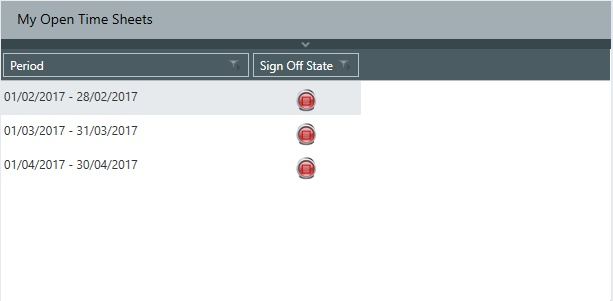
My Open Time Sheets
Using the My Points widget
This widget provides a summary of points where you are the owner and those you have raised.

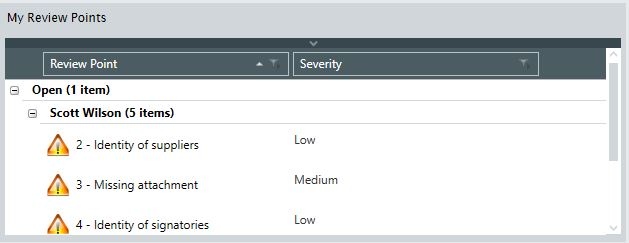
My Review Points
Using the My Reserved Files widget
This widget shows the current attachments you have reserved. You may launch, commit, or discard from this widget. If a file is reserved, a prompt message will appear when you try to exit the software.

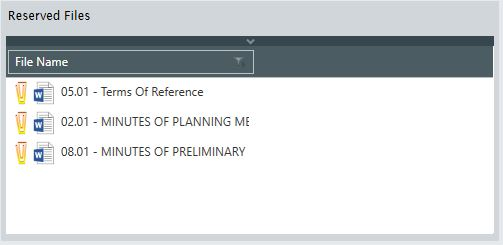
Reserved Files
Using the My Team's Completed Time Sheets widget
This widget shows a summary of completed time sheets where you have been allocated as a user's manager.

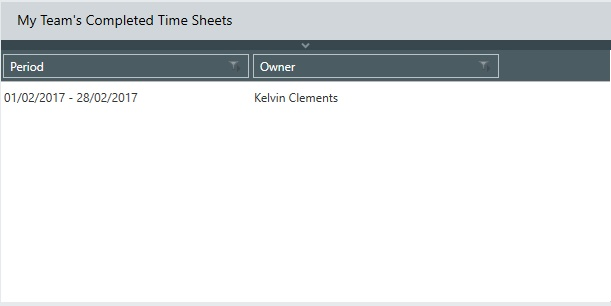
My Team's Completed Time Sheets
Using the My Details widget
This widget provides a summary of your roles and previous login time.

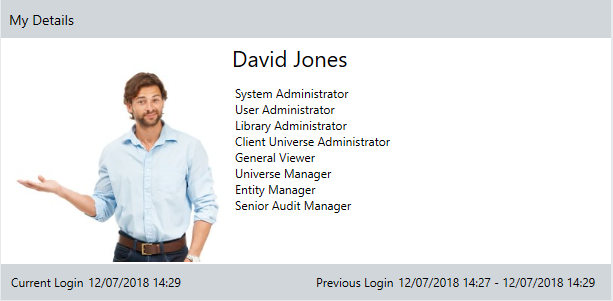
My Details
Using the My Recent Audits widget
This widget shows a history of your 10 most recent audits. Selecting from the list will launch the audit.

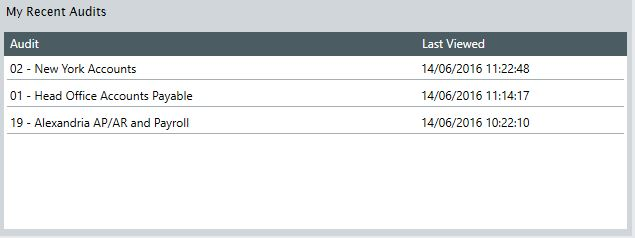
My Recent Audits
Using the My Recent Entities widget
This widget shows a history of your recent entities. Selecting from the list will launch the entity.

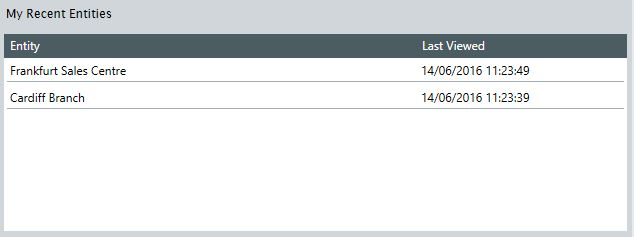
My Recent Entities