New article
Recently updated
Using drag and drop attachments

Who is this article for?who need to attach with drag and drop.
No special access or permissions are required.
Attachments are used throughout the system and allow files to be uploaded and linked to records.
Adding files to the system
Files may be added to:
- Attachment screens
- Reports Library
- Attachments Library
- Audit Reports Library
Dragging and dropping files from Windows Explorer
To add files from Windows Explorer or your desktop:
- Select a file, or multiple files (of a supported type) in Windows Explorer or directly from your desktop.
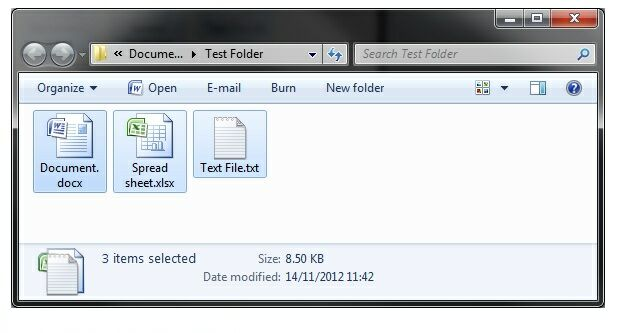
- Drag the file(s) into Pentana.
- Drop them onto a valid record.
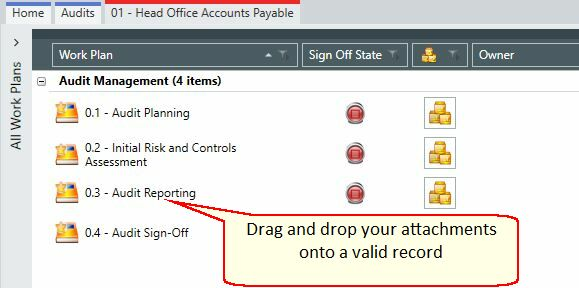
- The attachments will be added to the record subject to your permissions.

Note: If Pentana is hidden behind the window containing the files you wish to drag, you can drag them onto the Pentana task bar icon to give it focus (like you can with other applications).
Dragging and dropping files from Outlook
You can add emails or attachments from Outlook by adding a copy of an entire email message or a copy of its attachments.
To add files from Outlook:
- Drag and drop directly from Outlook as necessary.
Sending attachments from Pentana to Outlook
To send attachments to Outlook:
- Select single or multiple attachments from Pentana.
- Click the email icon within the ribbon.