


New article
Recently updated
Using cut, copy and paste

Who is this article for?who need to records.
No special access or permissions are required.
The cut, copy and paste functionality enables you to move or duplicate records as required.
Accessing cut, copy and paste commands
These commands are available in two locations:
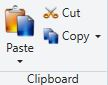
- On the Clipboard toolbar within the ribbon
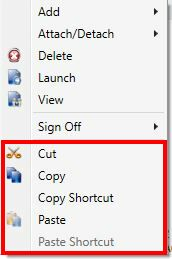
- On a right-click mouse menu
Copying and pasting records
To duplicate a record:
- Select the record you want to copy (for example, a Work Plan).
- Click Copy from the toolbar.
- Keep the record selected and click Paste.
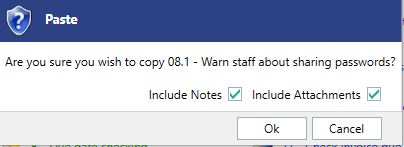
- Click Yes in the confirmation message to proceed.
Note: The system does not permit you to cut, copy and paste between levels (Library, Audit and Entity). Use the Get From functionality instead.
Copying and pasting attachments outside the system
You can copy attachments from Pentana and paste them into another application.
To copy attachments outside the system:
- Right-click on an attachment (you can select single or multiple attachments).
- Select Copy.
- Click Yes in the confirmation prompt.

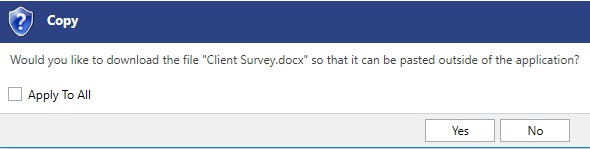
The files are physically downloaded from the server to your computer (a progress bar is shown). Once completed, they become available to paste directly into another application such as Windows Explorer or Outlook.
If you click No, you can paste the attachment to another record within Pentana.

Understanding cut, copy and paste behaviour
- Business rules and permissions are robustly applied at the point of a paste
- Child records are automatically included (for example, the child steps for a Work Plan), as when performing a Get From
- Newly created records are always Open, even if the originals were Completed or Approved
- You can copy multiple records of the same type at once by using multi-select and then choosing copy
- You can paste onto multiple records of the same type at once by using multi-select and then paste (this creates multiple new records)
- A cut and paste will effectively allow you to move a record
- Copy Shortcut and Paste Shortcut are related to the Cross References functionality