


New article
Recently updated
Understanding the Pentana and Retain integration features

Who is this article for?who needs to know about retains.
Audit level permissions are required.
This article describes the integration features between Pentana and Retain (staff planning) and Retain Time (actual time recording).
Understanding staff integration

When you add a staff member in Pentana, a corresponding resource is created in Retain.
- The attributes assigned to the staff member in Pentana are also added to the resource record in Retain
- Custom staff fields in Pentana can be exposed for resources in Retain if desired
- The Retain user login and role can be optionally entered in Pentana and synchronised into Retain
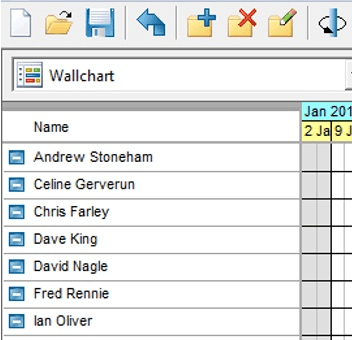
Where staff are added through Pentana, the corresponding resources are read only in Retain to safeguard data integrity. You must modify staff details in Pentana and the changes will automatically flow through into Retain.
Resources added directly in Retain are not created in Pentana and can be maintained fully in Retain. This facility is useful if you want to create dummy resources in Retain to temporarily assign bookings against.
If you delete a staff member from Pentana, the corresponding resource is soft deleted in Retain to preserve the historical information.
Pentana has no concept of staff skills; these are maintained fully within Retain.
Understanding audit integration

When you add an audit in Pentana, a corresponding job is auto-created in Retain.
- The attributes of the audit in Pentana are set against the corresponding job in Retain
- Custom audit fields in Pentana can be exposed for jobs in Retain where desired
- The start and end dates of the Retain job are auto-set based on the planned start and end milestones for the audit in Pentana
- The start and end dates are represented via cross-hatching in Retain Wallchart
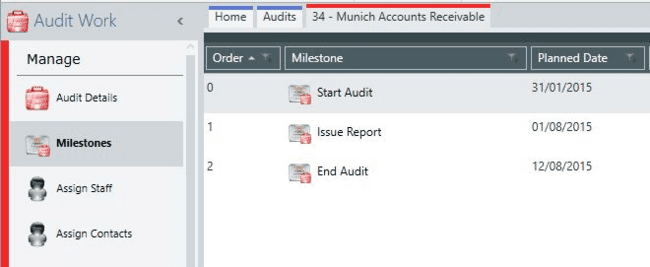

When audits are added through Pentana, the corresponding jobs are read only in Retain to safeguard data integrity. You must modify audit details in Pentana and the changes will automatically flow through into Retain.
Jobs added directly in Retain are not created in Pentana and can be maintained fully in Retain. Jobs added in Retain will typically include non-tasks such as holiday, training, and part-time non-working.
If you delete an audit from Pentana, the corresponding job is soft deleted in Retain to preserve the historical information.
Managing staff assignments and bookings

When you assign staff to an audit in Pentana, this automatically creates ghost bookings (planned but unconfirmed bookings) into Retain.
- Booking start dates and lengths are determined from the planned start date of the audit and budget time of each staff assignment respectively
- The Retain booking start date is set to the audit planned start date
- If no budget time is set in Pentana, this booking is of one-day length
- If an assignment is given a value for budget time, then the booking duration corresponds to that value
- Retain planners can convert the ghost bookings into real bookings at their discretion
Where you modify an existing staff assignment in Pentana, the outcome in Retain depends on whether changes have been made to the corresponding booking in Retain:
- If the booking still has the same status (ghost) and start date, the system assumes that it is acceptable to have its length changed by an update to budget time in Pentana
- If the booking has been moved or its status has been changed (from ghost to confirmed), then changes to the assignment in Pentana will not cause the booking to be updated
Where you remove a staff assignment in Pentana, the Retain booking is not automatically removed.
Where you modify an audit planned start date, the start dates of any existing bookings in Retain are not automatically adjusted.
Where you modify a booking directly in Retain, this will not automatically update the audit planned start date or assignment budgeted time; it will only affect the calculated planned time as described below.
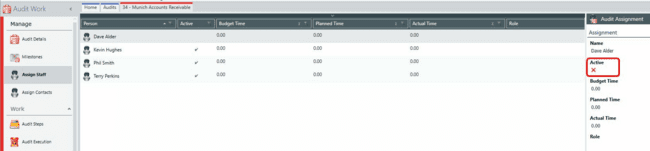
Booking a resource against a job in Retain will auto-assign the staff member to the audit in Pentana if not yet assigned. In this instance, the staff member will initially be marked as inactive for security purposes and to preserve historical data. Specifically:
- Where a new audit assignment is auto-created through Retain or Retain Time entries, it will initially be flagged as inactive to prevent people being granted access simply through the existence of bookings or actual time entries
- If you want to grant access, then you must set the assignment to active in Pentana
- Marking an assignment as inactive will remove access permissions (for those users who are limited to assigned audits/entities only) while preserving any budget/plan/actual data
Non-standard configurations are available (contact Pentana Support if required) where:
- An audit assignment is always set as active as a result of a booking made in Retain
- If all of a person's bookings on a given audit are removed (or re-assigned) in Retain, the corresponding audit assignment is set back to inactive
- The Ideagen Internal Audit Aura planned start date is updated automatically if the bookings are moved forward/back or added/deleted
Understanding budget, plan and actual time

Budget, planned and actual times are stored against the audit assignment records (by person/audit) as follows:
- Budget time is entered directly in Pentana
- Planned time is calculated from Retain bookings (if present)
- Actual time is calculated from Retain Time entries (if present)
The audit details screen in Pentana displays the rolled-up totals for the audit as follows:
- Budget time – total of budget times entered directly within Pentana for the audit
- Planned time – total time of confirmed bookings entered against the audit in Retain Wallchart
- Actual time – total actual times recorded against the audit in Retain Time
These three fields are the sum of the corresponding fields in the audit assignment screen.
The totals are automatically rolled up and reportable by and across audits in the relevant screens.
A non-standard configuration is available (contact Pentana Support if required), where the Pentana budget time stays in sync with the total number of bookings (including ghost bookings) in Retain for that job.
If set, the audit assignment budget time will recalculate whenever a booking is added, edited or removed for the corresponding resource/job, that is, when:
- A booking is added in Retain
- A booking is moved (in time) in Retain
- A booking is moved (between people) in Retain (which requires two people to be updated)
- A booking is deleted in Retain
The budget time will be set to the total amount of time booked for that resource/job, including ghost bookings.
This is the same calculation as planned time except that one excludes ghost bookings.
The budget time will remain editable in Pentana (this behaviour will just reset it each time a booking is made).
The budget time at audit level is still the total of all assignments so is unaffected by this change.
Following the integration workflow

To use Pentana:
- Define audits (which adds them to Retain).
- Set the audit budget effort (that is, total amount of time required).
- Assign staff or contacts to audits (which will create the ghost bookings).
To use Retain:
- Optionally move the ghost bookings around.
- Create other ghost bookings if required.
- Confirm the ghost booking(s).
- Enter any other planned time (which will be pushed back to Pentana, see below).
- Record the actual time spent (which will be pushed back to Pentana, see below).
- Create resource records for new users added in Pentana.
- Create job records for new audits created in Pentana.
To use Pentana:
- Compare the budget, planned and actual time for each person.
- Compare the budget, planned and actual time for the entire audit.
Reviewing default Pentana to Retain mappings

The following two tables provide confirmation over the default Retain field mappings for Ideagen Internal Audit Aura and Pentana staff.
Ideagen Internal Audit Aura |
Retain Job |
RetainID |
JOB_ID |
Name |
JOB_DESCR |
Ref |
JOB_REF |
Title |
JOB_TITLE |
Description |
JOB_DESCRIPTION |
ScopeNames |
JOB_SCOPENAMES |
Purpose |
JOB_PURPOSE |
StartMilestone.PlannedDate |
JOB_START |
EndMilestone.PlannedDate |
JOB_END |
StartMilestone.ActualDate |
JOB_ACTUALSTARTDATE |
EndMilestone.ActualDate |
JOB_ACTUALENDDATE |
PlannedEffort |
JOB_PLANNEDEFFORT |
ActualEffort |
JOB_ACTUALEFFORT |
Confidential |
JOB_CONFIDENTIAL_BIT |
ReportMilestone.ActualDate |
JOB_ACTUALREPORTDATE |
Conclusion |
JOB_CONCLUSION |
Client |
JOB_CLIENTNAME |
PlanState |
JOB_PLANSTATENAME |
AuditState |
JOB_AUDITSTATENAME |
Director |
JOB_DIRECTORNAME |
Manager |
JOB_MANAGERNAME |
Leader |
JOB_LEADERNAME |
Type |
JOB_TYPENAME |
Period |
JOB_PERIODNAME |
Rating |
JOB_RATINGNAME |
SignOffState |
JOB_SIGNOFFSTATENAME |
ReportMilestone.PlannedDate |
JOB_PLANNEDREPORTDATE |
OrgUnit1Names |
JOB_ORGUNIT1NAMES |
OrgUnit2Names |
JOB_ORGUNIT2NAMES |
OrgUnit3Names |
JOB_ORGUNIT3NAMES |
OrgUnit4Names |
JOB_ORGUNIT4NAMES |
EntityNames |
JOB_ENTITYNAMES |
ProcessArea1Names |
JOB_PROCESSAREA1NAMES |
ProcessArea2Names |
JOB_PROCESSAREA2NAMES |
ProcessArea3Names |
JOB_PROCESSAREA3NAMES |
ProcessArea4Names |
JOB_PROCESSAREA4NAMES |
ProcessNames |
JOB_PROCESSNAMES |
GUID |
JOB_TEXT1 |
AuditState.ID |
JOB_AUDITSTATEID |
DepartmentNames |
JOB_DEPARTMENTNAMES |
Pentana Staff |
Retain Resource |
RetainID |
RES_ID |
Name |
RES_DESCR |
RES_EMAIL |
|
Title |
RES_TITLE |
Forenames |
RES_FORENAMES |
Initials |
RES_INITIALS |
Surname |
RES_SURNAME |
Active |
RES_ACTIVE_BIT |
RoleNames |
RES_ROLENAMES |
DepartmentNames |
RES_DEPARTMENTNAMES |
Job |
RES_JOBNAME |
Type |
RES_TYPENAME |
GUID |
RES_TEXT1 |
StartDate |
RES_SDATE |
EndDate |
RES_EDATE |
RetainUserLogon |
RES_USRLOGON |
RetainUserRole.RetainID |
RES_USR_ID |