New article
Recently updated
Managing milestones in the library

Who is this article for?
Users managing milestones within the library.
Manage Library Milestones and Manage Library Steps permissions are required.
The Milestones Library allows you to manage unlimited milestone templates that automatically populate into audits when created, with each template supporting both planned and actual dates.
Milestone templates
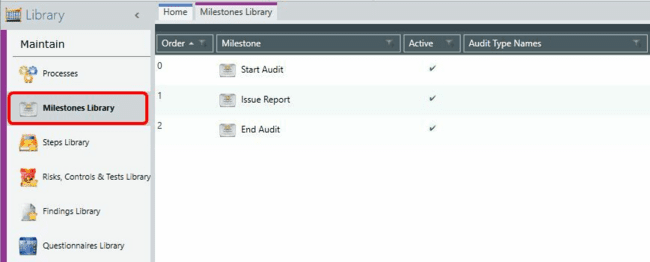
A default library of milestones is supplied with Pentana which you can modify to match key dates within your organisation. Based on their Audit Type, milestone templates are automatically populated into an audit when it is created.
Each milestone date has a special meaning:
- Start Audit for audit scheduling
- Issue Report date for action tracking
- End Audit for scheduling purposes
Note
Set up your milestones before your users begin to add audits, since they are copied into each audit on creation. Within an audit you can select a milestone and refresh missing ones from the library.
Configuring template properties
A milestone template has the following properties to edit:
- Order – number to help with sequencing
- Name – name of milestone
- Guidance – rich-text to support full
- Has Offset – true/false flag
- Offset – integer (expected number of elapsed days since previous milestone). When the milestone with an Order = 0 is set the other ones are updated using the offsets
- Progress – this can be filtered by the audit coverage screen
- Audit Types – Audit Type indicating which types the milestone applies to. Left blank the milestone will apply to all audits
- Active – true/false (set to false when no longer used but not deleted for historic reasons)
Linking milestones to work plan and step templates
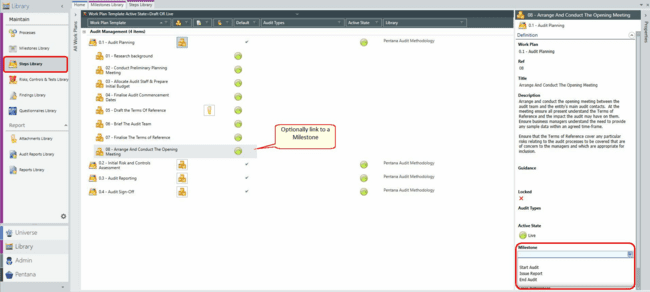
There is an optional link between Work Plan and/or Step Templates and Milestone Templates. When an item is Completed within an audit, it automatically sets the corresponding Milestone Actual Date.
You may change the mandatory Sign Off rule (system settings) for the update Audit Milestones to also be on their Approval.