


New article
Recently updated
Managing accounts in the library

Who is this article for?
Users managing accounts within the library.
No elevated permissions are required.
The Accounts screen allows you to set up the financial accounts your organisation requires for claims and representations, such as the US GAAP Chart of Accounts.
Understanding accounts and account groups
Accounts can be grouped together into bespoke Account Groups. You can make a selection of sub-groupings from the Account Sub Groups Segmentation.
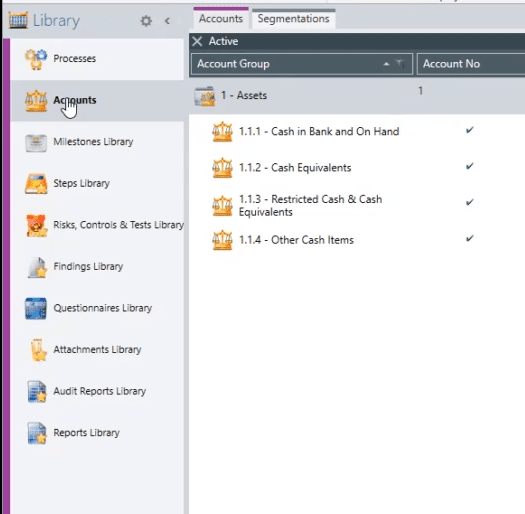
When working within an Audit, an Accounts field is available on Processes, Risks, and Controls. You can link each of these objects to as many Accounts as appropriate.
Adding an account or account group
To add an account or account group:
- Go to Library.
- Select Accounts.
- Select Add from the General toolbar in the ribbon.
- Complete the new information in the properties panel.
- Save your changes.
Note
Account Groups have no parents and go at the top level. Accounts must have an Account Group parent. You may also right-click and select Add > Add Account/Account Group from the drop-down menu.
Configuring account group properties
When creating or editing an Account Group, complete the following fields:
- Ref - reference number for the Account Group
- Title - a title for the Account Group
- Account No - identifying information
- Type - the options in this field are controlled by the Account Group Types segmentation
- Description - a text description of the Account Group to provide more context to its use
- Active - only active Account Groups will be available to navigate when selecting Accounts within an Audit
Configuring account properties
When creating or editing an Account, complete the following fields:
- Group - the Account Group that is this Account's parent
- Sub Group - the sub-group to which this Account belongs
- Ref - reference number for the Account
- Title - a title for the Account
- Account No - identifying information
- Balance - typically Cr or Dr to indicate a credit or a debit (the options in this field are controlled by the Account Balances segmentation)
- Category - the options in this field are controlled by the Account Categories segmentation
- Description - a text description of the Account to provide more context to its use
- Active - only active Accounts will be available to select when selecting Accounts within an Audit