


New article
Recently updated
Managing the questionnaires library

Who is this article for?
Users managing the questionnaires library.
No elevated permissions are required.
The questionnaires library allows you to create and manage structured collections of questions, ranging from simple surveys to complex IT controls questionnaires.
Understanding questionnaires
Questionnaires can vary from simple surveys like Audit Satisfaction Surveys to complex ones such as detailed IT Controls Questionnaires. This feature is ideal when:
- The structure, questions, and allowed answers are predefined (default answers may be provided)
- Questions activate or deactivate based on previous answers
- Users cannot add new questions during the audit
Important
We strongly recommend specific training in the authoring of questionnaires before you attempt to create your first questionnaire. Please contact your account manager to discuss this.
Working with questionnaire sets
Pentana questionnaires are organised into Sets, which can be grouped by family and department. Each set may include various questionnaires and multiple versions.
Questionnaires in a set share sources, linking to reference documents like audit standards or internal procedures. The source description supports rich text, allowing hyperlinks and bookmarks.
Specific paragraph or clause references are added at the individual question level.
Understanding questionnaire structure
A questionnaire is a structured set of (optionally) logic-based questions with various answer options. Questions can be reviewed and include findings and attachments, similar to steps and tests. Questionnaires serve as intelligent workplans, acting as logic-based versions of traditional audit checklists (ICQs), while also fulfilling the standard questionnaire function.
Important
A questionnaire can be fully edited only in draft mode. When live, only some question properties can be changed. Once closed, it cannot be edited or accessed via the 'Get' menu.
Configuring questionnaire details
Each questionnaire consists of a number of key elements which are accessed through the left-hand navigation pane.
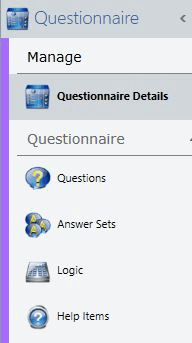
The questionnaire details provide key information about the checklist that will be visible to the user within the questionnaire management screen and when they get the questionnaire into an audit:
- Name - Each questionnaire should be given a unique title when taken in conjunction with the version number.
- Version - A questionnaire version number is important in providing users with information and controlling the update of default questionnaires within audits.
It is possible to have more than one version of a questionnaire live at the same time.
Important
To take full advantage of questionnaire versioning within the checklist you should use the roll-forward facility.
- Active State - Questionnaires may be either Draft, Live, or Closed. The following table summarises some of the effects of the active state of the specific questionnaire version.
When a questionnaire is set to live an integrity check will be run. This ensures that there are no issues that would affect the answering of the questionnaire, including issues with question logic. The integrity check can also be run separately at any time during the authoring process. Any issues with the checklist are recorded directly to the clipboard and can then be pasted into a suitable application, such as notepad, for follow-up. A questionnaire cannot be set to live if it fails the integrity check.
| Draft | Live | Closed | |
| Get into Audit | No | Yes | No |
| Edit Questions | Yes - Full | Yes - limited | No |
| Answer Questionnaire | No | Yes | Yes* |
*If a questionnaire imported into an audit is closed, it remains available for answering. When a new questionnaire version is marked live and set as default, users can choose to update their copy but are not required to do so.
- Default - Marking a questionnaire as default will cause it to automatically populate into audits of the selected type (or all audits if no type has been selected) when those audits are set to open.
Only one live version of the questionnaire can be marked as default. A questionnaire cannot be set as default until it has been set as live.
Marking a new live version of the questionnaire as default will result in users who open earlier versions of the questionnaire being prompted to update the checklist to the latest version. They will not be forced to do so. - Audit Types - If no value is set for audit types the questionnaire will be available for all audits.
If one or more value(s) is set for audit types the questionnaire will only be available for those specific audit types. This works in conjunction with the default flag to bring questionnaires into specific audit types when they are set to open. - Description - Rich text field available for a description of the questionnaire.
- Notes - Rich text field available for any additional notes that should be recorded against the questionnaire.
- Cross References - Any cross references that have been added against the questionnaire.
Creating and managing questions
In the same way that the questionnaire answering screen is split into sections the authoring screen for questions is split into three sections:
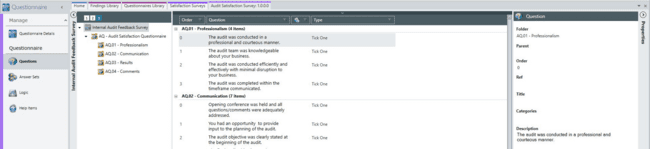
Using the section and folder navigator
Questionnaires can be divided into sections to group related questions and enable tailoring.
Important
The tailoring section is key for logic-enabled questionnaires. Logic in later sections can reference answers from the tailoring section, but not between other sections. The tailoring section must be first and contain common information used by subsequent sections. Note: Sections are ordered by their number.
Sections can be organised with nested question folders.
Each section requires a 'root' folder as the parent for all other folders. Questions are placed within these folders.
Working with the main grid
The main grid shows the checklist as it will appear in the answering interface.
You cannot change the question order on the main grid. Otherwise, it functions like other checklist sections, letting authors customise and save their preferred view.
Setting question properties
The question properties panel captures the key information for a question, as follows:
- Folder
- Parent - Questions may be structured to have an overall parent item which then has individual questions within it.
- Order - Questions will be presented within their parent question folder according to the order value.
- Ref - (Optional) Question reference.
- Title - (Optional) Question title.
- Categories - (Optional) This allows for multiple categorisation values (such as 'New' or 'Critical') to be recorded against a question and subsequently available for a user answering an audit questionnaire to filter on.
- Description - This is the actual text of the question that will be displayed. This field is rich-text.
- Type - There are a number of available question types:
| Type | Default | Answer Set | Description | Answering |
|---|---|---|---|---|
| None | √ |
| No response required. | Press Enter. |
| Tick-One |
| √ | Select one of the answers (radio buttons) | Click or use the first letter of the answer word. |
| Tick-Many |
| √ | Select one or more of the answers (tick boxes) | Click or use the first letter of the answer word. |
| Boolean |
|
| This is a tick box. | Click or use the space bar to answer. |
| Integer |
|
| A whole number. | Numbers. |
| Decimal |
|
| A decimal number. | Numbers. |
| Date |
|
| A date with a calendar drop down. | Numbers or use the calendar. |
| Text |
|
| A simple string. | Keyboard. |
- Answer Set - Where a Tick One or Tick Many type is selected an answer set must also be selected. The answer set defines the allowed answers for that question.
- Hidden - Flag indicating if the question is hidden, regardless of any logic statements that may be applied.
- Logic Statement - Indicates the condition(s) under which this question will be displayed. Uses logic titles that have been defined against preceding questions.
If no logic statement is provided then the question is always displayed in the questionnaire.
Logic statements can be as simple or as complex as is required. Standard logic operators (And/Or/Not) can be used with parenthesis to build the most complex queries.
Important
Logic statements can only reference logic titles that precede the selected question in the checklist. In addition logic within a section can only reference logic titles from that section or from the tailoring section, if one has been defined.
Examples
Example 1
Question1="Yes"
Will show the question if a Yes answer is given to the question with the logic title Question1. In this case Question1 is a tick one question.
Example 2
Question1[Yes]=True
Again a Yes answer is selected for Question1, but in this case Question1 is Tick Many.
Example 3
Question1="Yes" Or Question2="Yes"
Both Question1 and Question2 are tick one questions. This question will be shown if either Question1 or Question2 (or both) are answered Yes.
- Logic Title - For a question to be available to be used in subsequent logic statements it must be given a unique logic title within the questionnaire.
- Source Item - Facility to add references to individual items within specific sources that are relevant to this question.
- Help Items - You can provide the end user with additional help and information using different types of help items.
- Answer
- Comments - This field is rich-text.
Defining answer sets
Answer sets can include as many options as needed.
Each answer requires a unique name, order, type (see below), and optional score.
Answer types: Normal, Alert, or Problem. These help filter questions and analyse responses. Use Normal generally, Problem for policy/statutory breaches, and Alert for answers needing review attention.ociated with an answer within an answer set. The score information is available through the analysis screen.
Creating logic statements
You can create individual logic statements here as shortcuts to reuse in multiple questions, avoiding repetition. Each logic item requires a unique title beginning with an underscore (_).
Construct the logic statement as you would for any question logic.
Important
As logic statements are not associated with particular sections care must be taken to ensure that a logic statement does not reference questions in multiple non-tailoring sections. We recommend only using individual logic statements with reference to questions in the tailoring section.
To use a logic item in a question use the title of the logic item alone. If the item evaluates to True then the question will be shown, just as if the logic expression it contains was directly against the question.
Examples
Example
Instead of repeating:
(Question1='Yes' Or Question2='Yes')
You could use:
_Q1orQ2
with the logic for _Q1orQ2 being the above statement.
Adding help items
Help items offer extra information, such as explanations, guidance, or examples. Each item requires a unique title, type, and description.
Help items support rich text, allowing formatted text and hyperlinks for better user support.