


New article
Recently updated
Managing findings in the library

Who is this article for?
Users managing the findings library.
Manage Library Findings permissions are required.
The Findings Library provides a centralised location to create and manage finding and action templates that can be reused across audits.
Understanding findings
The Findings Library screen summarises all finding and action templates, including:
- Work Plan and Step templates (WS)
- Objective, Risk, Control and Test templates (ORCT)
- Standalone Finding Templates (not linked to any record)
You can also attach, move, or detach a Finding Template from a parent ORCT or WS, making it standalone if needed.
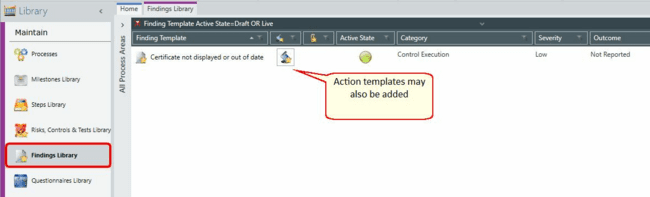
Adding a library finding
When adding a finding to a library item during an audit, you can choose from active Live library finding templates if available.
Once added, findings can be edited as usual. If linked to a Work Plan or Step, assign the finding to a specific Entity or Process.
To add a library finding:
- Go to Library.
- Switch to Steps Library or Risks, Controls and Tests Library.
- Right-click an item to which you want to add the library finding.
- Select Add from the menu.
- Complete the finding information in the properties panel:
- Process
- Departmental Library
- Ref - reference number for the finding
- Title - a title for the finding
- Description - the body of information for the finding
- Recommendation - a recommendation based on the finding
- Category - assign the finding to a specific category to group findings (pick list is editable in segmentations)
- Severity - specify the severity of the finding (pick list is editable in segmentations)
- Outcome - select whether you wish the finding to appear in reports
- Outcome Comments
- Guidance - guidance to help users apply the finding within an audit
- Active State - only active library findings will be available to select from when adding findings within audits
- Cross References - create a link to a related record within the system
- Click Save.