


New article
Recently updated
Managing role-based permissions

Administrators needing to configure permissions.
Administrator permissions are required.
Users can be assigned roles for various application areas, like audits and the central library. Each role has specific rules to manage functions within the app.
Data access can be restricted globally (e.g., limiting users to part of the overall data) or individually (e.g., assigning users to specific audits or tasks).
Accessing permissions
A default role in the properties can be configured for staff and contacts.
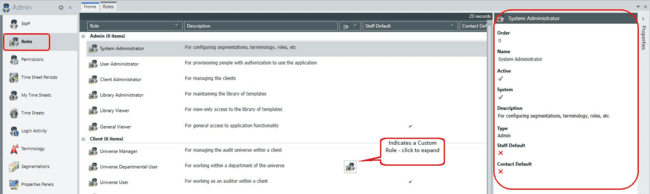
Editing roles
To edit a role:
- Go to Admin.
- Select Roles.
- Double-click on a role to edit its values in the properties panel.
- Update the Name (the name of the role).
- Update the Description (description of the role).
- Click Save to apply your changes.
Permission types
Admin roles
Admin roles provide system-level access and configuration capabilities:
- System Administrator for configuring segmentations, terminology, roles, and other system settings
- User Administrator for provisioning people with authorisation to use the application
- Library Administrator for maintaining the library of templates
- Library Viewer for viewing the library templates
- Client Administrator for managing the clients
- General Viewer for general access to application functionality
- Business Viewer for general business access to application functionality, especially in the Web UI
Audit roles
Audit roles control access and responsibilities within individual audits:
- Senior Audit Manager for managing all aspects of an audit
- Audit Manager for cross-over of managerial and performance of an audit
- Auditor for performance of an audit
- Junior Auditor for limited performance of an audit
- Business Auditor for business participating in external audits
- Audit Viewer for view-only access to an audit
Client roles
Client roles control access within a client's audit universe:
- Universe Manager for managing the audit universe within a client
- Universe Departmental User for working within a department of the universe
- Universe User for working as an auditor within a client
- Universe Business Manager for business manager access to the universe
- Universe Business User for business user access to the universe
- Universe Viewer for view-only access within a client
Entity roles
Entity roles manage access to risk registers and entity-level functions:
- Entity Manager for managing the risk register and other functions for an entity
- Entity Business Manager for business managing the risk register and other functions for an entity
- Entity User for owning risk register items within an entity
- Entity Business User for business owning risk register items within an entity
- Entity Viewer for view-only access within an entity
Unassigned roles
An optional default role can be set for when a person is not specifically assigned to an entity or audit:
- Client Universe available only in multi-client mode
- Entity when not assigned to an entity
- Audit when not assigned to an audit
Note
If blank, a system value can be configured or it will default back to a person's default role.
Adding custom roles
To create a custom role:
- Right-click on the parent role.
- Select Add Role from the menu.
- Click OK when prompted to confirm.
- Wait for the system to complete adding the new role (this may take several minutes as the server updates).
- Review the new role in the data grid as a child record to its parent.
- Configure the role properties as needed.
Available properties for custom roles:
- Order - enter a number to represent where in the list you wish the item to appear
- Name - give the role a name (which will also appear on the permissions screen)
- Active - select whether the role is active or not
- System - read-only field used for business rules
- Description - a description of the role (rich text format)
- Type - read-only field
- Staff Default - true or false flag
- Contact Default - true or false flag
Note
Once created, a custom role will act in the same way as any of the standard roles provided with the application.