


New article
Recently updated
Managing area-based permissions

Who is this article for?
Administrators needing to configure permissions.
Administrator permissions are required.
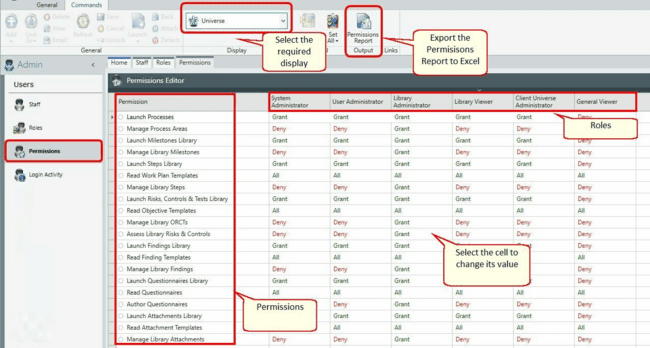
You can manage all permissions in one place to configure each role within the system and control what users can access and do.
Accessing permissions
Active custom roles are displayed automatically.
To change permission levels:
- Select the required Display.
- Go to Permissions.
- Use the Search function to locate the permissions you need.
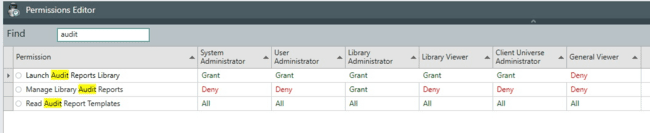
- Sort the columns as needed.
Editing permissions
To edit permissions:
- Click a cell once.
- Choose a value from the dropdown.
The cell background will highlight to indicate a change from the default. - Click Save.
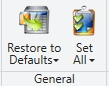
You can also select a permission and use Set All or Restore Defaults in the ribbon.
Important
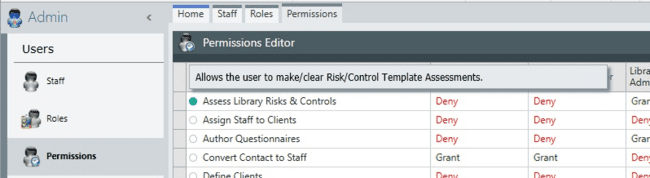
Permissions will have a significant impact on users' functionality and should be applied logically to the system.
Permission types
The Permissions matrix follows general patterns across Universe, Client, Entity, and Audit levels. Below are common permission terms, plus some specific to certain items. Not all apply to every item.
Common permissions
- Launch - Grants access to screens with the item; without it, the item is hidden in menus.
- Read - Allows viewing the item.
- Add - Allows creating new items.
- Define - Permits editing fields in the Definition section of the properties panel.
- Confirm - Changes item status from Opened to Confirmed; Definition section becomes read-only.
- Assign - Allows assigning the item to owner(s).
- Vary - Permits changing assignments.
- Execute - Allows editing fields in the Execution section.
- Complete - Changes status from Confirmed to Completed; item remains editable.
- Review - Enables adding reviews or Points to an item.
- Approve - Changes status from Completed to Approved; item becomes read-only.
- Undo - Reverses sign-off states (e.g., Undo Approved).
- Delete - Allows item deletion.
Additional permissions
- Open - Changes status from Draft to Open, unlocking more properties.
- Close - Changes status from Approved to Closed.
- Assess - Allows adding assessments.
- Get - Permits adding items from other objects.
- Manage - For library items; allows creation and maintenance.
- Respond - Allows editing fields in the Response section.
- Scope - Allows setting the item's scope.
- Take - Permits checking items offline (checkout).
- Map - Allows linking Entity Processes.
- Address - Permits editing Points.
- Lock/Unlock - Allows locking or unlocking items.
- Export - Allows exporting an audit as read-only.
Own permissions relate to the item's Owner field.
Others permissions usually apply to changing states (Open, Confirmed, Completed, Approved). A user who completes a record cannot approve it.
Staff and contact permissions
Permissions controlling staff (contact) records include:
- Launch Staff (or Contacts)
- Manage Staff (or Contacts)
- Manage Staff Roles
- Manage Identities
- Manage Staff allows adding and editing records with the default role.
- Manage Staff Roles is needed to edit staff roles.
- Manage Identities grants login permission to staff.
Role-based spine items
To restrict access for Business Users and junior Auditors, you can show or hide spine items using Roles.
This also allows you to hide entire functionality blocks (e.g., Risks and Controls) by denying module access to all Roles.
Each spine item has a Launch Permission in the Roles module, applicable at Universe, Client, Entity, or Audit levels, set as Grant or Deny.
By default, Staff-like Roles have full access, while Contact-like Roles are restricted from some Client/Universe modules and all Library/Admin modules.
Client and definition sign off modes
The application supports Single or Multi client modes. There is always a client present; in Single client mode, it is hidden in the UI, but the Read Clients permission still applies.
Definition sign off (Prepared and Confirmed) can be disabled or set to On or Forced. When On, Prepared and Confirmed are enabled, and Execution is accessible. When Forced, Execution is read-only until Confirmed.
Permissions are additive across user roles; if granted in any role, the user has that permission everywhere.
Generating a permissions report
To create a permissions summary, click Permissions Report in the ribbon.
An Excel file is generated, summarising each role's permission values. Use it to document and review permissions easily. Changes from default settings are highlighted.
Troubleshooting issues
Some permissions use a user's Maximum role instead of their Default role, especially those with more than two allowed values. For example, the Audit Execute Actions permission has values None, Own, and All.
Therefore, when configuring Roles, ensure permissions increase or remain the same as roles become more senior. This prevents users from having a permission in their Default role but not in their Maximum role.