


New article
Recently updated
Customising terminology and creating aliases

Who is this article for?
Administrators looking to customise system terminology.
Administrator permissions are required.
The terminology screen allows you to create aliases for commonly used words throughout the system, customising the interface to match your organisation's preferred language.
Terminology screen
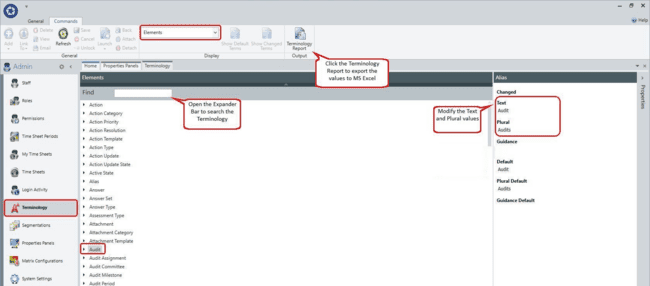
The terminology screen consists of Elements and an Alias property window.
Using the display toolbar, you may select one of three modes:
- Elements
- Property Grid Section Headers (e.g. Definition, Management, Execution)
- Navigation items (Navigation pane headers and spine items)
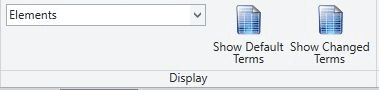
Display options
You can filter and view terminology using the following options:
- Show Default Terms - When toggled on, this option changes the element tree to show the original (default) aliases before they were changed. This is useful if you know the default term is 'Audit' and want to know what new alias it has
- Show Changed Terms - When toggled on, this option filters the element tree to only show aliases that have been changed
- Export to Excel - You can output all terminology to an Excel report
Note
For some changes to take effect, the system must be restarted.
Element tree
Each element may be expanded as a data tree to show the possible alias values.
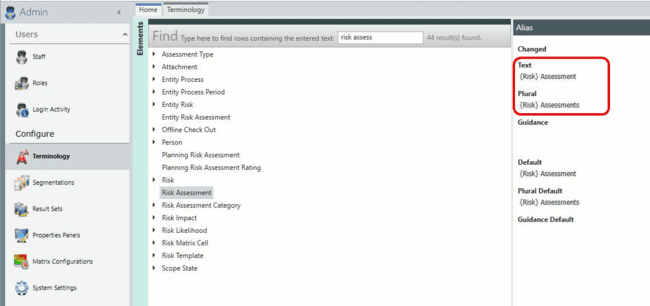
Where items are marked within { } brackets, they will automatically display the linked parent alias.
Changing terminology
To create or modify a terminology/alias:
- Go to Admin.
- Select Terminology.
- Select the required Display mode (Elements, Property Grid Section Headers or Navigation Items).
- Select the record on the data grid (open the data tree if necessary).
- Expand the properties box on the right side of the screen to reveal the following fields:
- Changed - This field updates automatically. By clicking on the tick, you will see an option to return to default which sets the alias back to its default value
- Text - The alias that will appear instead of the default text
- Plural - The plural version of the alias
- Guidance - Specific guidance to be entered for appearing as tool-tip text when you hover over the element name
- Default - The original/default text value
- Plural default - The original/default plural value
- Guidance default - The original/default guidance text
- Click Save.