


New article
Recently updated
Managing time sheet periods

Who is this article for?
Administators managing time sheet periods for users.
Administrator permissions are required.
Time sheet periods define the timeframe over which time is recorded, signed off and analysed, with each period having a start date, end date and active state (draft, live or closed).
Adding time sheet periods
You can add time sheet periods individually or use the wizard to add multiple periods based on months, weeks or days.
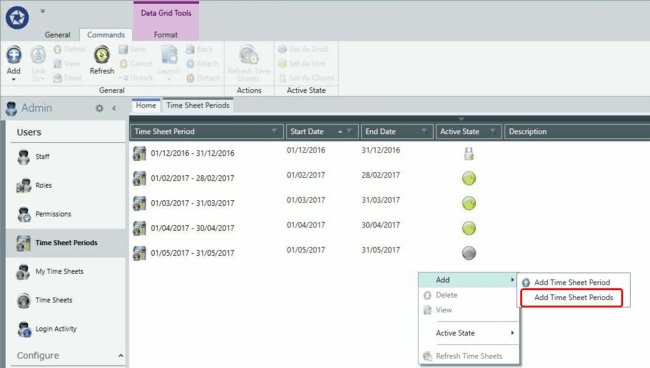
To add multiple periods using the wizard:
- Right-click and select Add Time Sheet Periods from the drop-down menu.
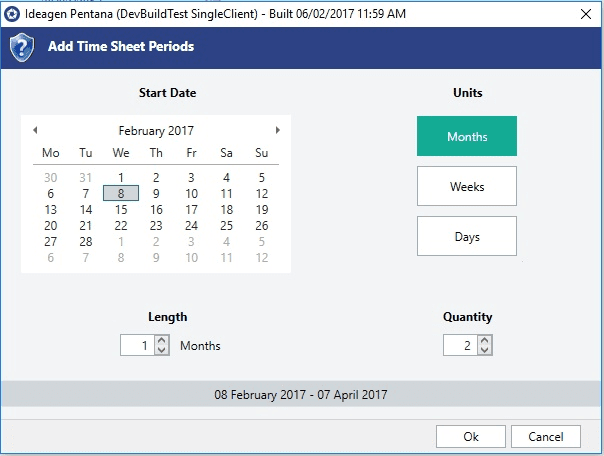
- Select the required start date.
- Choose the units for length (Months, Weeks or Days).
- Enter the quantity.
- Select OK.
Refreshing time sheets
Use this option to update all selected time sheet periods and create new time sheets for users who do not have one, provided they have the time sheet option selected in their staff or contact properties.
To refresh time sheets:
- Select the time sheet periods you want to update.
- Choose the Refresh Time Sheets option.
Managing period states
You can multi-select periods to change their current state between draft, open and closed.
Important
You cannot close a period until all associated time sheets are approved.
Note
You cannot overlap start and end dates for each period.