New article
Recently updated
Recording time in My Time Sheets

Who is this article for?
Users managing their timesheets.
No special access or permissions are required.
The My Time Sheet screen enables you to record hours spent on audits and non-audit tasks, providing management with reports comparing planned versus actual time by person, audit, or department.
My Time Sheets
The My Time Sheet screen enables you to:
- Record the number of hours spent on non-audit Tasks (e.g. travel, holiday). The available tasks are typically added during configuration in the Time Sheet Tasks segmentation
- Record the number of hours spent working on each audit on each day
- Assign an optional Component against each audit. The available components are typically added during configuration in the Time Sheet Components segmentation
- Enter rich text Notes to justify each time sheet line if required
- Mark each sheet as completed (there is no option to individually complete time sheet lines)
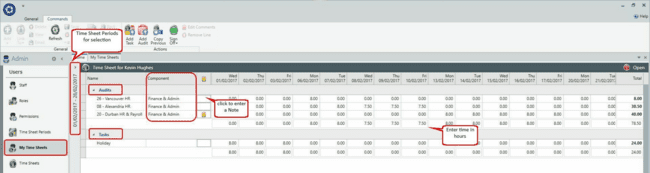
The Audits and Tasks are shown separately on the grid with a summary of totals by row and column. You can additionally Copy a Previous time sheet, remove lines, and edit comments where appropriate.
While working with time sheets:
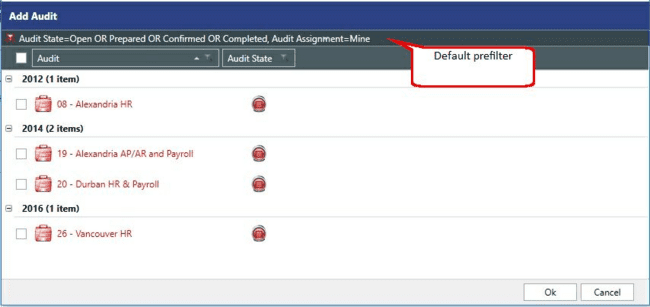
- You can modify the default prefilter as necessary
- You may add the same audit more than once to record a different component if necessary
- While an audit can appear on any time sheet, you are prevented from making any new bookings once an audit is approved
- You can export the time sheet to Microsoft Excel
Each time sheet line represents the time recorded by one person on one Task / Audit - Component on a given day.
These allow for up to two decimal places so that time amounts as small as 15 minutes (0.25 hours) can be recorded.
Adding tasks and audits to your time sheet
When you open a Time Sheet for the first time (in a new period) it will be empty except for any Tasks which are marked as Default.
To add tasks and audits to your time sheet:
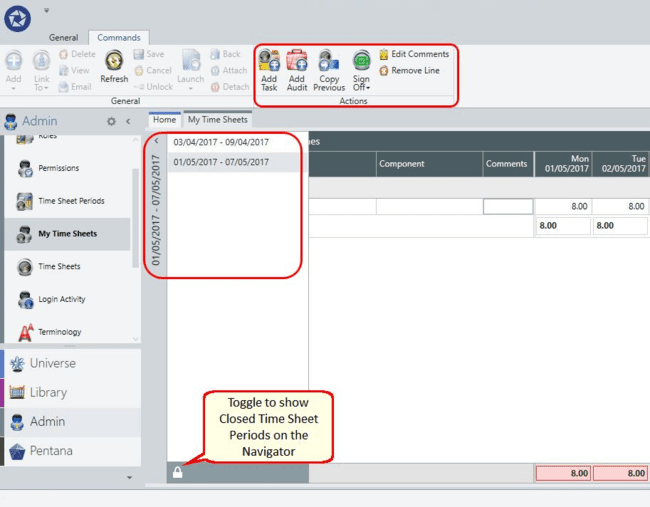
- Select the correct time sheet period (shown in the vertical navigator).
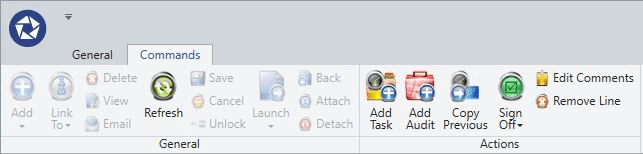
- Select Add Task or Add Audit from the ribbon.
Note
A toggle is available to show closed time sheet periods on the navigator. Draft time sheet periods are hidden at all times.
- The Add Audit option opens a wizard to select one or more audits. You can only record time on audits assigned to you.
- Choose Add Audit for each component, even within the same audit.
- Click Save.
Removing lines from your time sheet
If you have made an error on a line or added too many lines, use the Remove Line icon.
Validation warnings
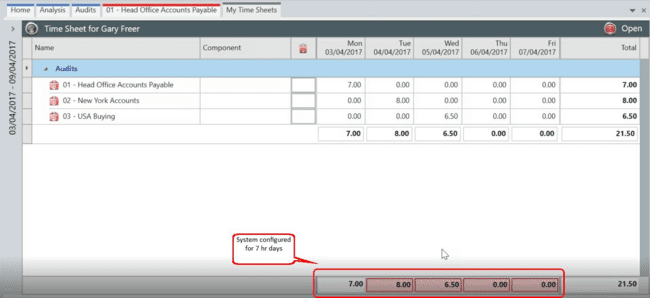
The screen provides a visual warning with a red background where validation rules have not been met.
In the example below, the time sheets have been configured for a seven-hour day and the visual indicator shows which days do not have the right amount.
Completing your time sheet
To complete the time sheet, select Sign Off from the ribbon.
Using time sheet widgets on the home screen
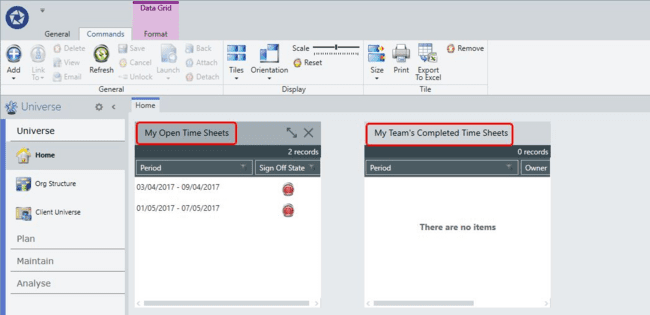
You may optionally select My Open Time Sheets and My Team's Completed Time Sheets on the home screen.