


New article
Recently updated
Associating staff to organisational units and departments

Who is this article for?
Administrators responsible for managing staff.
Administrator permissions are required.
You can associate staff members to organisational units and departments to control their access and visibility within the system.
Understanding organisational unit associations
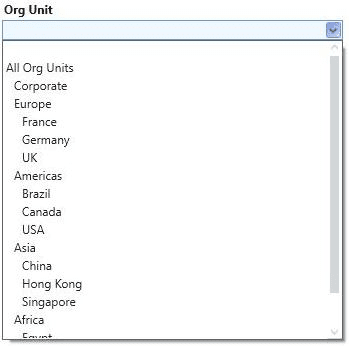
Each person can be linked to one organisational unit, which acts as their root node. Instead of seeing all units, they only see their node and its subunits. The Org Unit field is optional; if left blank, the person sees the entire organisation.
With the right permissions (Read Entities = Org Unit), users can be restricted to viewing and defining entities within their unit. However, if Read Entities is set to Org Unit but the Org Unit field is empty, the user cannot access any entities. Assigning an appropriate unit resolves this.
Contacts can also be assigned to an organisational unit.
Note
This functionality is not available in a multi-client implementation. In that case, a person will be assigned to a client where they will be able to view the entire organisational structure.
Understanding department associations
Audits, people, and actions can be associated to departments, and access permissions can be optionally restricted by department. For example, the permission to Read Audits can be set to None, Assigned, Department, or All.
If the permission is set to Department, the user will only see:
- Audits that match their department
- Audits to which they have been specifically assigned
- Audits that have no department
When a user creates an audit, it will default to match the departments of the person creating it.
Adding a photo to a user profile
The User Administrator can upload photographs for each user.
To upload a photo:
- Go to Admin.
- Select Staff.
- In the properties panel, click the ... button next to Photo.
- Upload an image in JPEG format.