New article
Recently updated
Using forms-based authentication and LDAP integration

Who is this article for?
Administrators responsible for managing staff.
Administrator permissions are required.
This article explains how to set up forms-based authentication and use Lightweight Directory Access Protocol (LDAP) integration to manage user access and streamline staff record creation.
Understanding forms-based authentication
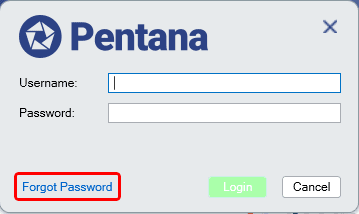
Forms-based authentication prompts users for their username and password to access the system or web module. Contact your system administrator to ensure forms-based authentication has been enabled, as the system default method for authentication is Windows-based.
Adding a forms-based authentication identity
To add a forms-based authentication identity:
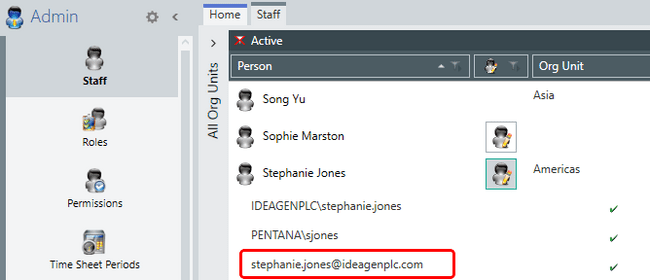
- Ensure the user has a valid email address added as an identity (the email address is the corresponding username that must be entered when they log in).
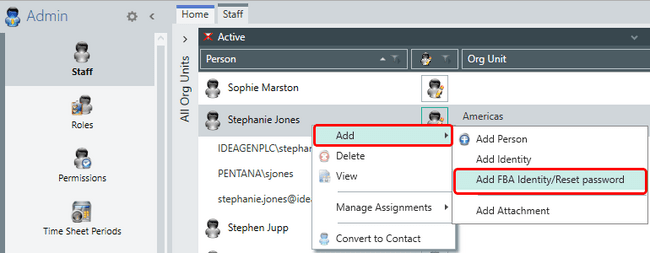
- Right-click and select Add.
- Select Add FBA Identity/reset password.
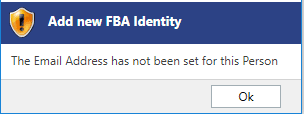
The system may prompt you to add an email address if not set for the person.
Once a forms-based authentication identity has been added, the system will automatically send an email to the user confirming how they can set their password and log in. If a user forgets or wants to change their password, they can use the forgotten password functionality available from the login screen.
Understanding LDAP integration
Internal Audit LDAP integration streamlines the creation and maintenance of staff and contact records by allowing account creation through searches across multiple corporate directories.
LDAP-synchronised attributes ensure Internal Audit holds up-to-date information, enhancing data quality, consistency, and security by linking LDAP attributes to organisational and departmental roles.
The integration is flexible, with settings to control which LDAP attributes are mapped and separate options for user and contact records.
Internal Audit supports both UNIX-based LDAP servers and Microsoft Active Directory integration.
Note
The activation and configuration is outside the scope of this article. Contact Internal Audit Support for assistance with the LDAP Integration Technical Setup Guide.
Working with LDAP-enabled features
With LDAP enabled, Internal Audit allows you to add staff or contacts directly from your corporate directories. During configuration, your directory fields are mapped to Internal Audit fields. These mapped fields then become read-only. A user's roles within Internal Audit can be modified, but these may change with the next LDAP sync.
LDAP integration provides the following benefits:
- Staff and contacts can be imported with their identity rather than having to add this afterwards
- Staff and contacts can be imported from LDAP in bulk rather than individually
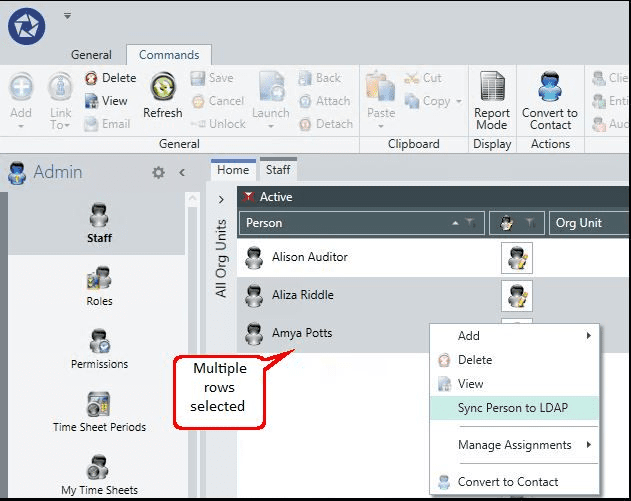
- Staff and contacts can be synchronised from LDAP in bulk (by multi-selecting and choosing Sync person)
Note: The synchronisation can be configured to run automatically on your server. Contact Internal Audit Support for more information if this feature is required.
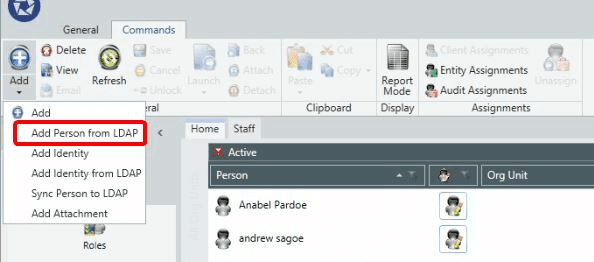
Adding a user from LDAP
To add a user from LDAP:
- Select the required directory from the drop-down list (more than one directory can be configured).
- Enter a search string (as configured within your Active Directory).
- Press the Search button.
- Select the user from the list (wait for the list to populate).
- Tick if you want to include the identity (if this is not shown and required, contact Internal Audit Support for assistance with the correct mapping configuration).
- Select the OK button to add the user.
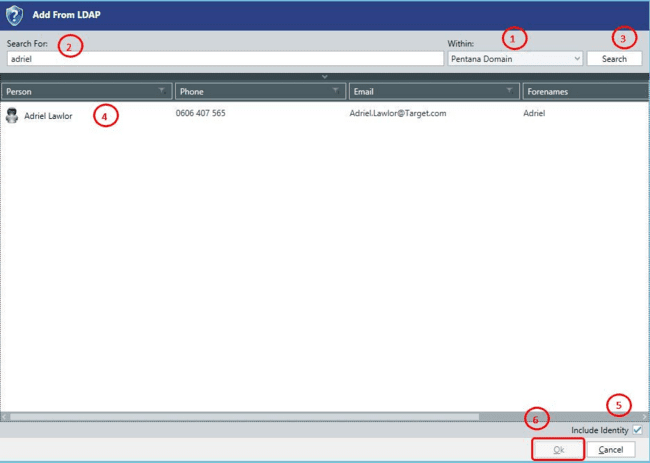
Internal Audit will report an error if any mandatory fields cannot be populated from Active Directory. For example, the First Names field is required.
When a person is added to Internal Audit, the Unique ID field is automatically populated within the properties panel.

An error will be reported if an attempt is made to add the same person twice.
Managing user identities and synchronisation
Once a person has been successfully added, you may add their identity.
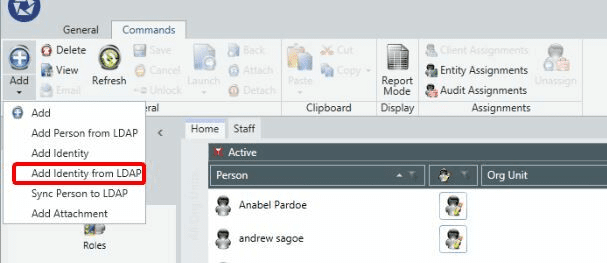
You may also synchronise the person (roles may be overwritten).
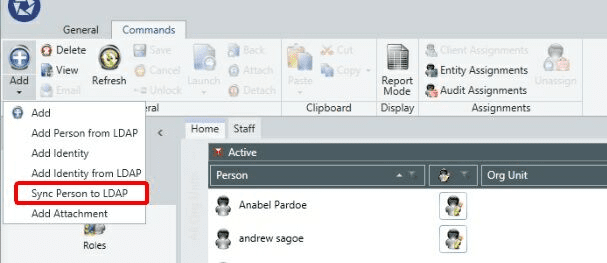
Performing bulk operations
You may add, delete, and sync users in bulk using the standard methods of selecting multiple rows on the data grid.