


New article
Recently updated
Managing staff assignments

Who is this article for?
Administrators responsible for managing staff.
Administrator permissions are required.
You can manage staff assignments to audits, entities, and clients from the Staff screen.
Assigning staff
When a staff member is selected from the data grid, you can use the ribbon commands to assign users to clients, entities, and audits to which they are not currently assigned.
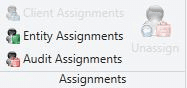
To assign a staff member to an audit:
- Select the staff member from the data grid.
- Select Audit Assignments from the ribbon.
- Tick the box next to the audit you want to assign.
- Select OK to apply the changes.
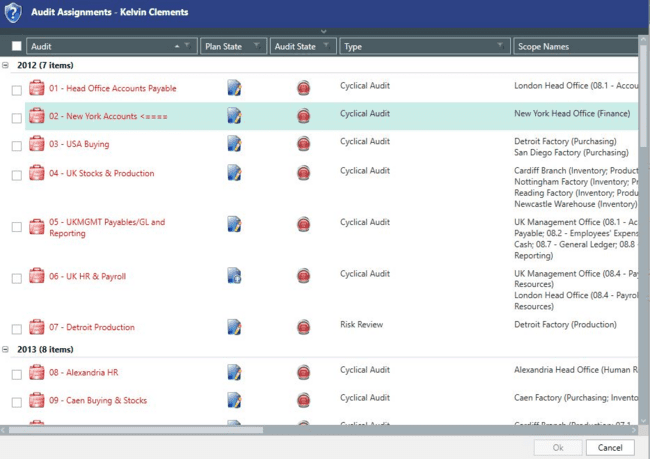
The same process applies for assigning staff to entities and clients.
Viewing staff assignments
The staff data grid has child grids for each user that show the audits, entities, timesheets, and clients they are assigned to.
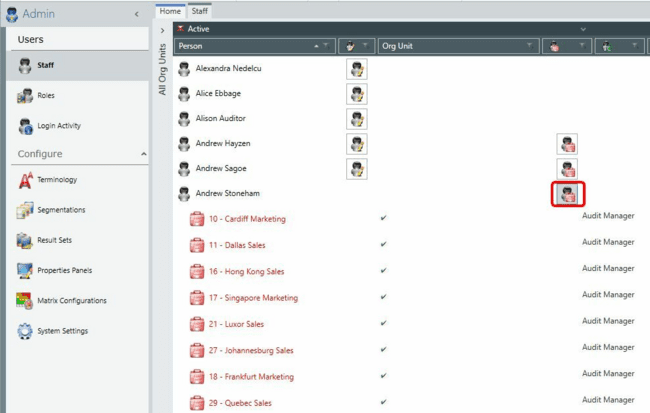
To expand a child grid:
- Select the relevant icon next to the staff member's name.
The child grid displays all current assignments for that user.
Unassigning staff
To unassign a staff member:
- Select the staff member from the data grid.
- Expand the relevant child grid.
- Select the record you want to unassign.
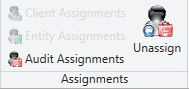
- Select Unassign from the ribbon.
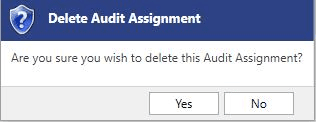
- Select Yes in the warning message to confirm.
Note
It is not possible to remove existing assignments in bulk.
Active and inactive assignments
When you unassign a user from an audit, entity, or client, the system checks whether the user has been assigned to specific objects within that item. For example, a user may be assigned to a test within an audit.
If you unassign a user from an audit within the Staff screen, and the user has existing assignments to objects within that audit, the user's assignment will be set to inactive rather than removed completely. This inactive flag has the same effect as unassigning the user but does not break any business rules.