


New article
Recently updated
Using rich text formatting

Who is this article for?
Users looking to format text within the system.
No special access or permissions are required.
Ideagen Internal Audit allows for richly formatted text in many of its string data fields, enabling you to use basic formatting such as bold, italics and bullet points.
Rich text formatting
The Rich Text Format (often abbreviated as RTF) is a proprietary Microsoft product for cross-platform document interchange. The associated hidden mark-up required greatly increases the size of the data compared to what would be required for the equivalent plain text. The performance impact of this is negligible as long as the rich text fields are used sensibly.
Note: Although Rich Text fields support pasting entire documents (Word, Excel, images), it is best to upload such files as attachments, especially for large records (tens of megabytes). Large Rich Text data can cause display issues and slow performance, particularly on mobile or slow connections.
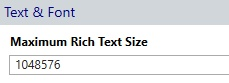
The Maximum Rich Text Size within System Settings can be changed to limit the amount of data entered (bytes) - the default value is 1Mb.
Tab key
You can use the Tab key to move down the fields in the Properties Panel and enter data as appropriate. This will allow you to enter a relatively small amount of text quickly and efficiently.
Accessing the full screen editor
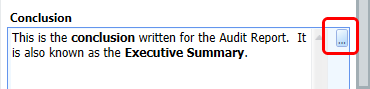
To access the full screen rich text editor, click the ellipse button.
The full screen editing window is displayed in conjunction with a Ribbon and drop-down menu. These enable you to cut, copy, paste and insert tables together with modifying font and paragraph settings. In summary they provide:
- Extended Text Formatting
- Extensive Table Support
- Character and Paragraph Formatting
- Numbered Lists
Closing the editor and saving changes
To close the editor:
- Press the keyboard Escape key or use the Close option (top left of the Ribbon).
- Save the properties panel to save your changes.
The editor will not automatically close when you make a save to allow you to make further edits if required.

Formatting toolbar
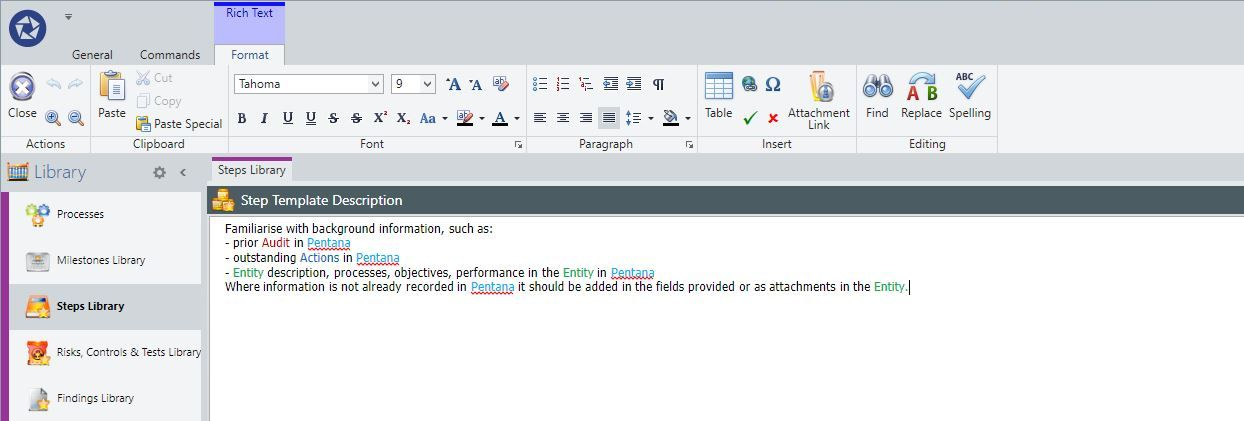
Features include:
- Close
- Undo, Redo
- Zoom In, Zoom Out
- Cut, Copy, Paste, Paste Special
- Font, Size, Grow, Shrink, colour, Clear formatting
- Bold, Italic, Underline, Strike-through, Super and Sub Script, Change Case
- Bullet Points, Numbering, Indents, Show Paragraph Marks
- Paragraph Justification, Line Spacing, Shading
- Table, Hyperlinks, Symbols
- Insert Tick and Cross
- Find and Replace
- Attachment Link - when editing a Rich Text field (e.g. Test.Description) there is now a Link to Attachment option to allow you to quickly insert a hyperlink to an Attachment which has already been added to the same record. Available on Audits, Processes, Objectives, Risks, Controls, Tests and Entities. Clicking the hyperlink will ONLY work if the default browser is set to Edge or IE
Keyboard shortcuts
The table below displays the various keyboard shortcuts available from within the Format tab within the Rich Text Editor, in order of sections within the Ribbon from left to right.
| Operation | Command Key Combination | Alt Key Combinations |
| Actions | ||
| Save | [Ctrl] + [S] | - |
| Close Editor | [Esc] | [Alt] + [F] + [L] |
| Select All | [Ctrl] + [A] | - |
| Undo | [Ctrl] + [Z] | - |
| Redo | [Ctrl] + [Y] | [Alt] + [F] + [D] |
| Zoom In | - | [Alt] + [F] + [Z] |
| Zoom Out | - | [Alt] + [F] + [1] |
| Clipboard | ||
| Paste | [Ctrl] + [V] | [Alt] + [F] + [V] |
| Paste Special | [Ctrl] + [Alt] + [V] | [Alt] + [F] + [P] |
| Cut | [Ctrl] + [X] | - |
| Copy | [Ctrl] + [C] | - |
| Font | ||
| Change Font | - | [Alt] + [F] + [FF] |
| Change Font Size | - | [Alt] + [F] + [FS] |
| Advanced Font Options | [Ctrl] + D | [Alt] + [F] + [FO] |
| Grow Font | [Ctrl] + [Shift] + [.] | [Alt] + [F] + [FG] |
| Shrink Font | [Ctrl] + [Shift] + [,] | [Alt] + [F] + [FK] |
| Clear Formatting | [Ctrl] + [Space] | [Alt] + [F] + [E] |
| Bold Text | [Ctrl] + [B] | [Alt] + [F] + [B] |
| Italic Text | [Ctrl] + [I] | [Alt] + [F] + [2] |
| Underline Text | [Ctrl] + [U] | [Alt] + [F] + [3] |
| Double Underline Text | [Ctrl] + [Shift] + [D] | [Alt] + [F] + [4] |
| Strikethrough | - | [Alt] + [F] + [G] |
| Double Strikethrough | - | [Alt] + [F] + [5] |
| Superscript | [Ctrl] + [Shift] + [=] | [Alt] + [F] + [6] |
| Subscript | [Ctrl] + [=] | [Alt] + [F] + [7] |
| Change Case | - | [Alt] + [F] + [AN] |
| Text Highlight Colour | - | [Alt] + [F] + [8] |
| Font Colour | - | [Alt] + [F] + [FC] |
| Paragraph | ||
| Paragraph Options | - | [Alt] + [F] + [AA] |
| Bullet Points | - | [Alt] + [F] + [U] |
| Numbered List | - | [Alt] + [F] + [N] |
| Multi-level list | - | [Alt] + [F] + [M] |
| Decrease Indent | - | [Alt] + [F] + [AO] |
| Increase Indent | - | [Alt] + [F] + [AI] |
| Show/Hide Markup | [Ctrl] + [Shift] + [8] | [Alt] + [F] + [W] |
| Align Text Left | [Ctrl] + [L] | [Alt] + [F] + [AL] |
| Align Text Centre | [Ctrl] + [E] | [Alt] + [F] + [AC] |
| Align Text Right | [Ctrl] + [R] | [Alt] + [F] + [AR] |
| Justify | [Ctrl] + [J] | [Alt] + [F] + [AJ] |
| Line Spacing | - | [Alt] + [F] + [K] |
| Shading | - | [Alt] + [F] + [H] |
| Insert | ||
| Insert Table | - | [Alt] + [F] + [T] |
| Insert Hyperlink | [Ctrl] + [K] | [Alt] + [F] + [I] |
| Insert Unicode Symbol | - | [Alt] + [F] + [Y] |
| Insert Tick | - | [Alt] + [F] + [9] |
| Insert Cross | - | [Alt] + [F] + [0] |
| Editing | ||
| Find | [Ctrl] + [F] | [Alt] + [F] + [FD] |
| Replace | [Ctrl] + [H] | [Alt] + [F] + [R] |
| Spelling check | - | [Alt] + [F] + [S] |
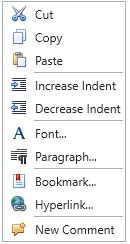
Right-click menu
Once the Rich Text has been created or edited, the record must be saved using the properties panel.
Buddy fields for plain text
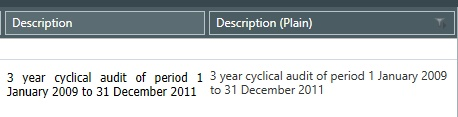
Each Rich Text field has a corresponding Buddy field to contain the plain text equivalent which can then be used for reporting or exporting to an external application which does not support the mark-up language used by the application. The buddy fields can be selected and shown on the data grid by using the data grid column picker.
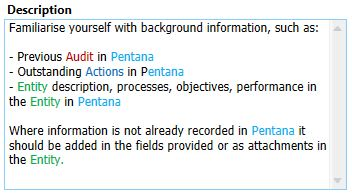
Rich Text Field
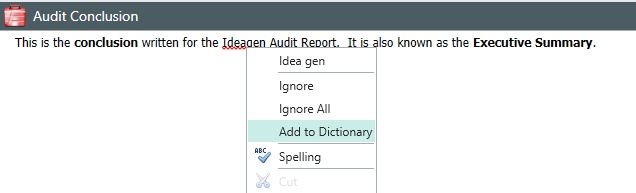
Adding words to your custom dictionary
Each user is able to have their own (private) Custom Dictionary. The custom words are language-specific and apply for spell checking in both plain and rich text fields.
Using paste special
The Paste Special dialogue allows you to paste data from the Clipboard in the selected format.
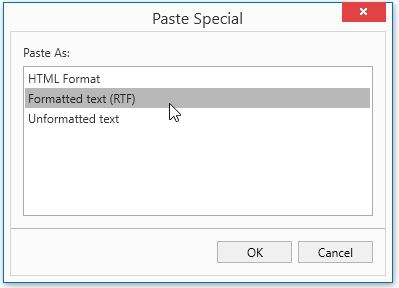
In the dialogue, you can choose the Clipboard data format to paste, as if importing from that format. For example, data copied from Microsoft Word can be pasted as RTF, HTML, or plain text. The available formats depend on the Clipboard and cannot be changed.
- HTML – Used on websites, it stores rich formatting like fonts, tables, colours, and more. Copying from a web browser usually copies HTML format.
- RTF – Rich Text Format offers similar rich features as HTML, though its markup is complex and unreadable.
- Unformatted text – Pastes plain text only, removing fonts, sizes, and colours from rich sources.
- Picture – Pastes the image on the clipboard. Some apps, like Ideagen Internal Audit, copy both image and data (e.g., charts), allowing you to paste either the picture or the underlying data (e.g., into Excel).